

Use VLC when you want a fast audio file from a video, and use Audacity when the audio needs editing, cleanup, or quality checks before export. VLC includes a built-in Convert/Save workflow for media conversion, while Audacity is an audio editor that can import video audio when FFmpeg support is available [source: VideoLAN].
TLDR: VLC is the better pick for a quick video-to-audio conversion, such as turning a 12-minute MP4 meeting clip into an MP3 in a few clicks. Audacity is the better pick when that meeting has background hiss, uneven voices, or dead air you want to remove. As a rough example, a 500 MB video may become a 10–15 MB MP3 at 128 kbps, which is easier to email, archive, or upload. If speed matters, start with VLC; if sound quality matters, start with Audacity.
VLC vs. Audacity: the short answer
VLC Media Player is mainly a playback and conversion tool. It can pull the audio stream from a video and save it as MP3, OGG, FLAC, or another supported format. It is simple, free, and available for Windows, macOS, and Linux.
Audacity is mainly an audio editor. It can open or import audio from many video files if the right audio import support is installed. After that, you can cut, normalize, reduce noise, adjust loudness, and export the final audio.
The catch is that both tools feel a little old-fashioned. VLC hides conversion under menus that do not feel obvious. Audacity can ask for extra setup before it accepts some video formats. Still, both are reliable once you know the steps.
When to use VLC
Use VLC if your goal is plain extraction. For example, you have a lecture recording, webinar replay, interview, security clip, or phone video, and you only need the audio track.
- Best for: quick conversion from video to MP3 or another audio format.
- Skill level: beginner-friendly after the first run.
- Editing tools: very limited.
- Speed: usually fast, depending on the video length and format.
- Risk: choosing the wrong profile can create a file with no sound or the wrong extension.
How to turn video into audio with VLC
- Open VLC Media Player.
- Click Media, then choose Convert / Save. On macOS, use File, then Convert / Stream.
- Click Add and select your video file.
- Click Convert / Save.
- Under Profile, choose an audio format such as Audio – MP3, Audio – FLAC, or Audio – Vorbis.
- Choose a destination folder and file name. Make sure the file extension matches the format, such as .mp3 for MP3.
- Click Start and wait for the conversion to finish.
Honestly, it feels like VLC should make this easier. The conversion window can be vague, and the progress bar is not always clear. On a large file, you may wonder if anything is happening. Give it time before you cancel.
When to use Audacity
Use Audacity when the audio is not ready for use. Maybe the voice is too quiet. Maybe there is fan noise. Maybe the first two minutes are setup chatter. This is where Audacity makes sense.
- Best for: editing, trimming, cleanup, and export control.
- Skill level: moderate, but manageable.
- Editing tools: strong for free software.
- Speed: slower than VLC because you may edit before export.
- Risk: some video imports may fail without FFmpeg support.
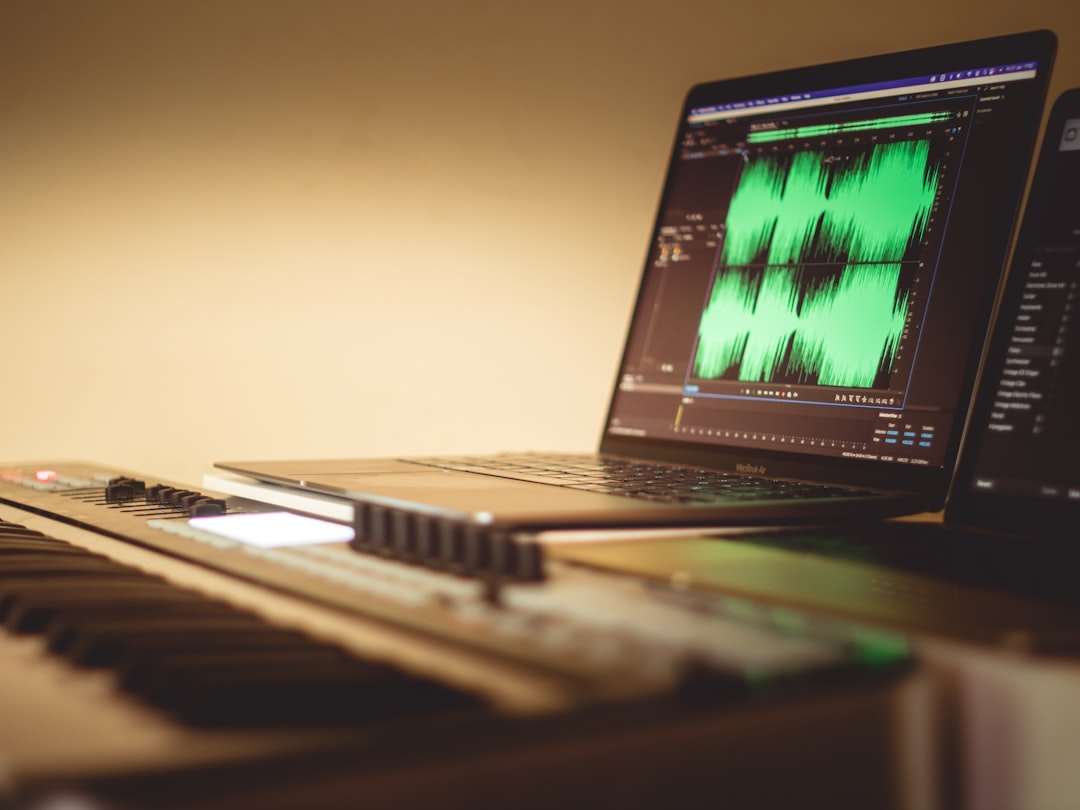
Audacity is especially useful for podcasts, interviews, lessons, voice notes, and social media clips. It lets you see the waveform, which makes cutting silence much easier. That visual control matters when accuracy matters.
How to turn video into audio with Audacity
- Open Audacity.
- Go to File, then Import, then Audio.
- Select your video file. If Audacity supports the file, it will import the audio track.
- If import fails, install or enable FFmpeg support for Audacity, then try again.
- Trim unwanted sections using the selection tool and the Delete key.
- Use effects such as Normalize, Noise Reduction, or Compressor if needed.
- Go to File, then Export Audio.
- Choose MP3, WAV, FLAC, or another format.
- Set quality options, then save the file.
If you only need the raw audio, Audacity can feel like too much work. Expect to waste time on setup if your video format is not recognized right away. But if you need cleaner audio, that extra time is usually worth it.
Audio quality: which tool is better?
Neither tool magically improves bad recording quality. A distorted microphone will stay distorted. A room full of echo will still sound like a room full of echo. The difference is control.
VLC can convert quickly, but it gives you fewer practical controls. You can choose a profile and sometimes adjust codec settings, but it is not built for repair work.
Audacity gives you much more control. You can remove low-level noise, reduce long silences, raise quiet speech, and export at a chosen bitrate. For speech, 128 kbps MP3 is often acceptable. For music, use 192 kbps or higher, or choose FLAC if you want lossless output.
Format choice: MP3, WAV, or FLAC?
Pick the format based on how the audio will be used:
- MP3: the practical choice for sharing, uploading, and storage. Small files. Broad support.
- WAV: best for editing or professional handoff. Large files. No compression loss.
- FLAC: smaller than WAV but still lossless. Good for archiving.
- OGG: efficient, but less universal than MP3.
For most users, MP3 is the safest answer. If you plan to edit later, export a WAV from Audacity first, then make an MP3 copy for sharing.
Side-by-side comparison
| Feature | VLC | Audacity |
|---|---|---|
| Main purpose | Playback and conversion | Audio editing and export |
| Best use | Fast extraction | Cleanup and precise editing |
| Beginner ease | Good, once found | Good, but more detailed |
| Noise reduction | No serious tools | Yes |
| Batch workflow | Possible, but clunky | Possible with macros, not instant |
Common problems and fixes
- The exported file has no sound: check that you selected an audio profile, not a video profile.
- The file will not open in Audacity: install FFmpeg support and restart Audacity.
- The MP3 sounds muffled: export at a higher bitrate, such as 192 kbps.
- The audio is too quiet: use Audacity’s Normalize effect before export.
- The file is too large: use MP3 instead of WAV, or lower the bitrate for speech.
Which one should you choose?
Choose VLC if the source video already sounds fine and you just need an audio file. It is the cleaner choice for speed. It is also better when you do not want to learn editing controls.
Choose Audacity if the audio will be published, transcribed, reused, or shared with clients. It helps you fix problems before they become embarrassing. A few minutes of trimming and loudness adjustment can make a rough recording sound much more professional.
The practical workflow is simple: use VLC for extraction, use Audacity for finishing. If the VLC output sounds good, stop there. If it sounds rough, open that audio in Audacity, clean it up, and export a final version.

What Is the 9:16 Aspect Ratio? Best Video Dimensions for TikTok and Reels
The best video size for TikTok and Instagram Reels is 1080 × 1920 pixels, using a 9:16 vertical aspect ratio….