

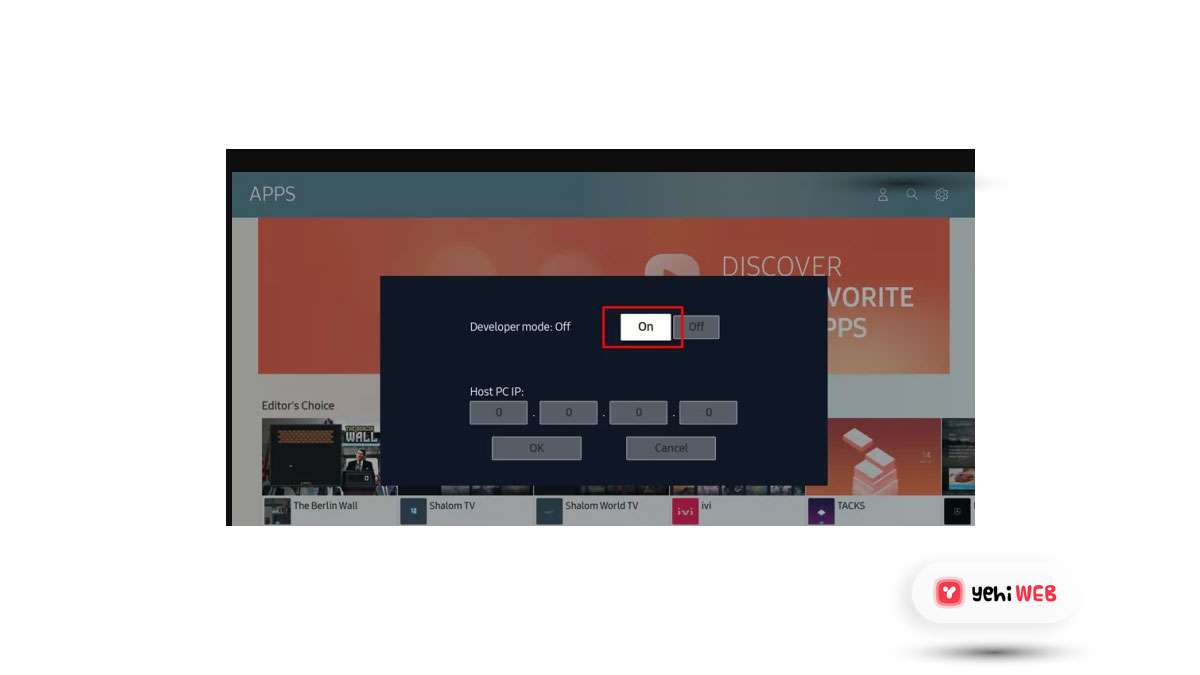
Turn on Developer Mode first; it is the fastest and cleanest way to find a Discord user ID without guessing, searching old chats, or installing random tools. Discord says Developer Mode lets you copy user, server, and message IDs directly inside the app [source: Discord]. That matters because usernames can change, display names can repeat, and old tags are not reliable anymore.
TLDR: The best Discord lookup method is still the built-in Copy User ID option after enabling Developer Mode. For example, if a moderator needs to report a spammer, a user ID such as 80351110224678912 is much more useful than “coolguy92,” which may change tomorrow. In a small server with 500 members, even a 1% impersonation issue means five confusing accounts to sort out. Use lookup sites only to check public profile details, not to expose private data.
1. Discord Developer Mode
This is the default answer for most people. Go to User Settings, open Advanced, then turn on Developer Mode. After that, right click a user and choose Copy User ID. On mobile, tap the profile, open the extra options, and copy the ID from there.
The good part is obvious. It is official, free, and quick. No bot setup. No browser extensions. No shady login pages. The annoying bit is that Discord hides it behind a setting most casual users never touch. It drives me a little crazy that such a basic moderation feature takes extra clicks to enable.
2. Copy ID from a Message
If the user has posted in your server, you can often work from the message instead of the profile. With Developer Mode on, right click the message and copy the Message ID. Then right click the sender and copy the User ID.
This is handy during moderation. A clean report often includes three parts:
- User ID — identifies the account.
- Message ID — identifies the exact message.
- Server ID — identifies where it happened.
That set removes a lot of back and forth. Screenshots help, but IDs are better when staff need to verify what happened.
3. Discord Lookup Websites
Discord lookup sites let you paste a user ID and see limited public information. A common example is a profile preview with username, avatar, account creation time, and sometimes badges. These tools do not magically reveal private chats, email addresses, or IP addresses. If a site claims that, close it.
Use these sites for quick checks. Say someone joins with a blank avatar and posts a weird link. A lookup may show the account was created ten minutes ago. That does not prove guilt, but it gives moderators useful context.
Be careful with fake lookup pages. Never enter your Discord password. Never scan a QR code unless you know exactly what it does. A real lookup tool should only need the ID you paste.
4. Moderation Bots with User Info Commands
Many server bots include a userinfo command. Tools like Dyno, Carl-bot, and similar moderation bots can show a member’s ID, join date, account age, roles, and warning history. This is often faster than clicking around Discord’s interface.
A typical command may look like:
/userinfo @member?userinfo @member!whois @member
The exact command depends on the bot. The value is in the extra server context. You can see if the account joined yesterday, picked up three warnings, and changed its nickname twice. That is useful when a user is causing trouble but trying to appear new.
5. Server Audit Logs and Mod Logs
If you manage a server, check your audit log and mod log channels. These records often include user IDs, especially for bans, kicks, role changes, nickname changes, and deleted message events. It is not glamorous, but it works.
Expect to waste time here if your logs are noisy. Large communities can generate hundreds of entries per day. Good filters help. Search for the username, nickname, or action type. If your moderation bot stores past cases, search the case number too.
This method is best when the person already left the server. Their profile may be harder to access, but older logs may still contain the ID.
6. Snowflake Timestamp Decoders
Discord IDs are often called snowflakes. They contain a timestamp, which means you can estimate when an account, message, or server was created from the ID. Snowflake decoder tools take the ID and convert part of it into a date and time.
This is not a full lookup. It will not tell you who owns an account. Still, it helps confirm whether an ID makes sense. If someone claims to be an old community member but their account ID points to a recent creation date, ask more questions.
What Not to Do
Do not use token grabbers, “IP finder” sites, or tools that ask you to log in with Discord outside the normal OAuth screen. Do not harass users because you found their ID. A Discord ID is useful for moderation, reporting, bot setup, and account checks. It is not permission to stalk someone.
For most cases, use this order: Developer Mode, then message/profile copy, then moderation bots, then lookup or snowflake tools for extra context. Keep it simple. The built-in method solves the job more often than people expect.


ClickUp Card Types: How ClickUp and Trello Organize Work Visually
ClickUp is best when your work has layers. Trello is best when your work feels like sticky notes on a…