


Git is one of the most widely used version control systems in the world, and among its many powerful features, git rebase is often considered both incredibly useful and slightly intimidating for beginners. While commands like git merge are easier to understand at first glance, rebasing provides a cleaner and more organized project history when used correctly. Understanding how it works can significantly improve collaboration and code management.
TLDR: Git rebase moves or reapplies commits from one branch onto another, creating a cleaner, linear project history. Unlike merging, rebasing rewrites commit history instead of creating a merge commit. It is ideal for updating feature branches before merging them into the main branch. However, it must be used carefully, especially on shared branches.
What Is Git Rebase?
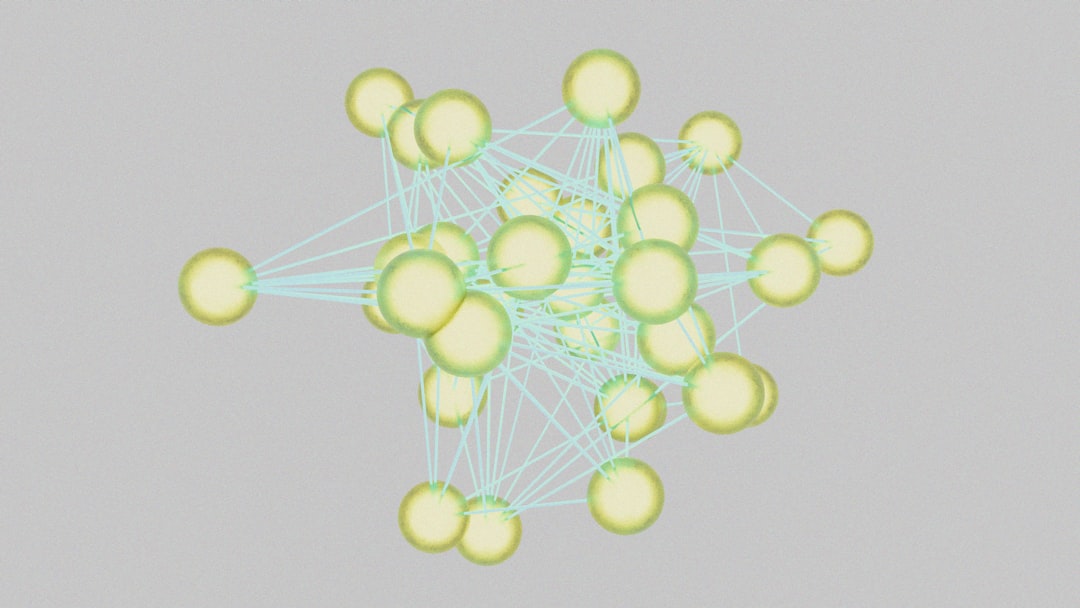
Git rebase is a command that allows developers to integrate changes from one branch into another by reapplying commits on top of a different base commit. Instead of creating a new merge commit (as git merge does), rebasing moves a branch to begin from the tip of another branch.
In simpler terms, rebasing rewrites the project’s history to make it appear as though work began from a different starting point.
For example:
- A developer creates a feature branch from the main branch.
- The main branch continues to evolve with new commits.
- The developer uses git rebase to move the feature branch onto the latest version of main.
This results in a cleaner, straight-line commit history.
How Git Rebase Works
When running:
git checkout feature
git rebase main
Git performs the following steps:
- Identifies the common ancestor between feature and main.
- Temporarily removes the commits made on the feature branch.
- Moves the feature branch to the latest commit on main.
- Reapplies each feature commit one by one on top of main.
This makes it appear as though the feature branch was created from the latest version of main all along.
Git Rebase vs Git Merge
Understanding the difference between these two commands is essential.
Git Merge
- Combines branches together.
- Creates a merge commit.
- Preserves the original branch history.
Git Rebase
- Moves a branch to a new starting point.
- Rewrites commit history.
- Creates a cleaner, linear history.
With merge, the project history may look cluttered with many merge commits. With rebase, it appears more streamlined and organized.

Basic Git Rebase Example
Consider a simple situation:
- Main branch: A — B — C
- Feature branch: A — B — D — E
If the main branch advances to:
- A — B — C — F — G
The feature branch is now behind. Running:
git checkout feature
git rebase main
Transforms the structure into:
- Main: A — B — C — F — G
- Feature: A — B — C — F — G — D’ — E’
Notice that D and E are reapplied as new commits (often labeled D’ and E’), because their history has been rewritten.
When Should Beginners Use Git Rebase?
Rebasing is particularly useful in the following situations:
- Updating a feature branch before merging it into main.
- Cleaning up commit history before pushing changes.
- Avoiding unnecessary merge commits in small projects.
It is commonly used in professional workflows where maintaining a clean commit history is important.
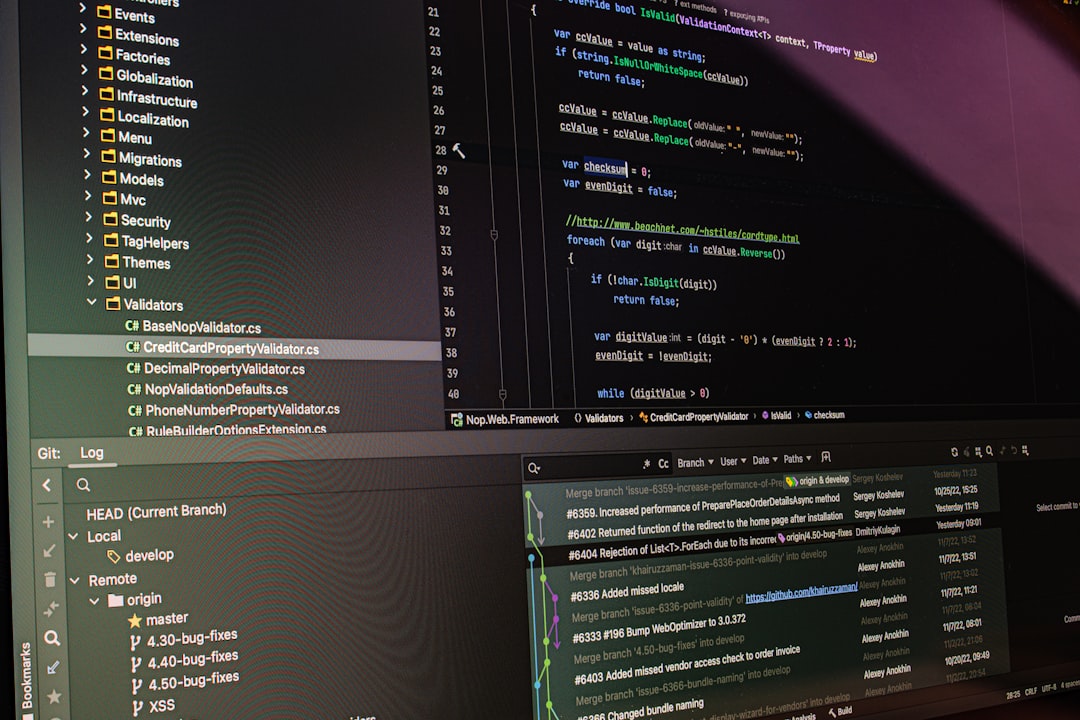
Interactive Rebase: Cleaning Up Commits
One of the most powerful features of rebasing is interactive rebase.
The command:
git rebase -i HEAD~3Opens an editor showing the last three commits. Developers can then:
- Pick – keep the commit as-is
- Reword – change the commit message
- Squash – combine commits
- Edit – modify a commit
- Drop – remove a commit entirely
This allows developers to combine small “fix typo” or “minor update” commits into a single meaningful commit before merging into main.
Handling Conflicts During Rebase
Just like merging, rebasing can result in conflicts if changes overlap.
When a conflict occurs, Git will pause and show a message. The process typically looks like this:
- Git stops at the conflicting commit.
- The developer manually resolves the conflict in the affected file.
- Run
git add filename. - Continue the rebase with
git rebase --continue.
If needed, the rebase can be aborted entirely using:
git rebase --abortThis restores the branch to its previous state before the rebase began.
Golden Rule of Git Rebase
One critical rule must be remembered:
Never rebase a public branch that others are using.
Because rebasing rewrites history, it changes commit IDs. If other collaborators have already pulled those commits, rebasing can cause confusion and broken histories.
Safe practice:
- Rebase only on local branches.
- Avoid rebasing branches shared with a team.
- Use merge instead for public branches.
Benefits of Git Rebase
- Cleaner commit history
- Linear project timeline
- Easier code reviews
- Simpler debugging with git log
Many development teams prefer rebasing feature branches before merging them to maintain a readable history.
Potential Risks
Despite its benefits, rebasing has drawbacks:
- Rewrites commit history
- Can cause confusion in collaborative environments
- Risk of losing commits if used incorrectly
However, when used carefully on local branches, it is a highly effective tool.
Simple Workflow for Beginners
A beginner-friendly rebase workflow might look like this:
- Create a feature branch from main.
- Work and commit changes.
- Before merging, run:
git checkout feature
git rebase main - Resolve any conflicts.
- Merge into main using fast-forward merge.
This maintains a clean project history while minimizing merge clutter.
Final Thoughts
Git rebase may seem complicated at first, but it becomes much clearer with practice. The key idea is simple: replay commits on top of another branch to keep history clean and linear. While merge preserves historical context with extra commits, rebase streamlines development history.
Beginners should start by practicing on small, local projects to gain confidence. Over time, rebasing can become an essential part of a powerful and professional Git workflow.
Frequently Asked Questions (FAQ)
1. Is git rebase better than git merge?
Neither is universally better. Rebase creates a cleaner history, while merge preserves full branch history. The best choice depends on team workflow and project needs.
2. Does git rebase delete commits?
No, but it rewrites them. New commit IDs are created when commits are reapplied. If used carelessly, it may appear that commits disappeared, but they are typically recoverable.
3. Can git rebase be undone?
Yes. If a rebase is in progress, it can be stopped with git rebase --abort. After completion, the git reflog command can help recover previous states.
4. Should beginners avoid git rebase?
Beginners should not avoid it but should practice on personal or test repositories first. Understanding rebasing is valuable for long-term Git proficiency.
5. What happens if I rebase a shared branch?
Rebasing a shared branch rewrites commit history and can create conflicts for collaborators. It is generally recommended to avoid rebasing branches that others have already pulled.
6. What is interactive rebase used for?
Interactive rebase allows developers to edit, combine, reorder, or remove commits. It is commonly used to clean up commit history before merging into the main branch.
7. Is rebase faster than merge?
In most cases, performance differences are negligible. The choice between merge and rebase is primarily about history structure, not speed.

Firebase Cheaper Alternatives for Startups and Developers
Firebase has become one of the most popular Backend-as-a-Service (BaaS) platforms for startups and independent developers. Its real-time database, authentication,…