
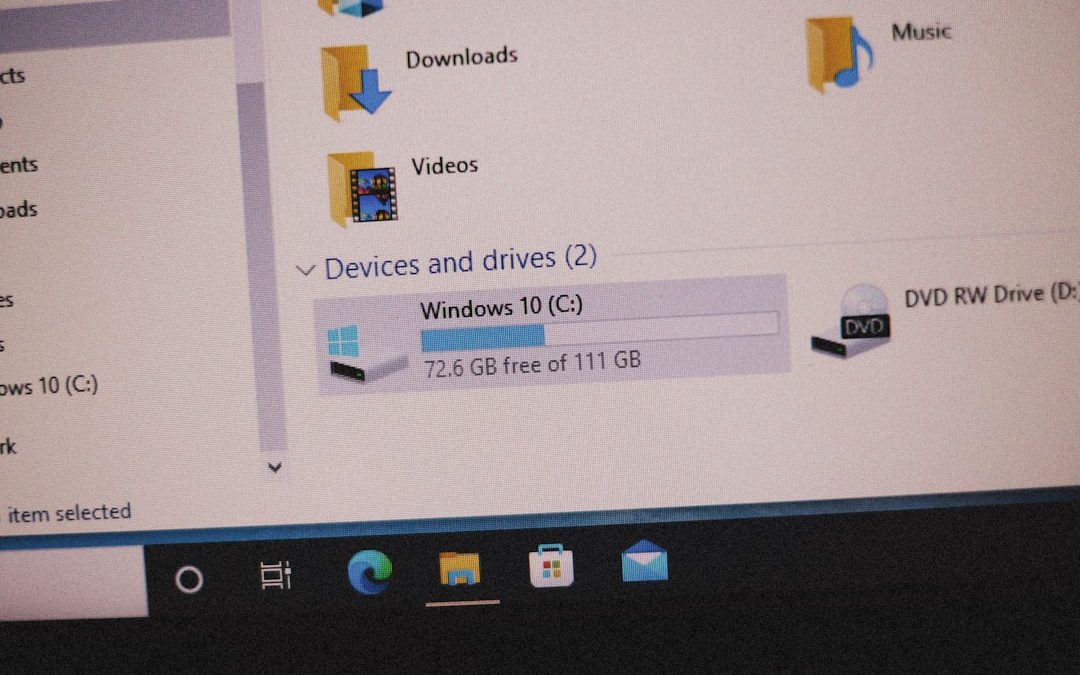

It can be alarming to discover that a computer’s disk space has suddenly filled up overnight. One day there is plenty of free space; the next, the system is issuing warnings, slowing down, or even refusing to boot properly. This issue can affect personal users, businesses, and servers alike, and it often happens without any obvious action from the user.
TLDR: When disk space suddenly fills up overnight, the first priority is to identify what changed—such as large files, system updates, logs, or malware. Users should check disk usage tools, locate recently modified files, and review backups and system updates. Cleaning temporary files, managing restore points, and removing unnecessary applications often resolve the issue. If the cause is unclear or persistent, professional diagnosis or advanced tools may be necessary.
Understanding the root causes and acting quickly can prevent data loss, downtime, and long-term performance issues. The following guide explains what to do, step by step, when disk space disappears unexpectedly.
Common Reasons Disk Space Fills Up Overnight
Before jumping into solutions, it helps to understand what might have happened. Disk space rarely vanishes without a cause. Some of the most common reasons include:
- Operating system updates that downloaded and extracted large installation files
- Log files growing uncontrollably due to software errors
- Temporary files accumulating from applications or browsers
- Backup processes generating large system images
- Malware creating hidden files or replicating data
- Cloud sync services downloading large folders automatically
In many cases, the issue develops silently in the background.
Step 1: Check Overall Disk Usage
The first step is to confirm which drive is full and how much space is being used. On most systems, this can be done through built-in storage settings or disk management tools.
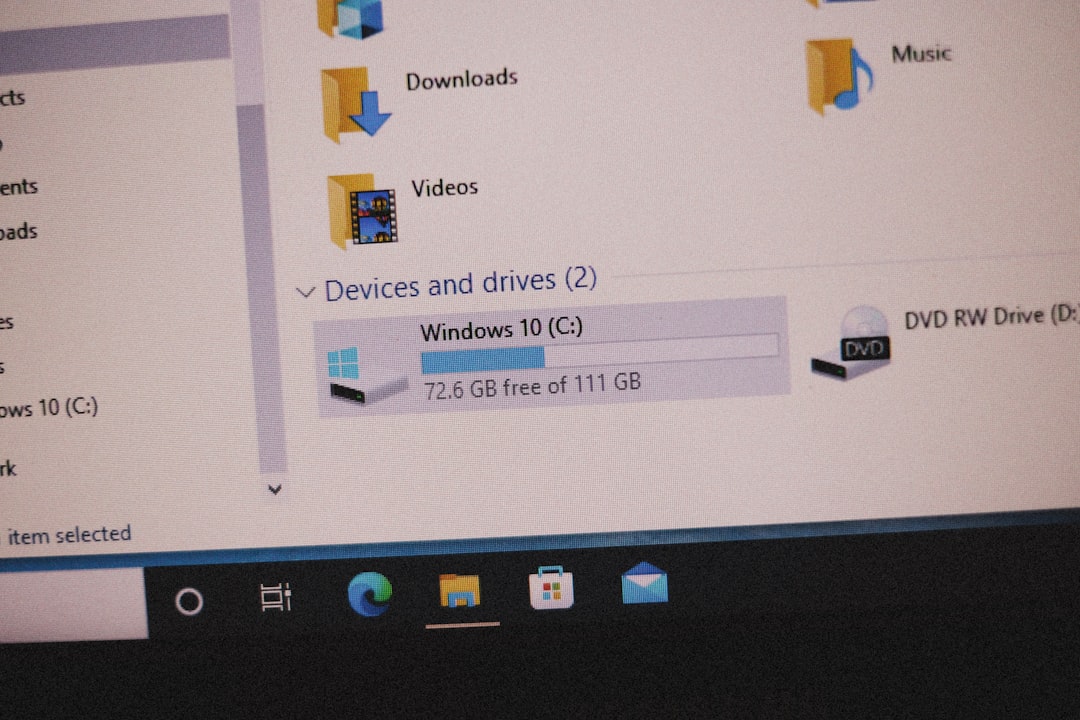
Users should:
- Open the system’s storage overview panel.
- Identify the affected drive (often the system drive).
- Review categories such as apps, system files, temporary files, and documents.
This high-level overview often reveals obvious spikes, such as “System Files” suddenly occupying tens of gigabytes.
Step 2: Sort Files by Size and Date
If the storage overview does not clearly identify the culprit, the next step is to dig deeper. Sorting files by size and modification date can quickly reveal new or expanded files.
Users should:
- Open the file explorer.
- Navigate to the root of the affected drive.
- Sort files and folders by Size.
- Then sort by Date Modified to find recent changes.
Large ISO files, virtual machine images, database files, or forgotten downloads may appear at the top. If something large was modified overnight, it becomes the primary suspect.
Step 3: Investigate Log Files and Temp Data
Applications and operating systems create logs to record activity. However, when an error repeats continuously, logs can grow extremely fast, sometimes consuming gigabytes in hours.

Check the following locations:
- System log directories
- Application-specific folders
- Temporary file directories
If a single log file is unusually large, the underlying application may be malfunctioning. Deleting the file may provide temporary relief, but resolving the root software issue prevents recurrence.
Step 4: Review System Updates and Restore Points
Operating systems frequently download updates during the night. These updates may:
- Download multi-gigabyte upgrade packages
- Create backup copies of previous versions
- Generate restore points automatically
Restore points and old update files can consume significant space. Users can safely delete outdated update files through built-in cleanup tools. However, caution is advised when removing restore points, as they serve as recovery options.
Step 5: Check Backup and Sync Services
Automated backups can dramatically increase disk usage. Many systems create:
- Full system image backups
- Incremental file backups
- Cloud synchronization copies
If a cloud storage service syncs a large shared folder overnight, it may quickly consume local storage. Reviewing backup settings and excluding unnecessary folders can prevent this from happening again.
Step 6: Scan for Malware
If no legitimate explanation is found, malware becomes a possibility. Certain types of malicious software:
- Create massive temporary data files
- Replicate themselves repeatedly
- Download additional payloads silently
Running a full system antivirus scan is essential in such cases. Users should avoid deleting suspicious files manually unless they are confident about their purpose.
Step 7: Use Disk Cleanup Tools
Built-in and third-party tools can quickly identify space-hogging files. Many utilities visually map file sizes, making it easier to locate large clusters of data.

Popular Disk Analysis Tools
| Tool | Platform | Best For | Ease of Use |
|---|---|---|---|
| WinDirStat | Windows | Visual file size mapping | High |
| TreeSize | Windows | Detailed folder analysis | High |
| DaisyDisk | macOS | Interactive storage visualization | Very High |
| Disk Utility | macOS | Built in disk management | Moderate |
| ncdu | Linux | Terminal based analysis | Moderate |
These tools can reveal hidden directories or system folders consuming unexpected amounts of space.
Step 8: Clear Temporary and Cache Files Safely
Temporary files often accumulate without users realizing it. Clearing:
- Browser caches
- System temporary folders
- Application caches
can free substantial space. Built-in cleanup utilities are generally safer than manually deleting system folders.
Step 9: Consider Storage Expansion
If disk space frequently runs low, the issue may not be a one-time anomaly. In such cases:
- Upgrading to a larger drive may be necessary.
- External storage can offload large media collections.
- Cloud storage may help with archival data.
Modern applications and system updates grow larger each year, making older drives more prone to saturation.
Preventative Measures for the Future
Once the immediate issue is resolved, prevention becomes the next priority. To reduce the chances of overnight surprises, users should:
- Enable storage sense or automatic cleanup tools
- Monitor disk space weekly
- Set limits for log file sizes when possible
- Review backup settings regularly
- Maintain updated antivirus protection
Proactive monitoring significantly reduces the likelihood of sudden storage crises.
When to Seek Professional Help
If disk space keeps filling up despite cleanup efforts, there may be deeper issues, such as:
- Corrupted file systems
- Hidden partitions consuming space
- Database misconfigurations on servers
- Persistent malware infections
IT professionals can use advanced diagnostic tools to detect anomalies beyond the reach of consumer utilities.
Conclusion
When disk space suddenly fills up overnight, the situation may feel urgent, but it is usually solvable. A structured approach—checking disk categories, sorting files, reviewing logs, analyzing updates, and scanning for malware—often reveals the cause quickly. Cleaning unnecessary files and adjusting future storage management practices minimizes the risk of recurrence. With the right tools and systematic troubleshooting, unexpected disk space loss becomes manageable rather than catastrophic.
FAQ
Why did disk space fill up without installing anything?
Background processes such as system updates, log file generation, restore point creation, or cloud synchronization can consume space without direct user interaction.
Is it safe to delete large log files?
In many cases, yes, but it is important to determine why the log became large. If the underlying issue is not resolved, the file may grow again quickly.
Can malware really fill up an entire drive?
Yes. Certain types of malware continuously replicate data or download malicious payloads, rapidly consuming disk space.
How often should disk space be monitored?
It is good practice to check disk usage at least once a month, or weekly for servers and business-critical systems.
What percentage of free disk space should be maintained?
Experts generally recommend keeping at least 15–20% of total disk space free to maintain optimal system performance.
Does upgrading RAM help with disk space issues?
No. RAM and disk storage serve different purposes. Upgrading storage capacity, not memory, resolves disk space shortages.
What to Do When Disk Space Suddenly Fills Up Overnight?

What to Do When Disk Space Suddenly Fills Up Overnight?
It can be alarming to discover that a computer’s disk space has suddenly filled up overnight. One day there is…