


The best 4K results come from a clean source, enough bitrate, a good codec, and a display that can actually show the detail. Resolution alone does not guarantee sharp video. A badly compressed 4K file can look worse than a well-made 1080p file.
TLDR: 4K usually means 3840 × 2160 pixels, which is four times the pixel count of Full HD. But quality also depends on bitrate, codec, color, motion, noise, and the original camera footage. For example, a 10-minute 4K 60 fps upload encoded at 35–45 Mbps will often look far cleaner on YouTube than the same clip crushed to 10 Mbps, especially in sports, gaming, or fast camera moves. If a client watches on a 55-inch TV from two meters away, poor compression becomes obvious fast.
What 4K Video Quality Actually Means
4K video quality refers to more than pixel count. The common consumer format is Ultra HD, or 3840 × 2160. Cinema 4K is slightly wider at 4096 × 2160. Most TVs, phones, streaming platforms, and cameras use Ultra HD when they say 4K.
That resolution gives the image more room for fine detail. Hair, fabric, text, leaves, skin texture, product labels, and distant objects can look clearer. But only if the video was captured and processed well.
A proper 4K image depends on these factors:
- Resolution: the number of pixels in the frame.
- Bitrate: how much data is used each second.
- Codec: the compression method, such as H.264, HEVC, or AV1.
- Source quality: lens, sensor, lighting, focus, and noise level.
- Frame rate: 24, 30, 50, or 60 frames per second.
- Color and HDR: bit depth, color range, contrast, and highlights.
- Viewing setup: screen size, viewing distance, and TV processing.

Resolution: Why 4K Looks Sharper
Full HD has 1920 × 1080 pixels, which is about 2.1 million pixels. 4K UHD has 3840 × 2160, or about 8.3 million pixels. That is four times the pixel area.
This extra detail helps most when the screen is large or the viewer sits close. On a 65-inch TV, 4K is easy to appreciate. On a small phone screen, the difference may be modest unless the viewer zooms in or the source is very clean.
Resolution also helps editors. A 4K clip can be cropped, stabilized, or reframed for 1080p delivery with less visible quality loss. This is useful for interviews, product videos, webinars, and social media edits.
The catch is that 4K magnifies mistakes. Soft focus stays soft. Noisy footage becomes more visible. Cheap digital sharpening creates halos. If the lens cannot resolve enough detail, the file may be 4K only in name.
Bitrate: The Part People Underestimate
Bitrate tells you how much video data is stored or streamed per second. It is often measured in Mbps, or megabits per second. Higher bitrate usually means fewer compression artifacts, cleaner motion, smoother gradients, and better texture.
Low bitrate 4K can suffer from:
- blocky shadows;
- muddy grass, water, smoke, or confetti;
- banding in skies and walls;
- loss of skin texture;
- smearing during fast motion;
- flickering detail in patterns and text.
A calm talking-head video can look good at a lower bitrate because little changes between frames. A mountain bike clip through trees needs far more data. Gaming footage at 60 fps also burns through bitrate quickly because sharp edges and rapid movement are hard to compress.
Honestly, it feels like many export presets are built to save file size, not protect quality. Some apps hide the bitrate setting two menus deep, then pick something far too low. Expect to waste time checking test exports if the preset only says “high quality” without giving numbers.
Codec Choice Matters
A codec compresses the video. It decides how efficiently bitrate is used. The same 25 Mbps can look different depending on the codec.
- H.264: widely supported and safe, but less efficient for 4K.
- HEVC or H.265: better compression than H.264, common for 4K phones, cameras, and streaming.
- AV1: very efficient, used by major streaming platforms, but slower to encode on some systems.
- ProRes or DNxHR: larger editing codecs, useful for post-production and mastering.
For final delivery, HEVC or AV1 can keep visual quality higher at smaller sizes. For editing, intraframe codecs such as ProRes are smoother and safer, though the files are large.
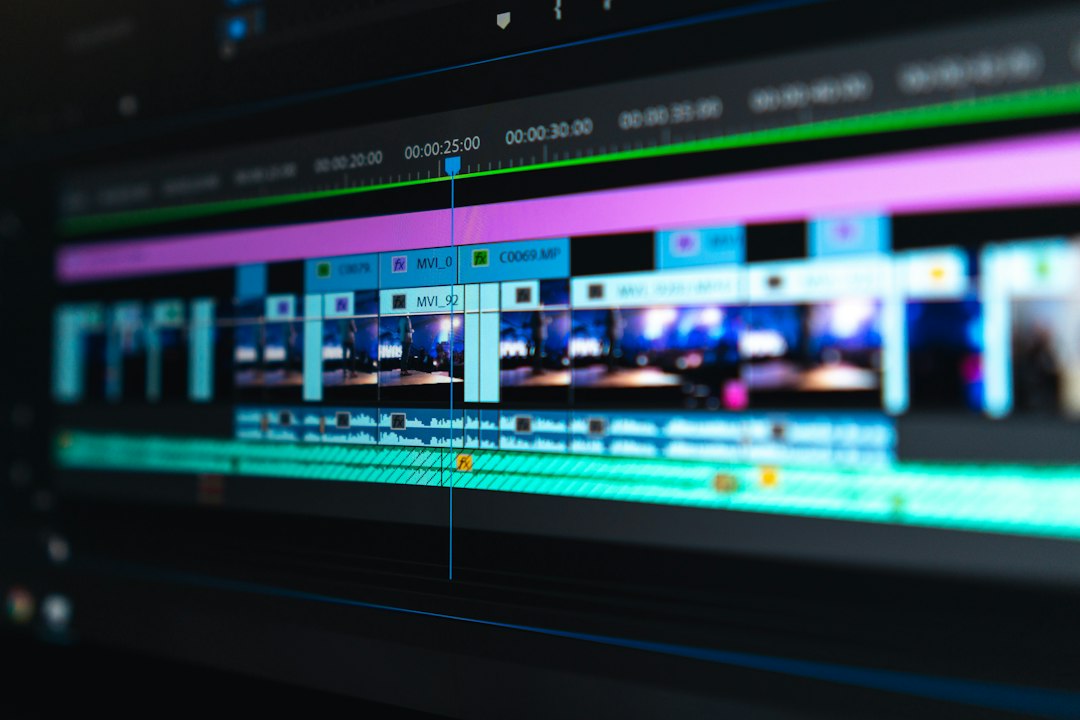
Recommended 4K Bitrate Ranges
There is no single perfect bitrate. Content type, codec, frame rate, and platform all matter. Still, these ranges are sensible starting points for high-quality delivery:
- 4K 24 or 30 fps, H.264: about 35–60 Mbps.
- 4K 60 fps, H.264: about 50–100 Mbps.
- 4K 24 or 30 fps, HEVC: about 20–45 Mbps.
- 4K 60 fps, HEVC: about 35–70 Mbps.
- 4K HDR: use the higher end of the range, especially for gradients and bright highlights.
Streaming services may use lower bitrates because their encoders are advanced and tuned at scale. Local files, client masters, and uploads should usually be less aggressive. If you upload a weak file, the platform will compress it again. That second compression pass can make issues worse.
HDR, Color, and Bit Depth
4K is about spatial detail. HDR is about brightness and contrast. A 4K HDR video can show brighter highlights, deeper shadows, and richer color than a standard 4K video, assuming the display supports it.
10-bit color is often preferred for serious 4K work. It reduces banding and gives more room for color grading. This matters in skies, studio backdrops, sunsets, product shots, animation, and low-light scenes.
Do not confuse HDR with automatic quality. Bad HDR can look washed out or harsh. The footage must be exposed well, graded correctly, and exported with proper metadata.
How to Get the Best 4K Results
Start with capture. Compression cannot restore detail that was never recorded.
- Use enough light. Noise destroys compression efficiency. Clean footage compresses better.
- Nail focus. Slightly missed focus is very visible in 4K.
- Use a good shutter speed. For natural motion, a 180-degree shutter rule is a good baseline: 1/50 for 25 fps, 1/60 for 30 fps, 1/120 for 60 fps.
- Record at a strong camera bitrate. If your camera offers 100 Mbps instead of 60 Mbps for 4K, use it when quality matters.
- Avoid heavy digital zoom. Optical detail beats software enlargement.
- Stabilize carefully. Aggressive stabilization can crop and soften the image.
- Export from the timeline at the source resolution. Do not upscale unless there is a specific reason.
- Use two-pass encoding when practical. It can improve bitrate allocation, especially for complex videos.

4K Streaming vs Local Playback
Streaming 4K depends on internet speed and platform compression. Many services recommend at least 25 Mbps internet for 4K streaming, but that does not mean the video itself is always delivered at 25 Mbps. Adaptive streaming changes quality based on connection, device, and congestion.
Local playback gives more control. A high-bitrate 4K file from a camera, Blu-ray, or master export can look much better than a heavily compressed stream. The tradeoff is storage. One hour of 4K at 50 Mbps is roughly 22.5 GB, before audio and container overhead.
Common 4K Mistakes
- Upscaling poor 1080p footage and calling it true 4K.
- Using low bitrate to keep files small.
- Exporting many times through lossy codecs.
- Over-sharpening to fake detail.
- Ignoring audio. Bad sound makes even clean 4K feel amateur.
- Trusting preview windows. Always check the final file at full size.
The Practical Standard for Good 4K
Good 4K should look crisp without looking brittle. Motion should stay clean. Fine detail should survive. Shadows should not break into blocks. Skin should retain texture without waxy smoothing.
For most serious work, capture the best source you can, edit in a high-quality format, then export with a modern codec and a bitrate matched to the content. 4K quality is not one setting. It is the result of many small choices, and weak links show up quickly on a large screen.


BANT vs. MEDDIC: Salesforce vs. HubSpot for Improving B2B Lead Qualification
Use BANT in HubSpot when speed and volume matter; use MEDDIC in Salesforce when deal quality, complexity, and forecast accuracy…