

Razer is a brand synonymous with high-end gaming peripherals, boasting a seamless fusion of performance and aesthetics. One standout feature of their devices is the vibrant and highly customizable Razer Chroma RGB lighting system. With software like Razer Synapse, users can craft advanced lighting effects for keyboards, mice, and other Razer gear. But a frequent question emerges among users: Can you store Razer Advanced Lighting on a profile? Let’s explore the capabilities and limitations of Razer’s lighting customization options and what it means for gamers and creators alike.
TLDR (Too long, didn’t read):
Yes, you can store Razer advanced lighting effects on a profile, but it depends on the type of profile and the specific Razer device. Razer Synapse allows cloud and local profile storage, and some devices offer onboard memory to store lighting configurations. However, advanced Chroma Studio effects are typically tied to Synapse software and may not run independently from it. To get the most flexibility, you need to understand profile types and device capabilities.
Understanding Razer Profiles
Before diving into lighting storage, it’s essential to understand what a Razer profile is. Razer devices use profiles to store user-defined settings such as:
- Key bindings
- Macros
- Performance settings for mice (like DPI levels)
- Lighting configurations
Profiles can be stored in different ways depending on the device and software:
- Cloud Profiles: Saved to your Razer Synapse account and accessible from any Synapse-enabled machine.
- Local Profiles: Stored on the local computer and accessible only from that system.
- Onboard Memory Profiles: Saved directly onto the Razer device itself (only available on certain models).
What Is Razer Advanced Lighting?
The term “advanced lighting” often refers to complex lighting effects created within Razer Chroma Studio, an extension of Razer Synapse. Chroma Studio takes RGB customization to the next level, giving you tools that let you:
- Create multi-layered animations
- Respond to audio or key presses
- Sync effects across multiple Razer devices
- Integrate lighting effects into games and apps
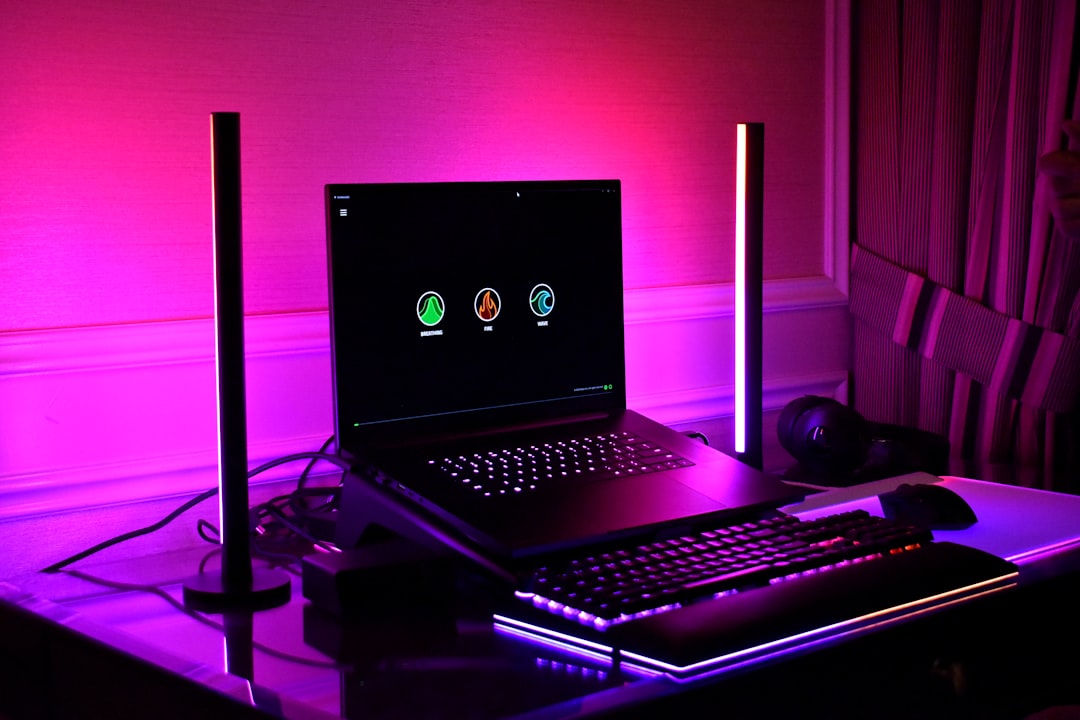
These effects go far beyond simple color cycling or static lighting and are highly prized by creators and streamers for adding flair to their setups. However, since these are driven by the Synapse software, storing them independently is not always straightforward.
Can You Store Advanced Lighting on Onboard Memory?
This is the pivotal question. The short answer? Only partially.
Some Razer devices—like the Razer Huntsman Elite and Razer Basilisk V3 Pro—feature onboard memory, allowing you to save up to five profiles, including performance and keybinding settings. But when it comes to advanced Chroma Studio lighting effects, there’s a catch.
Onboard memory can save basic lighting effects—such as static colors, reactive lighting, or simple wave patterns. These presets are limited in complexity and designed to work without Razer Synapse running.
Advanced lighting effects made in Chroma Studio, on the other hand, require Synapse to render and manage the animations. Because these effects rely on memory and resources from the PC and not just the device firmware, they can’t be saved directly to the device in most cases.
This means that if you disconnect your device from a Synapse-powered PC and plug it into another machine (or use it on a console), you’ll only get access to the more basic lighting settings previously saved in the onboard memory.
How to Save and Switch Lighting Profiles
Even if advanced lighting can’t always be stored onboard, there are still ways to streamline switching between effects depending on your setup.
Local and Cloud Profiles
Within Synapse, you can create multiple profiles with different lighting configurations. These can either be tied to your:
- Razer Account (Cloud Profiles): Retrieve your advanced lighting setups from any PC with Synapse installed.
- Local System (Local Profiles): Customize and save profiles for use on a single machine.
You can instantly switch between these profiles using Synapse or assign specific profiles to launch when certain games or applications are run—a handy feature for streamers or multi-game users.
Onboard Memory Profiles (Where Supported)
To use onboard memory profiles:
- Open Razer Synapse
- Go to your device settings
- Click on “Onboard Memory”
- Select the settings (DPI, keybindings, and lighting) you want to save
- Drag and drop them into the onboard slots
Just keep in mind: only basic lighting may be saved here. Advanced Chroma Studio layers will be left behind unless Synapse is running.
Why Advanced Lighting Isn’t Stored Onboard (Yet)
There are a few technical reasons why Razer advanced lighting can’t be stored directly onto the device today:
- Hardware Limitations: Most Razer peripherals don’t have the processing power or firmware sophistication to handle advanced lighting independently.
- Storage Constraints: Chroma Studio layers and animations are data-heavy and require larger storage capacities than most devices allocate for profiles.
- Dynamic Control: Razer Synapse acts as a command center, dynamically interpreting layered effects, real-time inputs, and integrations with games and apps. Removing Synapse from the equation usually means limiting the dynamism.
Alternatives and Workarounds
If you’re trying to use advanced lighting without having Synapse running full-time, here are a few suggestions:
1. Use Static Effects with Accent Lighting
Save your most visually consistent profiles using static or simple wave effects on onboard memory. While not as rich as Chroma Studio, you can still create highly aesthetic layouts.
2. Use Third-party Tools
Some users experiment with open-source lighting controllers that emulate Synapse features or allow custom effects. Tools like OpenRGB are gradually growing in capability, although they may not support every Razer feature or device.
3. Keep Synapse Running in Background
Since Synapse 3 is relatively lightweight, it’s often practical to keep it running if you want full control of your lighting effects. You can turn off auto-updates or performance analytics if you’re concerned about resources.
Looking Ahead: Will This Change in the Future?
Given the evolving nature of gaming peripherals, it’s possible future Razer products might offer enhanced onboard storage or processors capable of handling advanced RGB animations independently. Some premium devices already offer limited capabilities in this direction.
Razer is also punctuating its development efforts with community feedback. If there’s enough demand for onboard storage of Chroma Studio profiles, we might see a shift in how lighting effects are handled in coming generations of peripherals.
Conclusion
Storing advanced Razer lighting on a profile is possible—but only with certain limitations. Most advanced effects created in Chroma Studio require Razer Synapse to run in order to be rendered properly. While some basic lighting setups can be saved to onboard memory, high-end dynamic lighting remains a software-driven experience for the time being.
For now, the best approach is to take full advantage of Razer Synapse’s cloud and local profiles and configure your effects to sync with your applications. Meanwhile, keep an eye on upcoming Razer hardware updates—because the ability to store truly advanced lighting standalone may be right around the corner.


Mail Delivery Time Today: USPS vs Royal Mail for Checking Mail Delivery Times
USPS is usually the better choice for checking mail delivery times in the United States, while Royal Mail is stronger…