

Fix KB5068781 by resetting Windows Update components first, then repair the Windows image with DISM and SFC before trying the update again. That order saves time because many failed Windows 11 updates come from damaged update cache files, stuck services, or missing system components. Microsoft also recommends using Windows Update troubleshooting and repair steps when updates fail or freeze [source: Microsoft].
TLDR: If Windows 11 update KB5068781 will not install, restart the PC, clear the update cache, run DISM and SFC, then retry the update. For example, on a small office batch of 25 PCs, even a 20% failure rate means five machines stuck in update loops. Most cases can be fixed in under 30 minutes if the error is cache or component related. If the update still fails, use the Microsoft Update Catalog or run an in-place repair install.
What KB5068781 update errors usually look like
KB5068781 may fail with messages such as “Install error”, “Something went wrong”, or codes like 0x800f081f, 0x80070002, 0x80073712, or 0x80248007. Sometimes Windows downloads the update, reaches 25%, 74%, or 100%, then rolls back after a restart. Honestly, it feels like Windows enjoys waiting until the worst possible moment to do this.
The cause is not always the update itself. It can be a broken update database, low disk space, damaged system files, a pending restart, VPN software, antivirus tools, or a corrupted component store.
1. Start with the simple checks
Do these first. They sound basic, but they fix more update problems than people expect.
- Restart the PC, then try the update again.
- Free at least 15 GB of space on the system drive.
- Unplug nonessential devices, such as external drives and docks.
- Pause VPN tools while updating.
- Disable third party antivirus temporarily, but turn it back on after testing.
- Check the date and time. Wrong time settings can break update checks.
Then go to Settings > Windows Update and click Check for updates. If KB5068781 fails again, move to the deeper fixes below.
2. Run the Windows Update troubleshooter
Open Settings > System > Troubleshoot > Other troubleshooters. Find Windows Update and click Run.
This tool checks update services, permissions, and common registry issues. It is not magic. It can be annoyingly vague. Still, it may repair blocked services in a few minutes, which is worth the click.
3. Reset Windows Update components
If the update cache is damaged, Windows may keep downloading the same bad files. Resetting the cache forces a fresh download.
Right click Start, choose Terminal Admin or Command Prompt Admin, then run these commands one by one:
net stop wuauserv
net stop bits
net stop cryptsvc
net stop msiserver
ren C:\Windows\SoftwareDistribution SoftwareDistribution.old
ren C:\Windows\System32\catroot2 catroot2.old
net start wuauserv
net start bits
net start cryptsvc
net start msiserver
Restart the PC. Then try installing KB5068781 again.
4. Repair Windows system files with DISM and SFC
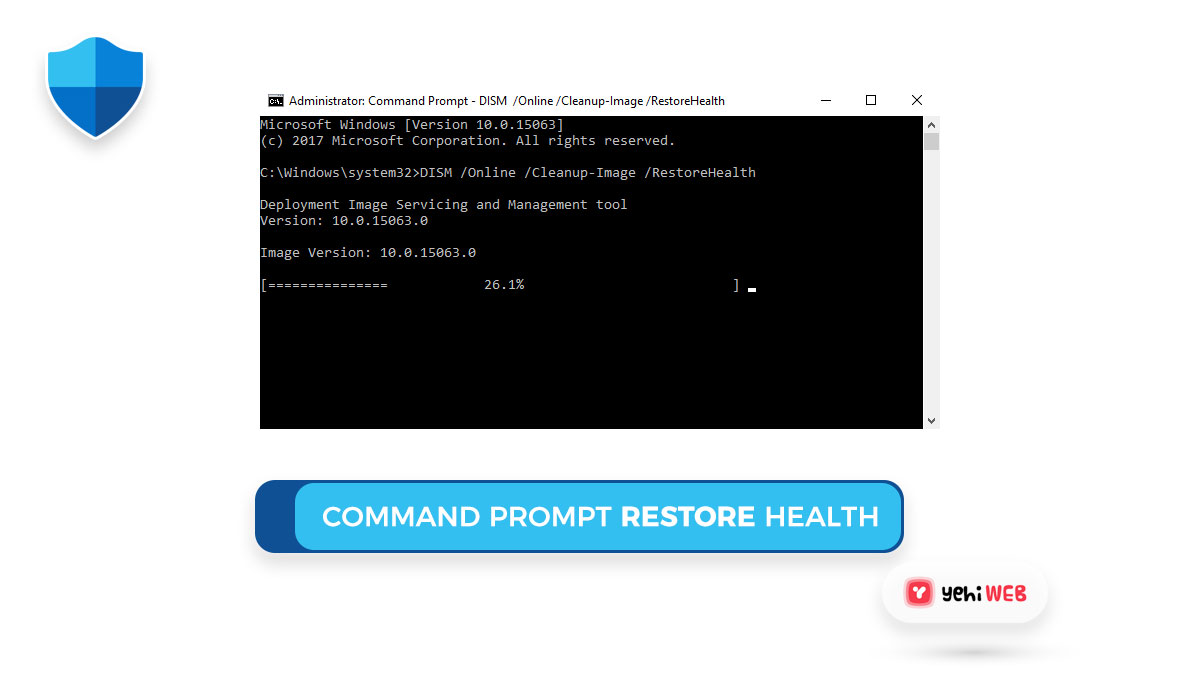
When Windows system files are missing or damaged, updates can fail during the install phase. Use DISM first, then SFC.
Open Terminal Admin and run:
DISM /Online /Cleanup-Image /RestoreHealthWait for it to finish. It may sit at one percentage for several minutes. That is normal, even if it looks stuck.
Next, run:
sfc /scannowIf SFC says it repaired files, restart and try the update again. If it says it found problems but could not fix some of them, run both commands once more after rebooting.
5. Install KB5068781 manually
If Windows Update keeps failing, download the update manually from the [source: Microsoft Update Catalog]. Search for KB5068781, then choose the package that matches your system type, usually x64 for most Windows 11 PCs.
- Download the update file.
- Close open apps.
- Run the installer as administrator.
- Restart when asked.
If manual install works, the issue was probably tied to the Windows Update delivery process, not the update package itself.
6. Use a clean boot if the install still fails
A clean boot starts Windows with only basic Microsoft services. This helps when security tools, driver utilities, or background apps block the update.
- Press Windows + R, type msconfig, and press Enter.
- Open the Services tab.
- Check Hide all Microsoft services.
- Click Disable all.
- Open Task Manager and disable startup apps.
- Restart and retry KB5068781.
After testing, return to msconfig and restore normal startup. Do not leave needed security or backup tools disabled.
7. Try an in-place repair install
If nothing works, perform an in-place repair install. This reinstalls Windows 11 while keeping your files, apps, and most settings. It is useful when the component store is badly damaged.
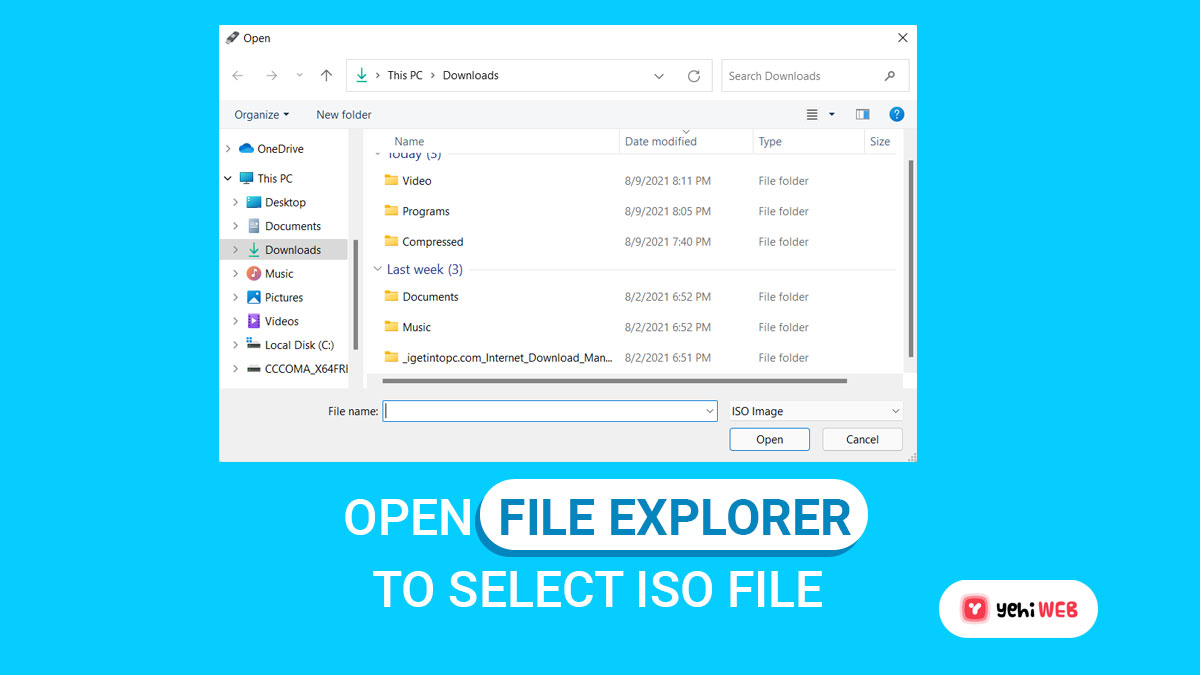
Download the latest Windows 11 ISO from Microsoft, mount it, and run setup.exe. Choose Keep personal files and apps. Expect this to take time, but it often fixes stubborn update failures without a full wipe.
When to stop troubleshooting
If KB5068781 fails after a cache reset, DISM, SFC, manual install, and clean boot, check whether other users report the same problem. Sometimes Microsoft pulls or replaces faulty updates. You can also pause updates for a short time, especially on work machines that need to stay stable.
For most people, the best fix path is simple: restart, reset update components, repair system files, then install manually. That covers the common causes without wasting hours clicking the same failed update button again and again.

How to Use Aegis Authenticator and KeePassDX to Improve Two-Factor Authentication Security on Android
Use Aegis for login codes and KeePassDX for passwords, recovery codes, and notes. That split gives you a simple shield…