

Uizard is the best pick for quick low-fidelity wireframes, Relume is best for website structure, and Figma AI is best if your team already designs in Figma. The gap is not tiny. These tools solve different problems, even though they all promise “AI wireframes.” Figma says its AI features can help generate first drafts, rewrite text, and find assets inside design files [source: Figma].
TLDR: If you need a rough app screen in 10 minutes, use Uizard. If you need a landing page with sections, sitemap, and copy blocks, use Relume. If your team already has a design system in Figma, Figma AI is the least painful choice. For example, a solo founder could prompt Uizard for “a food delivery checkout app” and get a workable wireframe flow in under 15 minutes, while a web agency could use Relume to sketch a 5-page site structure before the first client call.
Quick comparison
- Best for speed: Uizard
- Best for websites: Relume
- Best for design teams: Figma AI
- Best for beginners: Uizard
- Best for client planning: Relume
- Best for editing real design files: Figma AI
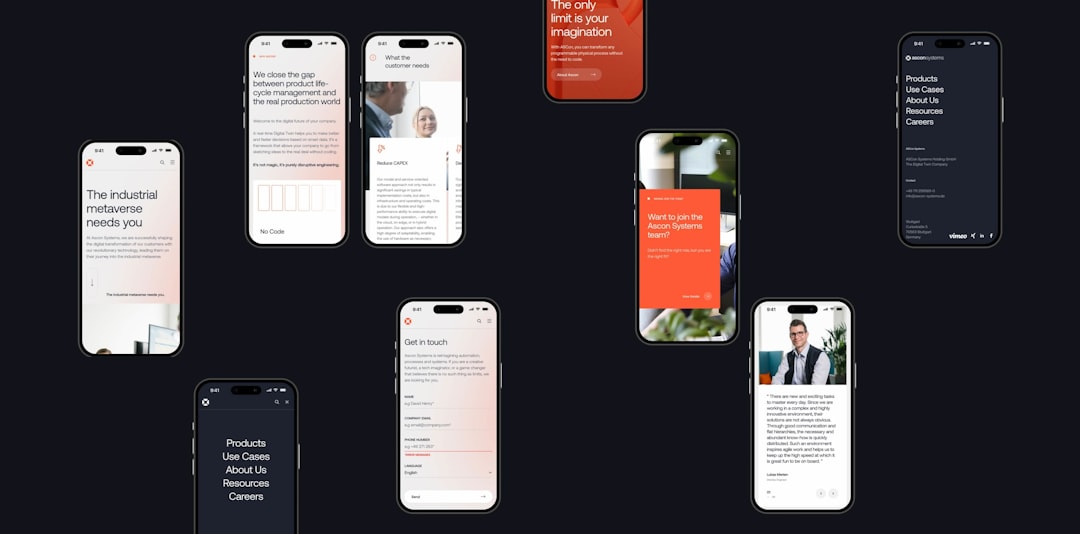
Uizard: best for fast rough ideas
Uizard is the friendliest tool here. It is built for people who want screens fast, not perfect design files. You can type a prompt, upload a sketch, or use a screenshot as a starting point. That makes it great for founders, product managers, students, and anyone who does not want to spend half a day learning layout rules.
The biggest win is speed. You can describe an app idea in plain language and get several screens. Login pages, dashboards, checkout flows, settings screens, and onboarding flows are all fair game. The results are usually rough, but that is the point. Low-fidelity wireframes should raise questions, not win awards.
The annoying part? Uizard can make screens feel too generic. You may get common cards, common buttons, and common spacing. It is fine for early planning. It is less fine when you need a strong product style. Expect to spend time cleaning labels, moving sections, and removing filler content.
Use Uizard when:
- You need wireframes for an app idea today.
- You are testing a user flow, not polishing UI.
- You want to turn sketches into editable screens.
- You are not a trained designer.
Relume: best for website wireframes
Relume is not trying to be a general UI tool. That is a good thing. It is strongest when you need a website plan, sitemap, and page wireframes. Give it a brief, and it can suggest pages, sections, headlines, and rough structure.
This makes Relume especially useful for agencies, freelancers, and marketing teams. A homepage, pricing page, about page, and contact page can come together quickly. It also helps when clients are vague. Instead of starting with a blank canvas, you start with a proposed structure.
Relume’s section-based approach feels practical. Hero. Features. Testimonials. FAQ. CTA. You can swap sections and refine the order. That is often how real websites are planned anyway.
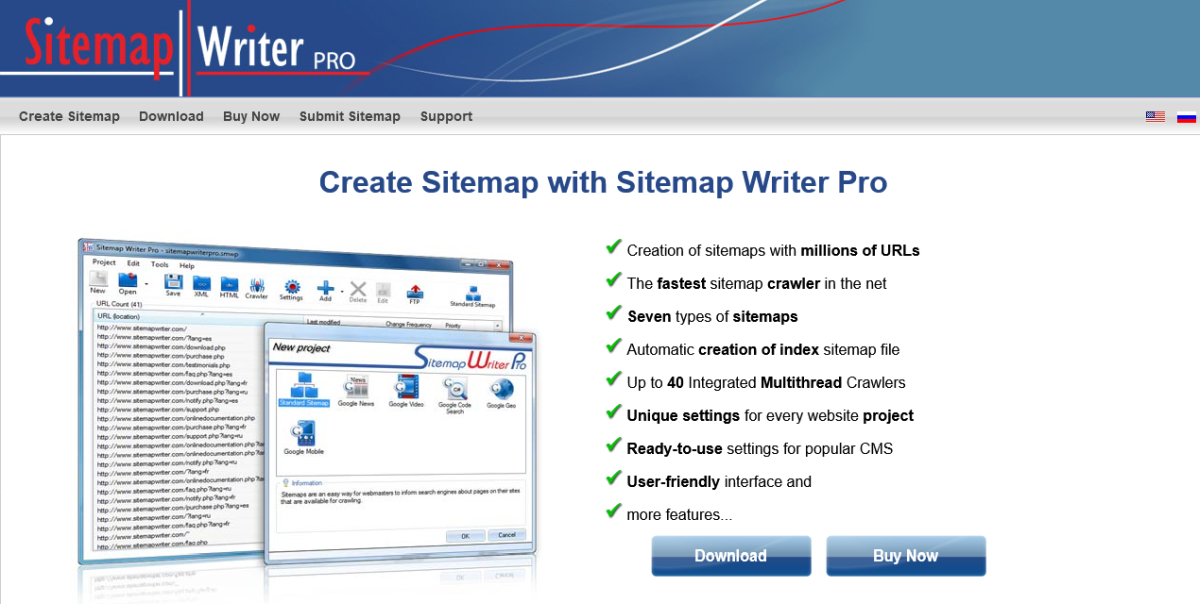
The catch is that Relume is less useful for complex apps. If you are designing a banking dashboard, an admin panel, or a mobile habit tracker, it may feel boxed in. It wants to think in website sections. That is perfect for marketing pages. It is awkward for product flows.
Use Relume when:
- You are planning a website, not an app.
- You need a sitemap before wireframes.
- You want AI to help with page structure and section order.
- You work with clients who need to see a plan early.
Figma AI: best for teams already using Figma
Figma AI is different because it sits inside the tool many designers already use. That matters. Wireframes do not live alone. They often need comments, components, prototypes, and handoff. Figma already handles that well.
For low-fidelity work, Figma AI can help create starting points, rename layers, adjust copy, and speed up repetitive design tasks. It is not just about making a screen from a prompt. It is about reducing small bits of friction inside an existing workflow.
Honestly, it feels like Figma AI is best when you already have organized files. If your team has components, naming rules, and shared patterns, AI assistance becomes more useful. If your Figma file is a messy graveyard of frames called “Screen 12 copy copy,” AI will not magically fix your process.
Another issue is that Figma AI may feel less direct than Uizard for pure idea dumping. Uizard says, “Tell me the app.” Figma says, “Work inside a design environment.” Designers may prefer that. Non-designers may not.
Use Figma AI when:
- Your team already works in Figma.
- You need wireframes to become prototypes later.
- You care about comments, libraries, and team review.
- You want AI help without leaving your main design file.
Which one should you choose?
Pick Uizard if you want the fastest path from idea to screen. It is the best “blank page killer” in this group. It works well when the goal is to see the product shape quickly.
Pick Relume if the project is a website. It is excellent for early site planning because it connects structure, copy, and wireframes. That saves time before visual design starts.
Pick Figma AI if your team is already in Figma. It is not always the fastest for beginners, but it fits real design work better. Reviews, updates, and future prototypes stay in one place.

Final verdict
Uizard wins for fast low-fidelity wireframes. It is simple, quick, and forgiving. Relume wins for website planning, especially when you need a sitemap and page sections. Figma AI wins for serious team workflows, where wireframes are only the first step.
The best tool is not the one with the flashiest AI demo. It is the one that gets your idea into a reviewable shape with the least fuss. For most early app ideas, that is Uizard. For websites, it is Relume. For design teams, stick with Figma AI.
Best Tools for Creating Low-Fidelity Wireframes With AI: Uizard vs Relume vs Figma AI


Best Tools for Creating Low-Fidelity Wireframes With AI: Uizard vs Relume vs Figma AI
Uizard is the best pick for quick low-fidelity wireframes, Relume is best for website structure, and Figma AI is best…