
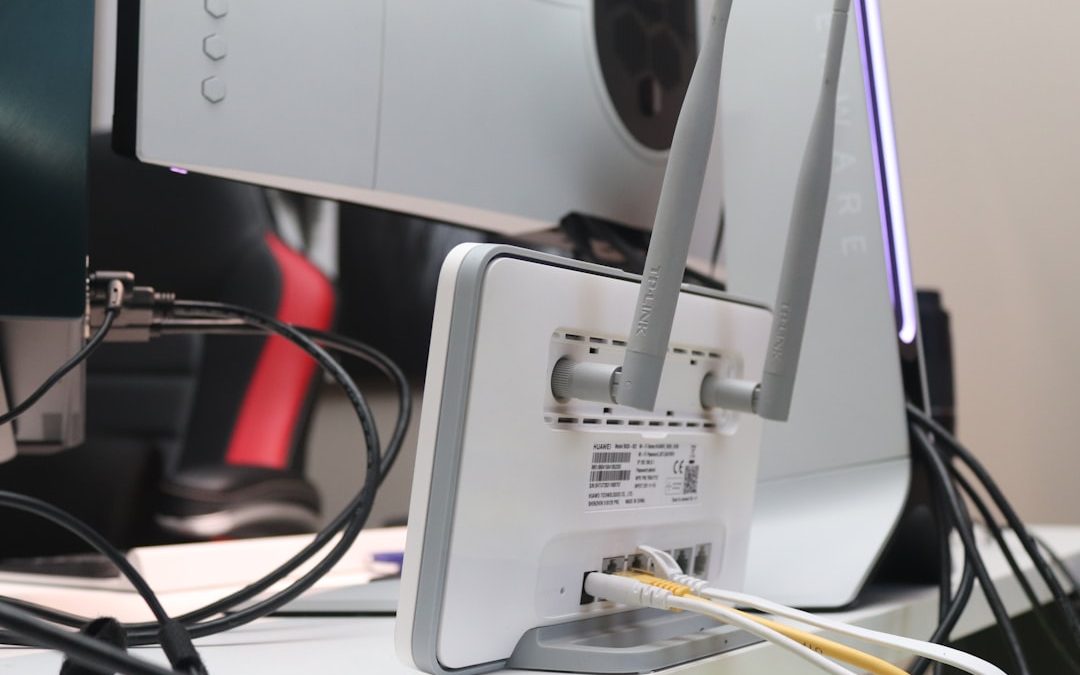

A default gateway is the device your computer sends traffic to when the destination is outside your local network. On most home Wi-Fi networks, that device is the router, often shown as an address such as 192.168.1.1 or 192.168.0.1; Microsoft describes the gateway as the route used when no more specific route exists [source: Microsoft]. If it is wrong, missing, or unreachable, local devices may still see each other, but websites and cloud apps will fail.
TLDR: A default gateway is usually your Wi-Fi router, and it acts like the exit door from your home or office network to the internet. For example, if your laptop is 192.168.1.25 and your router is 192.168.1.1, the laptop sends internet traffic to 192.168.1.1 first. In a small office with 40 users, one bad gateway setting can make 100% of those users lose internet access while local file sharing still works. VPNs can also change the gateway, sending all traffic through the VPN instead of your normal router.
What a Default Gateway Actually Does
A local network has its own address range. Your phone, laptop, printer, and smart TV may all sit inside it. They can often talk to each other without leaving that network.
The default gateway is used when traffic must go somewhere else. That “somewhere else” might be a website, a mail server, a cloud backup system, or a work app.
Think of it as the main exit. Your device checks the destination. If the destination is local, it sends the data directly. If it is not local, it sends the data to the gateway.
How It Works With Wi-Fi Routers
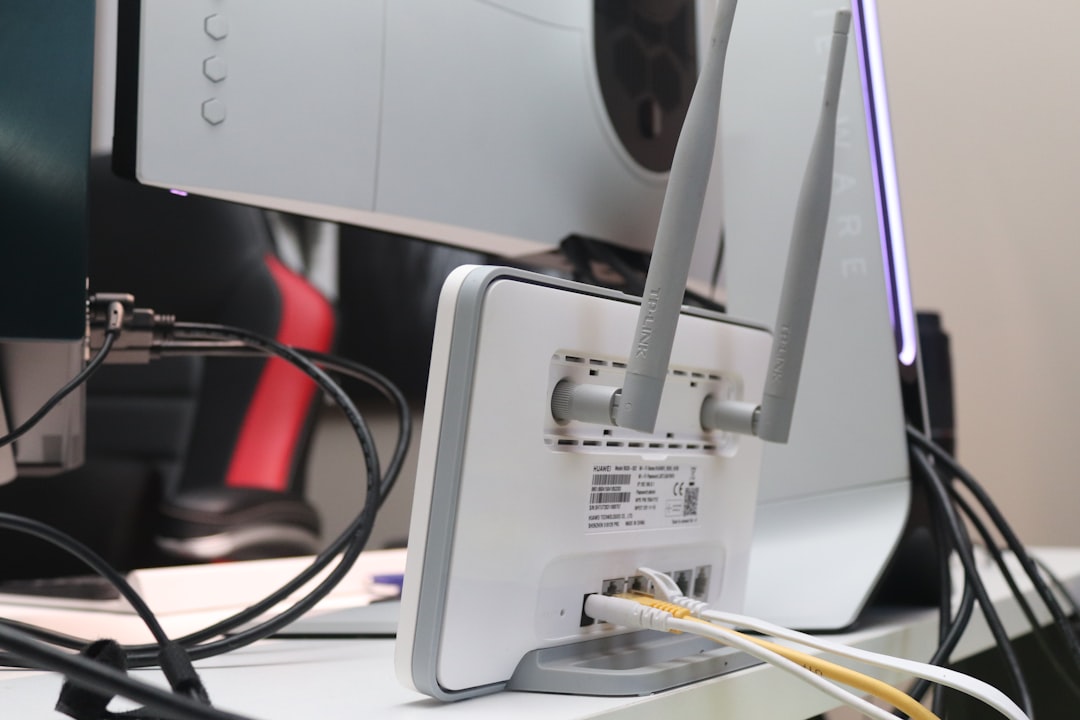
In most homes, the Wi-Fi router is the default gateway. It has at least two roles. On one side, it talks to your home devices. On the other side, it talks to your internet provider.
When you open a website, the process is usually simple:
- Your laptop creates a request for the website.
- It sees the website is not on the local network.
- It sends the request to the default gateway.
- The router forwards that request to the internet.
- The reply comes back through the router to your laptop.
Most routers also use NAT, or Network Address Translation. This lets many private devices share one public internet address. Without it, home networking would be far messier.
The catch is that router admin pages often hide these settings under vague labels. I have seen “LAN,” “Internet,” “Advanced,” and “Routing” all used for gateway-related options. Expect to waste a few extra minutes clicking around if the interface is poorly designed.
Default Gateway in Local Networks
In a local network, the gateway matters most when traffic needs to leave the subnet. A subnet is a smaller slice of a network, defined by an IP address and subnet mask.
For example:
- Device IP: 192.168.1.25
- Subnet mask: 255.255.255.0
- Default gateway: 192.168.1.1
With that setup, your device treats addresses from 192.168.1.1 to 192.168.1.254 as local. Anything outside that range goes to the gateway.
This explains a common headache. A computer may print fine to a local printer but fail to open any website. That often means the local network works, but the gateway, DNS, or internet connection does not.
How VPNs Change the Default Gateway
A VPN can alter routing in two main ways. It may send all traffic through the VPN. Or it may send only certain traffic through the VPN. The second method is often called split tunneling.
With full tunnel VPN, your default gateway may shift from your Wi-Fi router to a virtual VPN adapter. So even a normal website visit may pass through your company VPN first. That can improve privacy or meet company rules, but it can also slow things down.
Honestly, it feels like some VPN clients make this harder than it should be. A connection may look “green” and healthy, yet one wrong route can add several seconds to every page load or block local printers. The status icon rarely tells the full story.
Common Gateway Problems
Default gateway issues are easy to confuse with Wi-Fi problems. The symptoms overlap. Still, a few signs stand out:
- No internet, but Wi-Fi is connected. The device has wireless access but cannot reach the gateway or beyond.
- Local access works, websites fail. This points to gateway, DNS, or internet provider trouble.
- VPN breaks local devices. The VPN may be sending all traffic away from the local network.
- Wrong IP range. A device using 192.168.0.x may not work on a 192.168.1.x network.
- Duplicate gateway address. Two devices using the same IP can cause random drops.
How to Check Your Default Gateway
You can check it quickly on most systems.
- Windows: Open Command Prompt and run ipconfig. Look for “Default Gateway.”
- macOS: Open System Settings, check your network details, or run netstat -nr in Terminal.
- Linux: Run ip route. The line starting with “default via” shows the gateway.
- Phones: Open Wi-Fi details for the connected network. Router or gateway is usually listed there.

Practical Fixes
Start with the simple checks. Restart the router and the device. Confirm the device has a valid IP address. Make sure it did not receive a strange gateway from a manual setting or old VPN profile.
If DHCP is enabled, your router should hand out the gateway address automatically. For most homes, that is the best setup. Manual settings should be used only when you know the exact address plan.
For business networks, document the gateway, subnet, DNS servers, and VPN routing rules. One small typo can cut off a whole team. That is not dramatic. It happens.
The main point is simple: the default gateway is the next hop out of your network. When it works, you barely notice it. When it fails, everything outside your local network feels broken.
What Is a Default Gateway? How It Works With Wi-Fi Routers, VPNs, and Local Networks

What Is a Default Gateway? How It Works With Wi-Fi Routers, VPNs, and Local Networks
A default gateway is the device your computer sends traffic to when the destination is outside your local network. On…