

The fastest fix for Fortnite lag on a Chromebook is to improve the network first, then lower cloud gaming settings. Most Chromebooks do not run native Fortnite well, so lag usually comes from Wi Fi, cloud streaming delay, or overloaded browser tabs. Cloud gaming quality falls apart fast on a weak connection; NVIDIA says GeForce NOW needs at least 15 Mbps for 720p at 60 FPS and 25 Mbps for 1080p at 60 FPS [source: NVIDIA].
TLDR: A Chromebook player should use 5 GHz Wi Fi, sit closer to the router, close extra tabs, and set Fortnite cloud streaming to 720p if lag spikes keep happening. For example, a player on 18 Mbps may get smoother matches at 720p than at 1080p, even if the screen looks a bit softer. If ping jumps from 40 ms to 120 ms during fights, the issue is likely the network, not the Chromebook. Ethernet through a USB adapter is often the cleanest fix.
Start With the Network
Fortnite lag on Chromebook often feels random. One match is fine. The next turns into rubber banding and missed shots. Honestly, it feels like the game waits until the final circle to freeze.
The player should check these network basics first:
- Use 5 GHz Wi Fi instead of 2.4 GHz when possible. It is faster and less crowded.
- Move closer to the router. One wall can hurt cloud gaming more than expected.
- Pause downloads on phones, TVs, consoles, and other laptops.
- Restart the router if ping is jumping every few seconds.
- Try Ethernet with a USB C or USB A adapter. Wired play is usually more stable.
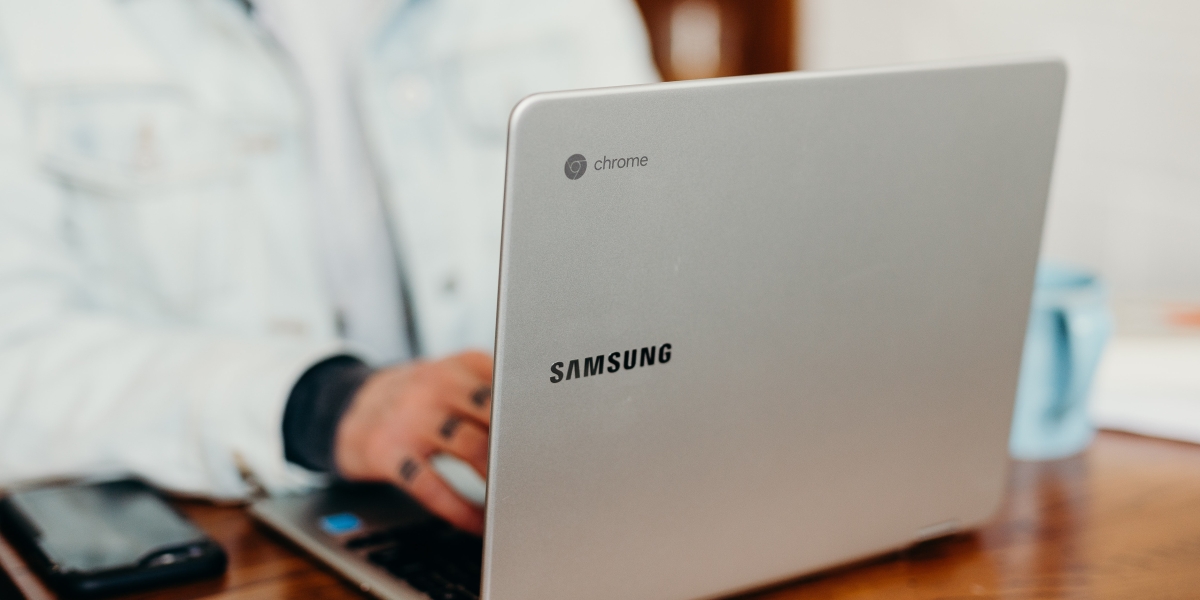
A speed test helps, but ping and jitter matter more than raw download speed. A 300 Mbps connection can still feel awful if jitter is high. The player should test the connection near the Chromebook, not beside the router. That gives a more honest result.
Adjust Chromebook Settings
Chromebooks are light and simple, but they can get bogged down. Too many tabs can steal memory. Extensions can also slow the browser, especially ad blockers, screen recorders, and shopping tools.
Before opening Fortnite through a cloud service, the player should:
- Close unused Chrome tabs.
- Turn off heavy extensions.
- Restart the Chromebook before a long session.
- Keep ChromeOS updated.
- Use guest mode as a quick test if the main profile feels sluggish.
It drives many players crazy that one background tab can add a delay that feels like half a second. A clean browser session can make aiming feel tighter.
Use the Right Cloud Gaming Service
Most Chromebook players use Xbox Cloud Gaming, NVIDIA GeForce NOW, or Amazon Luna to play Fortnite. Each option can work, but the best choice depends on location and connection quality.
- GeForce NOW: Good visual quality and strong performance when the nearest server is close.
- Xbox Cloud Gaming: Easy to access in a browser and works well for casual play.
- Amazon Luna: Simple setup, but performance can vary by region.
If one service lags, the player should try another. Cloud gaming routes traffic through remote servers, so two players in the same house may get different results on different services.
Lower Stream Quality
Many players try to force 1080p because it looks sharper. That can backfire. A stable 720p stream often feels better than a choppy 1080p stream.
The player should lower these settings inside the cloud gaming app or browser session:
- Resolution: Set to 720p if lag appears often.
- Frame rate: Use 60 FPS only if the connection is stable.
- Bitrate: Lower it if the image stutters or freezes.
- Server location: Pick the closest server if the service allows it.
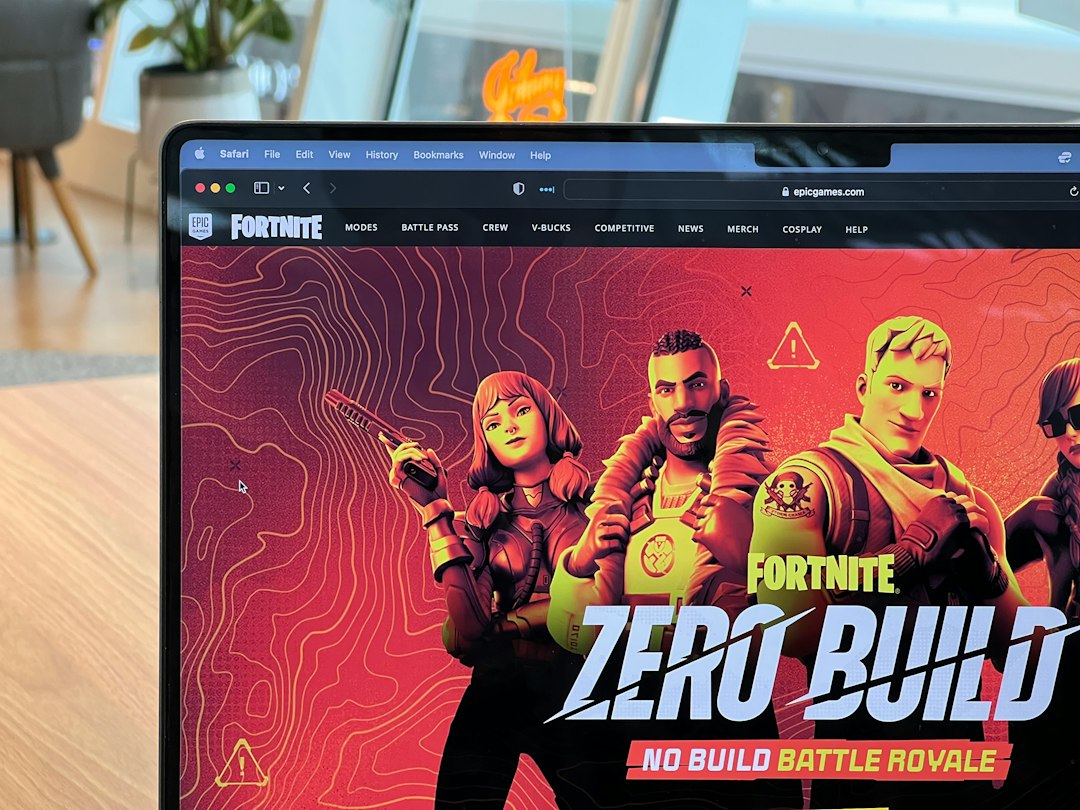
Lower settings do not mean the Chromebook is bad. They mean the player is choosing smoother input over sharper grass textures. For Fortnite, that is usually the better trade.
Fix Input Lag
Input lag is not the same as connection lag. It happens when actions feel late after a key press, mouse move, or controller input.
For less input delay, the player should use a wired mouse or wired controller when possible. Bluetooth can work, but it may add delay or random drops. A cheap wired mouse often feels better than an expensive wireless one on a shaky Chromebook setup.
Game mode is not common on Chromebooks, so simple steps matter more. The player should avoid screen recording, casting, or running Android apps during a match.
Check Router Placement
The router should not sit behind a TV, inside a cabinet, or near a microwave. Those spots can ruin Wi Fi. The player should place it in the open and higher than floor level.
If the home is large, a mesh Wi Fi system may help. Still, cloud gaming works best when the Chromebook connects to the main router or a strong mesh node nearby.
Other Options If Lag Will Not Go Away
If every fix fails, the player has a few choices:
- Play at off peak hours. Evening traffic can make cloud games worse.
- Upgrade the internet plan if upload speed and jitter are poor.
- Use a newer Chromebook with Wi Fi 6 support.
- Play Fortnite on a console or gaming PC if competitive play matters.
A Chromebook can handle Fortnite through cloud gaming, but it needs a clean connection. The best setup is simple: strong 5 GHz Wi Fi or Ethernet, fewer background tasks, and realistic stream settings.
FAQ
- Can Fortnite run directly on a Chromebook?
In most cases, no. Chromebook players usually use cloud gaming services to play Fortnite. - Why does Fortnite lag on a Chromebook with fast internet?
Fast download speed does not guarantee smooth play. High ping, jitter, weak Wi Fi, or busy servers can still cause lag. - Is 720p better than 1080p for Fortnite on Chromebook?
For many players, yes. 720p often gives smoother input and fewer freezes on weaker connections. - Does Ethernet help Fortnite lag?
Yes. A USB Ethernet adapter can reduce drops, jitter, and random lag spikes. - Which cloud gaming service is best for Fortnite on Chromebook?
There is no single best option for everyone. The player should test GeForce NOW, Xbox Cloud Gaming, or Luna and keep the one with the lowest delay.

5 Best Alternatives to Free YouTube Ad Blockers: AdGuard, uBlock Origin, Ghostery, and Other Tools
The safest ad blocking setup for YouTube is usually a mix of a respected blocker, a clean browser profile, and…