

A slow Chromebook can be frustrating, especially because ChromeOS is designed to feel fast, simple, and lightweight. When pages take too long to load, tabs freeze, or apps hesitate before opening, the cause is usually not one single problem. More often, performance drops because of too many extensions, limited storage, outdated software, heavy web apps, or background processes using memory.
TLDR: To speed up a slow Chromebook, start by closing unused tabs, removing unnecessary extensions, and restarting the device. Then check for ChromeOS updates, free up storage space, and review which apps or pages are using the most memory. If the Chromebook remains slow after basic cleanup, try a hardware reset or, as a last resort, a Powerwash reset after backing up your files.
1. Restart the Chromebook First
It may sound basic, but restarting is one of the most reliable first steps. Chromebooks are often left in sleep mode for days or weeks, which can allow browser tabs, Android apps, and background services to build up memory usage over time. A restart clears temporary activity and gives ChromeOS a fresh start.
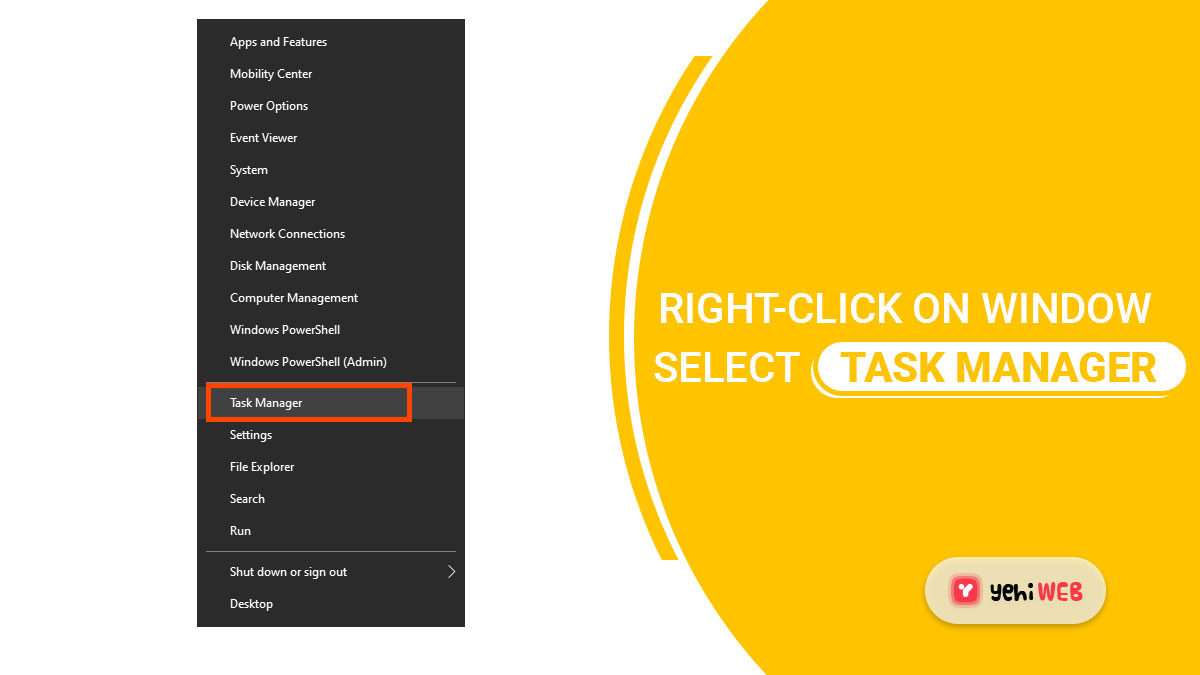
To restart properly, click the time in the bottom-right corner, select the power icon, wait for the device to shut down, and then turn it back on. Avoid simply closing the lid, because that usually puts the Chromebook to sleep rather than fully restarting it.
2. Close Unused Tabs and Browser Windows
Chrome tabs can consume a significant amount of memory, especially if they contain video, online documents, email, social media, or web-based productivity tools. Even inactive tabs may continue to use system resources.
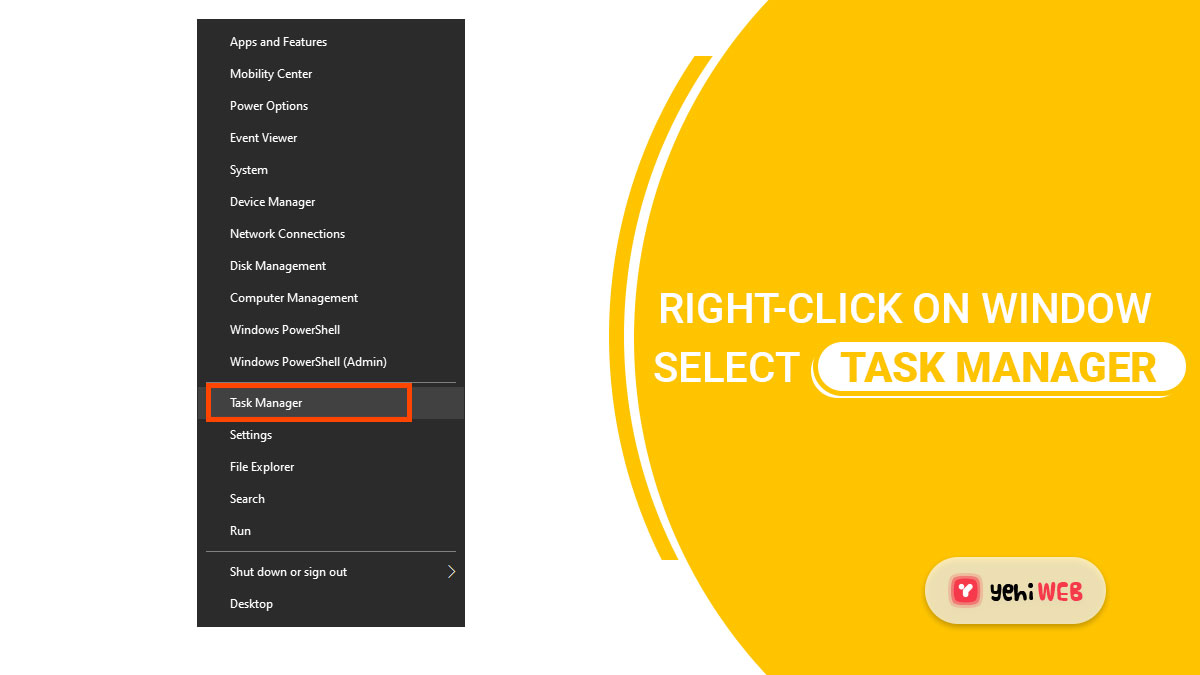
Make a habit of closing tabs you are not actively using. If you need to save a page for later, bookmark it instead of leaving it open indefinitely. You can also use Shift + Esc to open the ChromeOS Task Manager, which shows which tabs and processes are using memory and CPU power.
- High memory usage may cause slow switching between tabs.
- High CPU usage may cause heat, fan noise on some models, and lag.
- Frozen pages can be selected and ended from Task Manager.
3. Remove Extensions You Do Not Need
Browser extensions are useful, but they are also one of the most common reasons a Chromebook slows down. Some extensions run continuously in the background, monitor web pages, inject scripts, or sync data. Over time, an overloaded browser can become noticeably slower.
Open Chrome and go to chrome://extensions. Review every installed extension carefully. If you do not recognize an extension or no longer use it, remove it. If you are unsure whether an extension is necessary, disable it first and test performance for a day or two.
Be especially cautious with extensions that claim to provide free coupons, search enhancements, download helpers, or system optimization. Some may collect data or interfere with normal browsing. A serious approach is to keep only extensions from trusted developers and only those you genuinely use.
4. Update ChromeOS
Outdated system software can lead to poor performance, compatibility problems, and security risks. ChromeOS updates often include bug fixes, browser improvements, driver updates, and performance enhancements.
To check for updates, open Settings, select About ChromeOS, and click Check for updates. If an update is available, install it and restart the Chromebook when prompted.
If your Chromebook is very old, also check its update status. Devices eventually reach an automatic update expiration date, after which they no longer receive ChromeOS updates. A Chromebook past its support period may continue to work, but performance and compatibility can decline over time.
5. Free Up Storage Space
Although Chromebooks rely heavily on cloud storage, local storage still matters. When internal storage becomes nearly full, the system may have less room for downloads, cached files, Android apps, Linux files, and temporary data. This can make normal operation feel slower.
Open the Files app and review the Downloads folder. Delete items you no longer need, or move important files to Google Drive or an external drive. Also check for large video files, duplicate downloads, offline documents, and old screenshots.
You can review storage by going to Settings, then Device, then Storage management. From there, you can see categories such as downloads, browsing data, Android storage, and other users.
- Delete unnecessary files from Downloads.
- Clear old screenshots and recordings.
- Remove offline files you no longer need.
- Uninstall large Android apps that are rarely used.
6. Clear Browsing Data Carefully
Cached files help websites load faster, but over time the browser cache can become large or corrupted. Clearing browsing data can resolve slow loading, broken websites, and unusual browser behavior.
In Chrome, open Settings, go to Privacy and security, and choose Delete browsing data. For a balanced cleanup, select Cached images and files. You may also clear cookies, but be aware that doing so can sign you out of websites and reset some site preferences.
For most users, it is better to avoid clearing everything constantly. Cache is not inherently bad; it becomes a problem only when it grows too large or causes errors. Use this step as maintenance, not as a daily routine.
7. Uninstall Unused Android and Linux Apps
Many Chromebooks support Android apps from the Google Play Store, and some users enable Linux development tools. These features are valuable, but they can increase background activity and disk usage. Low-end Chromebooks with limited RAM and storage may struggle if too many apps are installed.
Open the launcher and review installed apps. Right-click an app you do not use and select Uninstall. If you enabled Linux but no longer need it, you can remove the Linux development environment from Settings. This may free a meaningful amount of storage.
Important: Before removing Linux, back up any important files stored inside the Linux environment. Those files may not be saved automatically to your main ChromeOS Downloads folder or Google Drive.
8. Check Your Internet Connection
Sometimes a Chromebook appears slow when the real issue is the network. Since much of ChromeOS depends on web apps and cloud services, weak Wi-Fi can feel like poor device performance.
Test the Chromebook near the router. If websites load quickly there but slowly in another room, the issue may be signal strength. Restarting your router can also help. If only one website is slow, the problem may be with that site rather than your Chromebook.
For video calls, streaming, and online schoolwork, a stable connection matters as much as device speed. If possible, reduce the number of devices streaming or downloading large files on the same network during important tasks.
9. Use Guest Mode to Test for Account Problems
If your Chromebook is still slow, try browsing in Guest Mode. Sign out of your account, click Browse as Guest, and test performance. Guest Mode runs without your normal extensions, account settings, and synced preferences.
If the Chromebook is much faster in Guest Mode, the issue is likely related to your user profile, extensions, settings, or installed apps. In that case, focus on removing extensions, resetting Chrome settings, or cleaning up synced data rather than assuming the hardware is failing.
10. Try a Hardware Reset
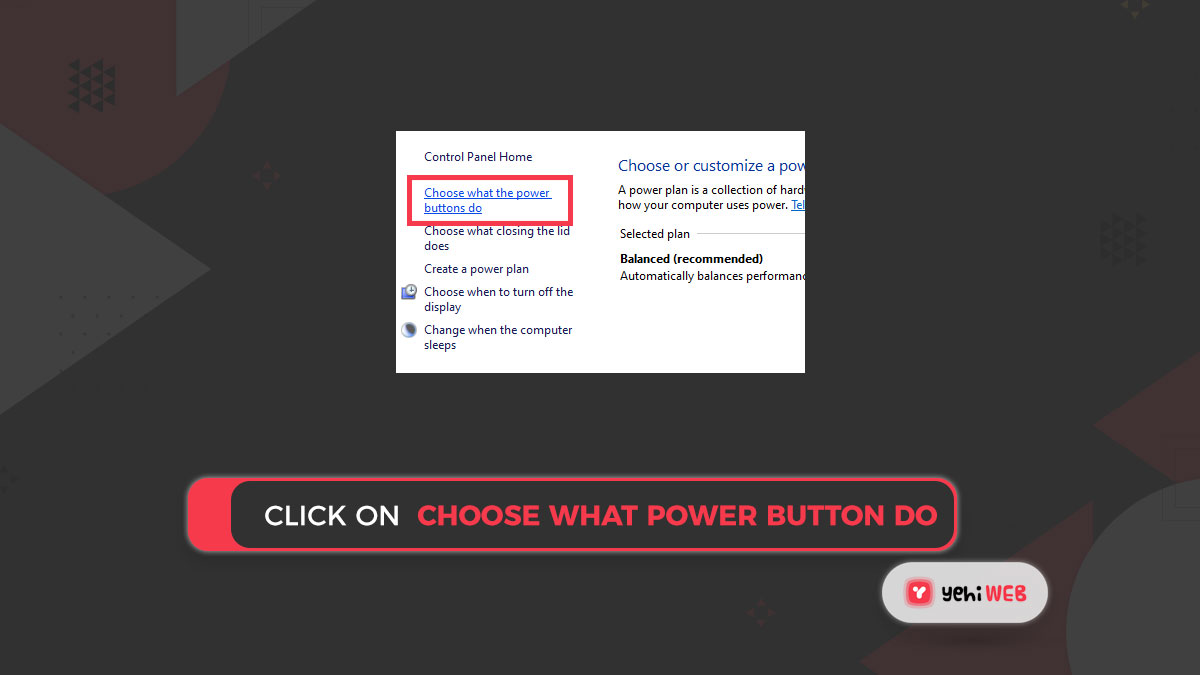
A hardware reset can resolve issues with the keyboard, touchpad, battery, display, or other low-level hardware behavior. It does not delete your files, so it is a safe step before more drastic options.
For most Chromebooks, turn the device off. Then press and hold Refresh and tap Power. When the Chromebook starts, release Refresh. Some models, especially tablets or detachable devices, may use a different button combination, so check the manufacturer’s instructions if needed.
11. Powerwash as a Last Resort
If nothing else works, a Powerwash resets the Chromebook to factory settings. This can fix serious software problems, corrupted profiles, and persistent performance issues. However, it removes local files and settings, so it should not be your first step.
Before using Powerwash, back up everything important. Files in Google Drive are already cloud-based, but items in the Downloads folder are stored locally unless you moved them. Also note any apps, Wi-Fi passwords, and settings you may need to restore later.
To Powerwash, go to Settings, select System preferences or Advanced depending on your ChromeOS version, and choose Reset next to Powerwash. Follow the prompts carefully.
When It May Be Time to Replace the Chromebook
Some slowdowns cannot be fully solved with maintenance. If your Chromebook has very limited RAM, very little storage, an aging processor, or no longer receives updates, performance may remain poor with modern websites and apps. Web pages are heavier than they used to be, and older entry-level hardware can struggle.
Still, many slow Chromebooks improve significantly after basic cleanup. Start with the least risky steps: restart, close tabs, remove extensions, update ChromeOS, and free storage. If performance improves, keep the device lean and avoid reinstalling unnecessary apps. A Chromebook is at its best when it remains simple, updated, and uncluttered.

BANT vs. MEDDIC: Salesforce vs. HubSpot for Improving B2B Lead Qualification
Use BANT in HubSpot when speed and volume matter; use MEDDIC in Salesforce when deal quality, complexity, and forecast accuracy…