
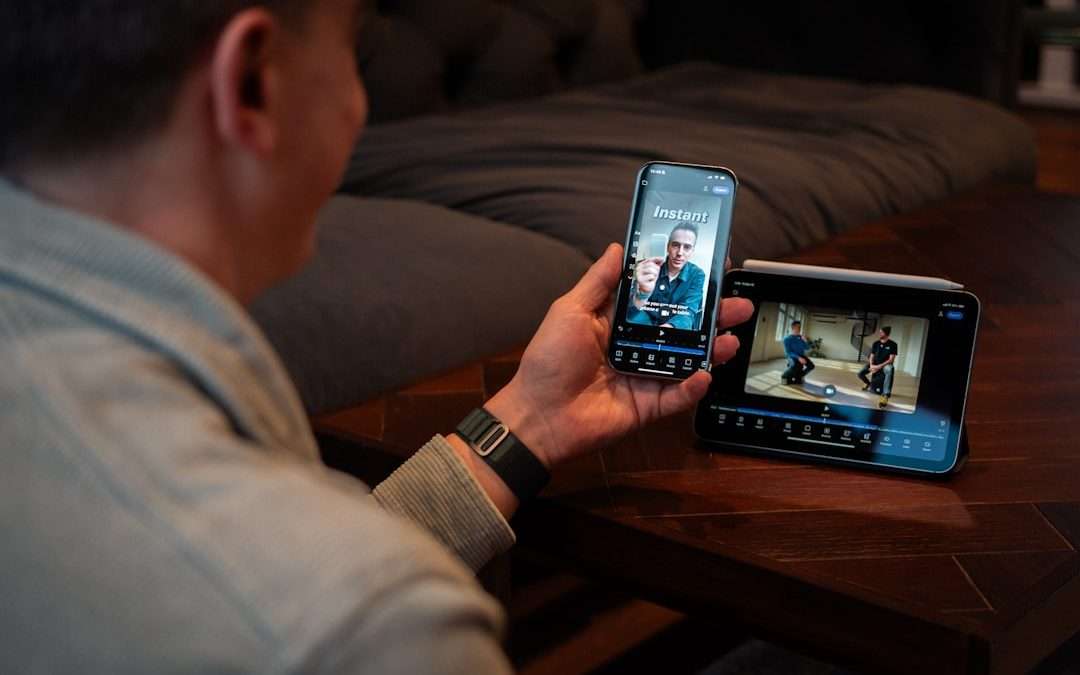

The best photo editing app is the one that fixes your real problem fast: cleaner portraits, better color, sharper product shots, or a consistent style for social posts. Mobile editing is no longer a side option, either; DataReportal reported 5.61 billion unique mobile phone users at the start of 2024 [source: DataReportal].
TLDR: For most users, Lightroom is the safest all-round choice, while Snapseed is the best free option for quick phone edits. If you retouch faces or remove objects often, use Photoshop or Affinity Photo. For example, a small online shop editing 40 product photos per week could save several hours by using presets, batch edits, and simple background cleanup instead of editing every image from scratch.
1. Adobe Lightroom: Best for consistent edits
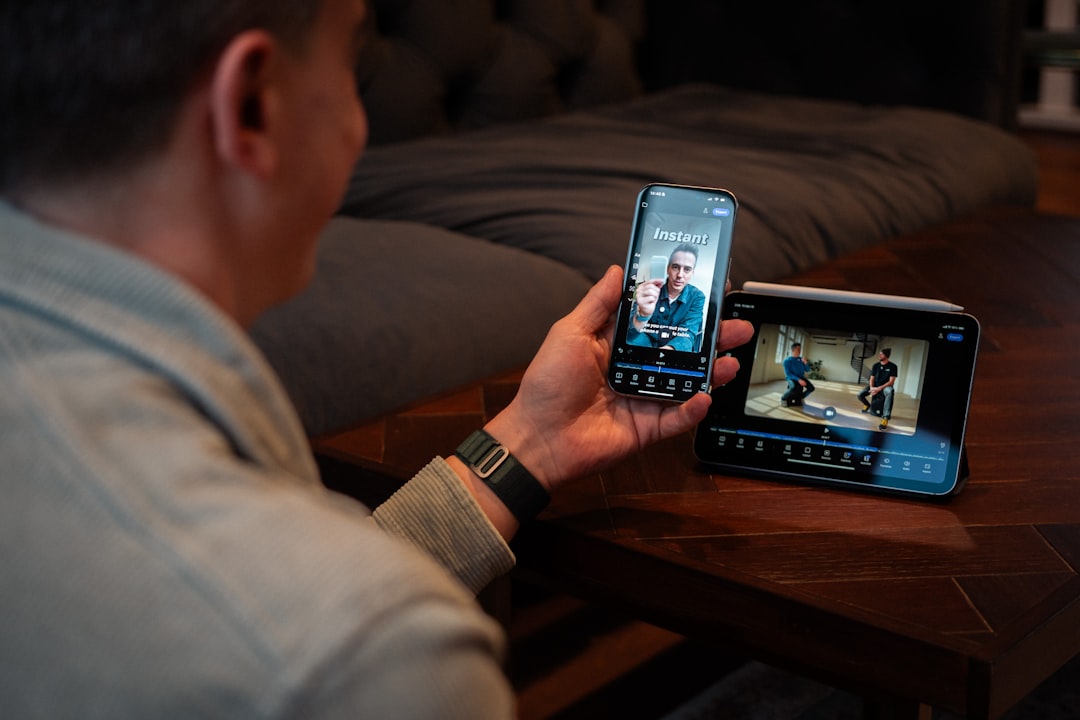
Lightroom is a strong choice for photographers, creators, and small brands. It handles exposure, color, cropping, noise reduction, and presets very well. The interface is clear enough for beginners, but deep enough for serious work.
The real value is consistency. You can edit one image, copy the settings, and apply them to a full set. That helps with weddings, products, food shoots, and social media campaigns. The catch is the subscription. It can feel annoying if you only edit photos once or twice a month.
2. Adobe Photoshop: Best for detailed retouching
Photoshop is still the standard for heavy image work. Use it for skin cleanup, object removal, background changes, composites, and detailed corrections. It is not the fastest tool for basic edits, but it is hard to beat when an image needs serious repair.
It is best for people who need control. A portrait editor can soften skin, fix stray hair, clean clothing wrinkles, and keep the face natural. That level of care matters when photos are used for ads, portfolios, or print.
3. Snapseed: Best free mobile editor
Snapseed, owned by Google, is simple, free, and surprisingly capable. It offers curves, selective edits, healing, sharpening, white balance, and ready-made looks. It works well for quick fixes before posting.
Honestly, it feels like some paid apps make you tap through three screens to do what Snapseed handles in seconds. The interface is not flashy, but it gets the job done. That matters more than a pretty menu.
4. VSCO: Best for mood and film-style color
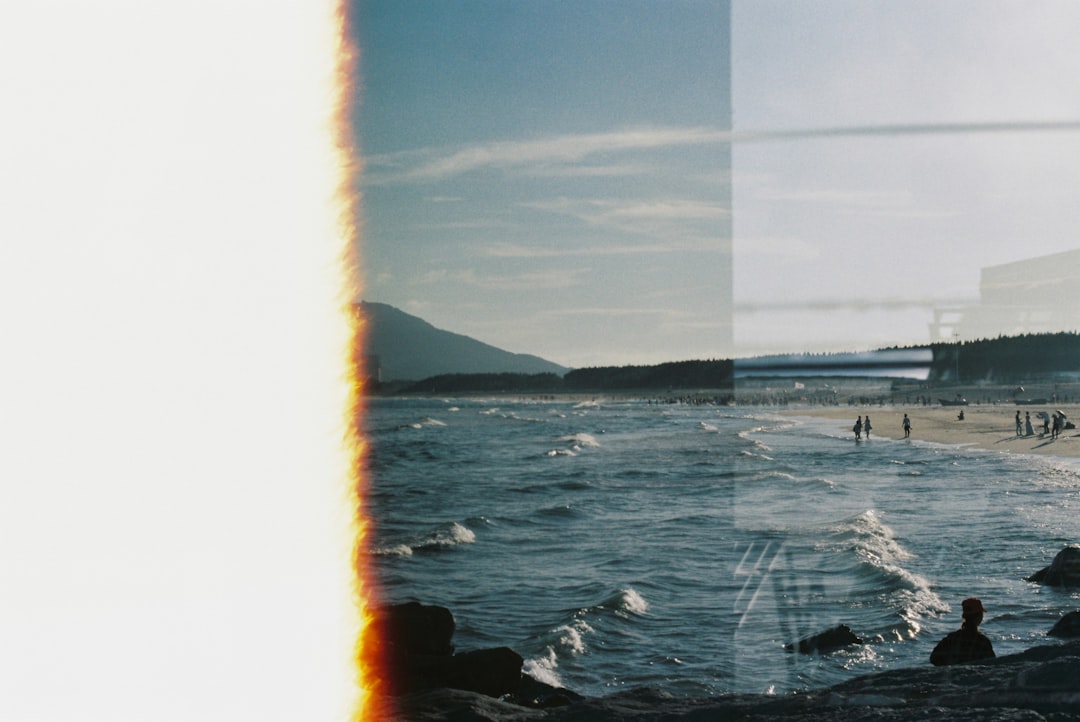
VSCO is useful when style matters more than deep retouching. Its strength is color. The app is known for film-like presets that can make everyday photos feel more polished without looking too harsh.
It is good for creators who want a steady visual tone across Instagram, blogs, or newsletters. If you publish shoots often, you may also want a system for sharing them with readers. This guide on publishing a photography newsletter can help if your images support a regular audience.
5. Affinity Photo: Best one-time purchase option
Affinity Photo is a serious editor without a monthly plan. It supports layers, masks, RAW files, frequency separation, panorama stitching, and advanced retouching. That makes it a practical choice for users who dislike subscriptions.
There is a learning curve. Some tools are placed in ways that feel odd at first. Expect to waste time during the first few sessions. After that, it becomes a fast and reliable editor for portraits, product photos, and creative edits.
6. Capture One: Best for studio and color control
Capture One is built for photographers who care about color accuracy. It is popular in studio work, fashion, product shoots, and tethered shooting. The color tools are precise, and the RAW processing is excellent.
This is not the app most casual users need. It costs more, and it asks for patience. Still, if color matching matters across a full shoot, Capture One is a strong pick. It also works well for teams that need a controlled editing process.
7. Luminar Neo: Best for AI-assisted edits
Luminar Neo focuses on speed. It offers AI tools for skies, portraits, lighting, background cleanup, and quick creative changes. It is useful when you need a strong result without building every edit by hand.
AI tools can save time, but they can also overdo things. Skin may become too smooth. Colors may become too intense. Check the final image at full size before you export. If presets are central to your work, this list of editors with strong preset libraries is worth reading.
How to choose the right app
- For beginners: Start with Snapseed or Lightroom.
- For portraits: Choose Photoshop, Affinity Photo, or Luminar Neo.
- For product photos: Use Lightroom for batches and Photoshop for cleanup.
- For color work: Try Capture One or Lightroom.
- For social style: VSCO is simple and effective.
Final recommendation: Start with one main editor and learn it well. Do not collect five apps and switch every week. For most people, Lightroom plus Snapseed covers daily work. Add Photoshop or Affinity Photo only when the edits become more demanding.

Showpad Alternatives: 5 Sales Enablement Platforms for Revenue Teams
Revenue teams comparing Showpad should shortlist Highspot, Seismic, Mindtickle, Allego, and Mediafly first. Each covers sales content, coaching, analytics, or…