
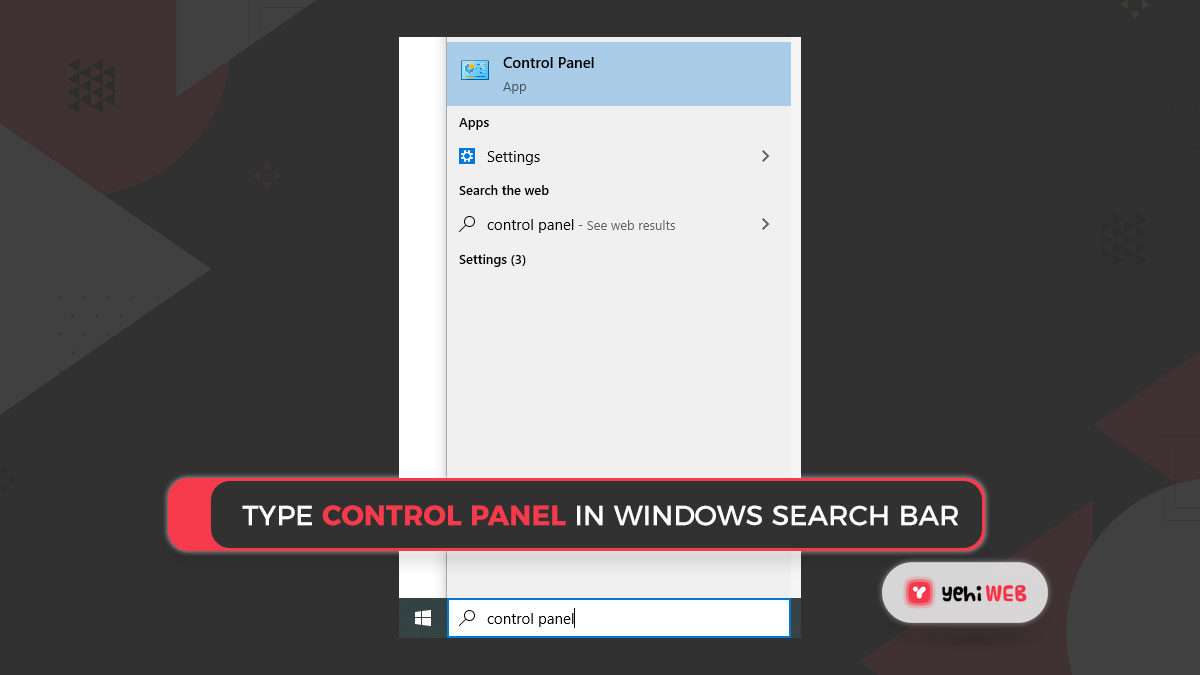

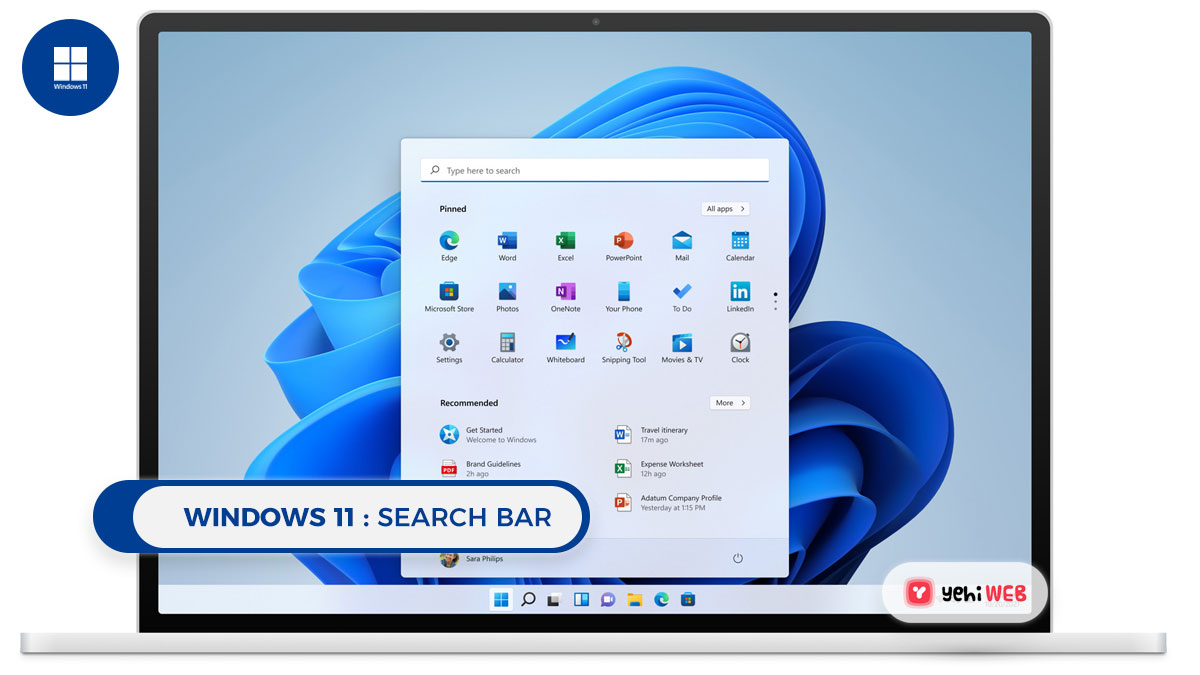
Windows 11 Search is designed to help you find apps, documents, emails, settings, and files quickly. When it works properly, results appear almost instantly. When the search index becomes outdated, damaged, or incomplete, however, you may see missing files, slow results, incorrect matches, or a search box that appears to do nothing. Rebuilding the Windows 11 search index is a safe and practical maintenance step that forces Windows to discard the old index and create a fresh one from your selected locations.
TLDR: Rebuilding the Windows 11 Search Index can fix missing, outdated, or slow search results. The standard method is to open Indexing Options, go to Advanced, and select Rebuild. The process may take minutes or hours depending on your files and system speed, and search results may be incomplete until it finishes. If rebuilding does not help, check indexed locations, Windows Search service status, and search permissions.
What the Windows 11 Search Index Does
The Windows Search Index is a local database that stores information about files, folders, app shortcuts, email content, metadata, and selected system locations. Instead of scanning your entire drive every time you type into Search, Windows checks the index and returns results much faster.
This index is especially useful if you search through large document folders, Outlook data, OneDrive files stored locally, or project directories with many file names. The index can include file names, file properties, and, for supported file types, file contents. For example, if content indexing is enabled for text documents or Office files, Windows may find a document based on words inside the file, not just the file name.
However, because the index is a database, it can occasionally become inconsistent. Files may be moved, renamed, deleted, synced, or restored from backups, while the index may not update correctly. In that situation, rebuilding the index is often the most direct fix.
When You Should Rebuild the Search Index
You do not need to rebuild the index regularly. Windows maintains it automatically in the background. Still, a rebuild is worth considering when you notice clear search problems, especially after major system changes.
Common signs include:
- Files do not appear in search results even though you know they exist.
- Search results show deleted or old items that are no longer available.
- Windows Search is unusually slow when searching common folders.
- Outlook or local email results are incomplete, if email indexing is enabled.
- Search works in some folders but not others.
- After a Windows upgrade, search behavior becomes unreliable.
- After moving user folders, adding a new drive, or restoring files from backup, results are inaccurate.
Rebuilding is not a guaranteed fix for every search issue. If Windows Search is disabled, if your files are excluded from indexing, or if permissions prevent Windows from reading certain folders, a rebuild alone may not solve the problem. That is why it is important to check the index settings as well.
Before You Rebuild: Important Things to Know
Rebuilding the index is generally safe. It does not delete your files, change your documents, or remove installed apps. It only deletes the existing search index database and creates a new one.
There are still a few points to keep in mind:
- Search may be incomplete during the rebuild. Windows will gradually repopulate results as indexing progresses.
- The process can take time. A small system may finish in minutes, while a computer with hundreds of thousands of files may take several hours.
- Battery life may be affected. On a laptop, it is best to keep the device plugged in.
- Performance may temporarily decrease. Indexing uses CPU, disk, and memory resources, although Windows usually runs it at a lower priority.
- Encrypted, cloud only, or restricted files may not index fully. This depends on system settings and file availability.
For best results, restart your computer before rebuilding if Windows Search has been behaving erratically. This clears temporary glitches and ensures the indexing service starts from a clean state.
Method 1: Rebuild the Index from Indexing Options
The most reliable and traditional way to rebuild the Windows 11 search index is through Indexing Options. Microsoft has kept this tool available because it provides direct control over indexed locations and advanced settings.
- Click the Start button.
- Type Indexing Options.
- Select Indexing Options from the search results.
- In the Indexing Options window, review the list under Included Locations.
- Click Advanced. You may need administrator permission.
- Under the Index Settings tab, find the Troubleshooting section.
- Click Rebuild.
- Confirm the warning by selecting OK.
After confirming, Windows deletes the current index and begins creating a new one. You can close the dialog and continue using your PC, but search results may appear incomplete until indexing finishes.
To monitor progress, open Indexing Options again. Near the top of the window, Windows displays indexing status, such as the number of items indexed or whether indexing is complete.

Method 2: Open Indexing Options Through Settings
If you prefer using the modern Windows 11 Settings app, you can reach search indexing controls from there as well.
- Press Windows + I to open Settings.
- Select Privacy & security from the left menu.
- Click Searching Windows.
- Scroll down and choose Advanced indexing options.
- In the classic Indexing Options window, click Advanced.
- Select Rebuild under the troubleshooting section.
This route is useful because the Searching Windows page also shows whether your system is using Classic or Enhanced search mode. Classic mode primarily indexes common locations such as your user profile, Documents, Pictures, Music, Desktop, and email if applicable. Enhanced mode can index your entire PC, excluding system and temporary folders by default.
Classic vs Enhanced Search Mode
Before rebuilding, it is worth checking whether Windows is indexing the locations you actually care about. Rebuilding an index that excludes your important folder will not make that folder searchable.
In Settings > Privacy & security > Searching Windows, you will usually see two main modes:
- Classic: Indexes common user locations and selected libraries. This is usually faster and lighter on system resources.
- Enhanced: Attempts to index more locations across the PC. This can make searches more complete, but it may increase indexing time and resource use.
If your files are stored outside standard folders, such as on a second internal drive, a custom project folder, or a separate data partition, make sure those locations are included. You can add or remove indexed locations from Indexing Options by clicking Modify and selecting the folders you want Windows Search to cover.
Be selective. Indexing an entire drive with system folders, development dependencies, temporary files, or large archives may slow indexing and clutter results. A focused index is often more useful than a very large one.
How Long the Rebuild Takes
The time required to rebuild the Windows 11 Search Index depends on several factors: the number of indexed files, drive speed, processor performance, file types, and whether Windows is indexing contents as well as file names. A modern PC with an SSD and a modest number of files may finish quickly. A system with large email archives, network synced folders, or many documents may take much longer.
Windows may also pause or slow indexing when you are actively using the computer. This is intentional. The operating system tries to reduce background activity when it detects that you need system resources for other tasks. If you want indexing to complete faster, leave the PC powered on, connected to power, and idle for a while.
Check File Type Indexing Settings
If search can find file names but not words inside documents, the issue may be related to file type indexing. Windows can be configured to index only file properties or both properties and file contents.
To check this:
- Open Indexing Options.
- Click Advanced.
- Select the File Types tab.
- Choose a file extension, such as txt, docx, or pdf.
- Check whether it is set to Index Properties Only or Index Properties and File Contents.
If you change file type indexing behavior, Windows may need time to update the index. In some cases, rebuilding after changing these settings is sensible, especially if you need content search to work consistently.
Make Sure the Windows Search Service Is Running
If rebuilding fails, the index never progresses, or the Search interface remains broken, verify that the Windows Search service is running.
- Press Windows + R.
- Type services.msc and press Enter.
- Find Windows Search in the list.
- Double click it.
- Set Startup type to Automatic or Automatic delayed start.
- If the service is stopped, click Start.
- Click OK.
If the service will not start, there may be a deeper Windows component problem. In that case, running system repair commands may be appropriate.

Use System Repair Commands if Search Remains Broken
If the index rebuild completes but search is still unreliable, system files may be damaged. Open Terminal or Command Prompt as administrator and run the following commands one at a time:
sfc /scannowAfter it completes, run:
DISM /Online /Cleanup-Image /RestoreHealthThe SFC command checks and repairs protected Windows system files. The DISM command repairs the Windows component store used for system restoration. After both commands finish, restart the computer and test Search again.
Check Excluded Folders and Search Permissions
Windows 11 allows you to exclude folders from search indexing. This is useful for privacy and performance, but it can also explain missing results. Go to Settings > Privacy & security > Searching Windows and review the Excluded folders section. If an important folder appears there, remove it from the exclusion list.
Also confirm that your user account has permission to access the files. Windows Search generally cannot index content that your account or the search service cannot read. This is especially relevant for folders copied from another PC, restored from backup, or stored on external drives with old permissions.
What to Do After the Rebuild
Once indexing is complete, test search carefully. Search for a known file by name, then search for a word inside a document if content indexing is enabled. Check Start menu search, File Explorer search, and any app specific search that depends on Windows indexing, such as Outlook.
If results are now correct, no further action is needed. If results are still missing, return to the basics: confirm the folder is included, make sure it is not excluded, verify file type settings, and ensure Windows Search is running. A rebuild is powerful, but it cannot index locations or content that Windows has been told to ignore.
Final Thoughts
Rebuilding the Windows 11 Search Index is a dependable troubleshooting step for slow, missing, or inaccurate search results. It is safe, built into Windows, and usually requires only a few clicks. The key is to treat it as part of a broader search configuration check: verify indexed locations, review exclusions, confirm file type settings, and make sure the Windows Search service is healthy.
For most users, the best approach is simple: use Indexing Options, click Advanced, choose Rebuild, and allow Windows enough time to finish. Once the new index is complete, Windows 11 Search should be faster, cleaner, and more reliable.


What Is a Management Dashboard? Key Metrics, Examples, and Dashboard Design Tips
A management dashboard is a visual reporting tool that helps leaders, managers, and teams monitor business performance in one place….