
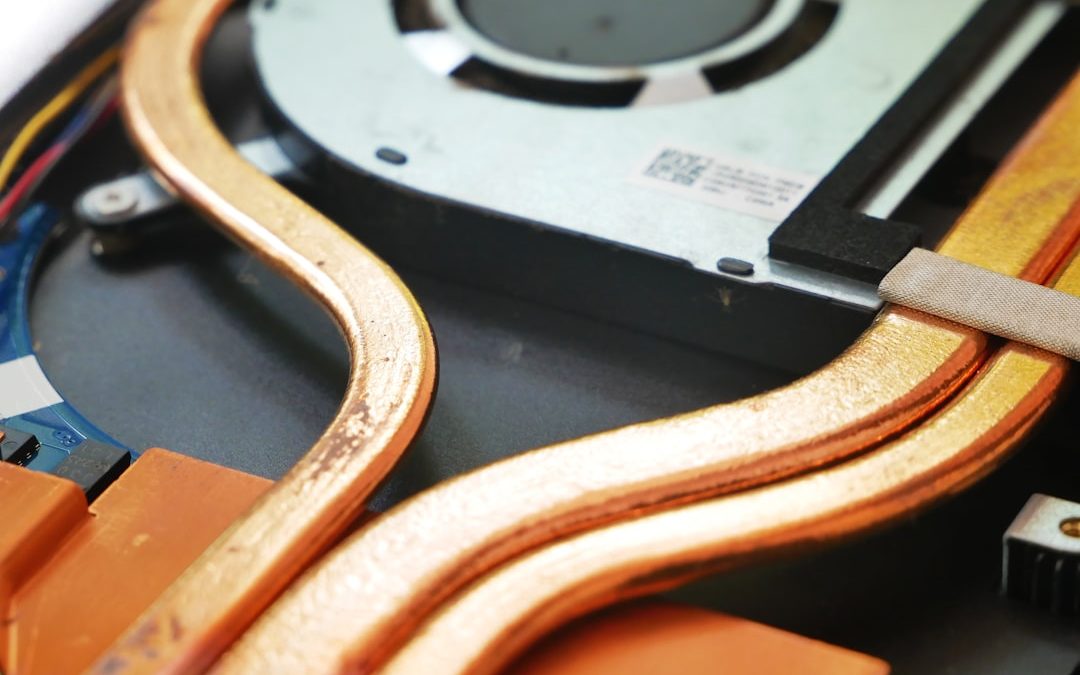

A laptop screen suddenly turning green can be alarming, especially if it happens during important work or while streaming media. The issue may appear as a solid green display, a green tint over everything, or flickering green lines across the screen. While it can look like a catastrophic failure, a green screen problem is often traceable to specific hardware or software causes. Understanding those causes—and following a structured troubleshooting process—can help you resolve the issue efficiently and avoid unnecessary repairs.
TLDR: A laptop green screen problem is usually caused by loose display cables, outdated graphics drivers, GPU malfunctions, or damaged screens. Start by checking external display connections and updating graphics drivers before assuming hardware failure. If software fixes do not work, inspect internal connections or consult a technician for possible GPU or screen replacement. Early diagnosis significantly improves your chances of a simple, affordable fix.
What Does a Laptop Green Screen Indicate?
Unlike the well-known “blue screen,” a green screen does not usually come with a system crash warning. Instead, it often reflects a display signal interruption or distortion. The green color appears because the red and blue elements in the RGB signal chain are disrupted, leaving the green channel dominant.
Common variations include:
- Solid green screen immediately after startup
- Green overlay or tint affecting all colors
- Green horizontal or vertical lines
- Green flickering during video playback
Each variation may point to a different underlying cause. Correct diagnosis is essential before attempting repairs.
Primary Causes of a Laptop Green Screen
1. Loose or Damaged Display Cable
Inside your laptop, a thin video cable connects the motherboard to the screen panel. Regular opening and closing of the lid can gradually loosen or damage this cable.
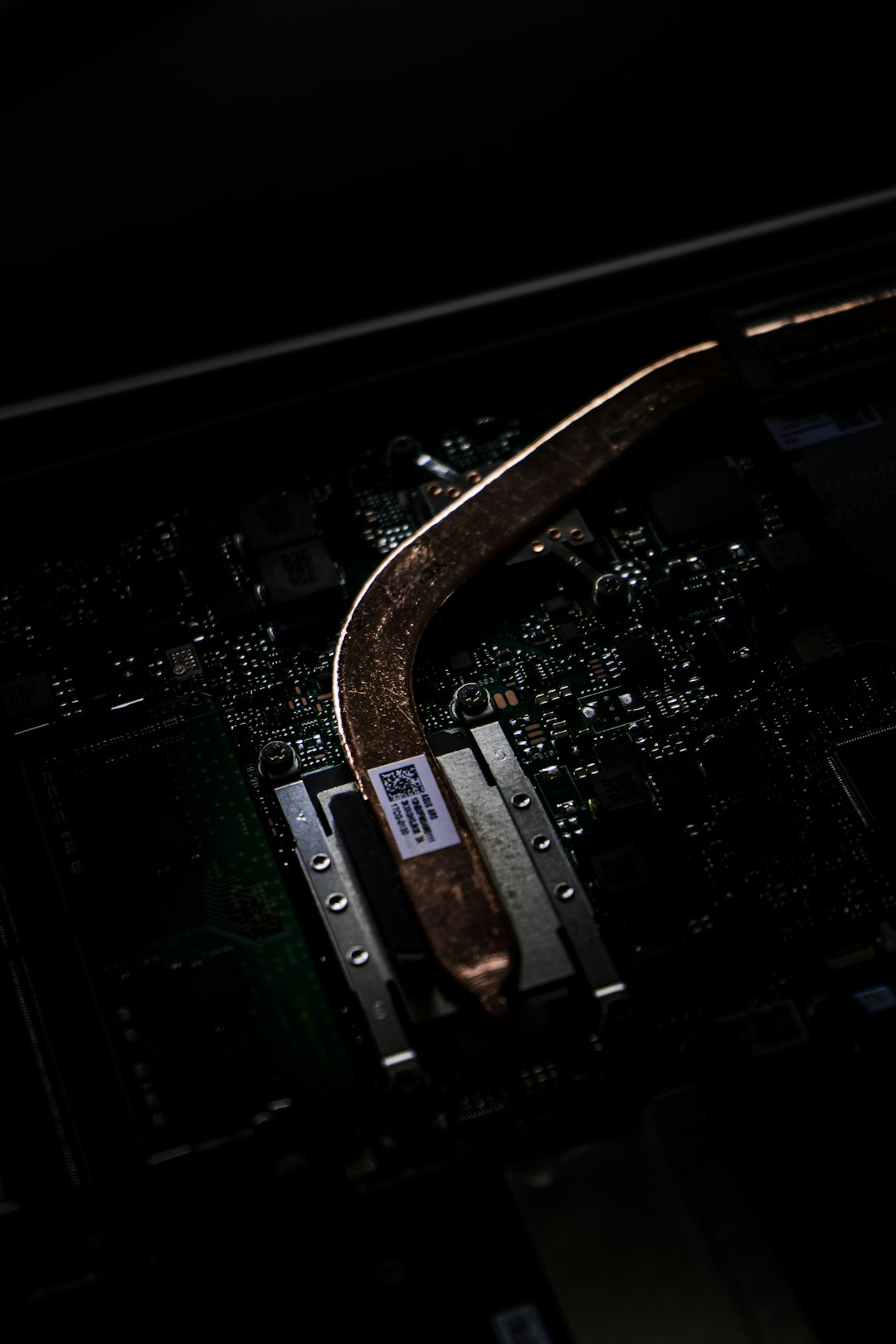
Signs this may be the issue:
- The screen changes color when you move the lid
- Green tint appears intermittently
- Physical pressure on the bezel affects the display
This problem is particularly common in older laptops or devices that have been dropped.
2. Graphics Driver Issues
Outdated or corrupted graphics drivers can interfere with how your GPU renders video output. Operating system updates sometimes conflict with older drivers, creating unexpected display problems—including green screens.
Driver issues are among the most common and easiest problems to fix.
3. Failing Graphics Processing Unit (GPU)
The GPU handles all image rendering tasks. If it begins to fail due to age, overheating, or manufacturing defects, color distortions may occur.
Warning signs of GPU failure include:
- Artifacts (random shapes or lines)
- Screen freezing during graphics-heavy tasks
- System crashes during gaming or video editing
- Persistent green tint even on external monitors
This type of issue is more serious and may require professional service.
4. Damaged LCD or LED Panel
If the screen itself is physically damaged or internally defective, the green distortion may remain constant. Unlike cable or driver issues, panel damage does not typically change when adjusting display settings.
5. External Display Settings Misconfiguration
Incorrect color calibration settings or third-party display software can cause abnormal color output. High contrast modes, night light filters, or GPU-level color adjustments may produce a green hue.
6. Faulty External Monitor Connection
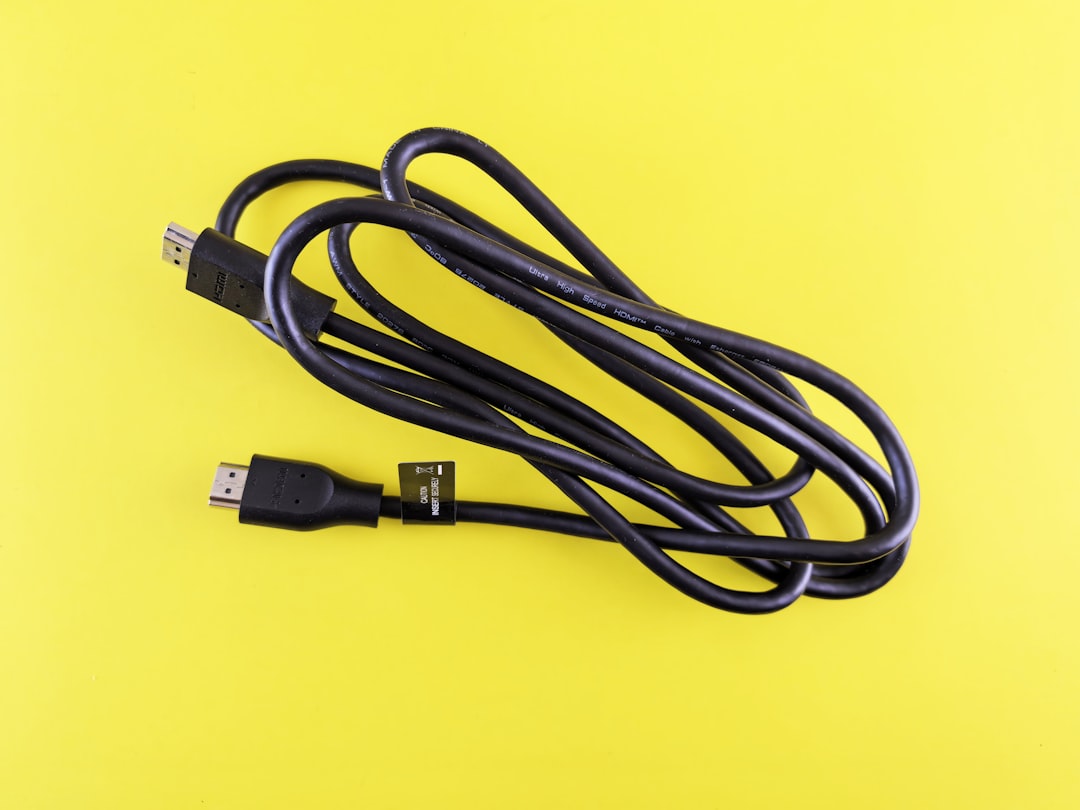
If you are using an HDMI or DisplayPort cable, the issue may originate from:
- A damaged cable
- A loose port connection
- A malfunctioning external display
Step-by-Step Fixes for a Laptop Green Screen
Follow these steps in order, beginning with the simplest solutions.
Step 1: Restart Your Laptop
This may sound basic, but temporary software glitches can distort color rendering. A full restart clears memory and refreshes display drivers.
- Shut down completely (not sleep or hibernate)
- Wait 30 seconds
- Power the device back on
If the problem disappears, the issue was likely temporary.
Step 2: Test with an External Monitor
Connect your laptop to an external monitor or TV using HDMI.
- If the external screen displays normally, the laptop’s internal screen or cable is likely faulty.
- If both screens show green distortion, the issue may involve the GPU or drivers.
This simple comparison is one of the most effective diagnostic methods.
Step 3: Update or Reinstall Graphics Drivers
Corrupted drivers are a frequent culprit.
To update drivers:
- Open Device Manager
- Expand Display Adapters
- Right click your graphics card
- Select Update Driver
If updating does not work, uninstall the driver entirely and restart your laptop. The operating system will reinstall a fresh version.
For best results, download the latest driver from the manufacturer’s official site (Intel, NVIDIA, or AMD).
Step 4: Adjust Display Color Settings
Reset any manual color modifications.
- Disable Night Light mode
- Check accessibility color filters
- Reset GPU control panel color adjustments
- Restore monitor calibration to default
Sometimes a green tint is simply a misconfigured color profile.
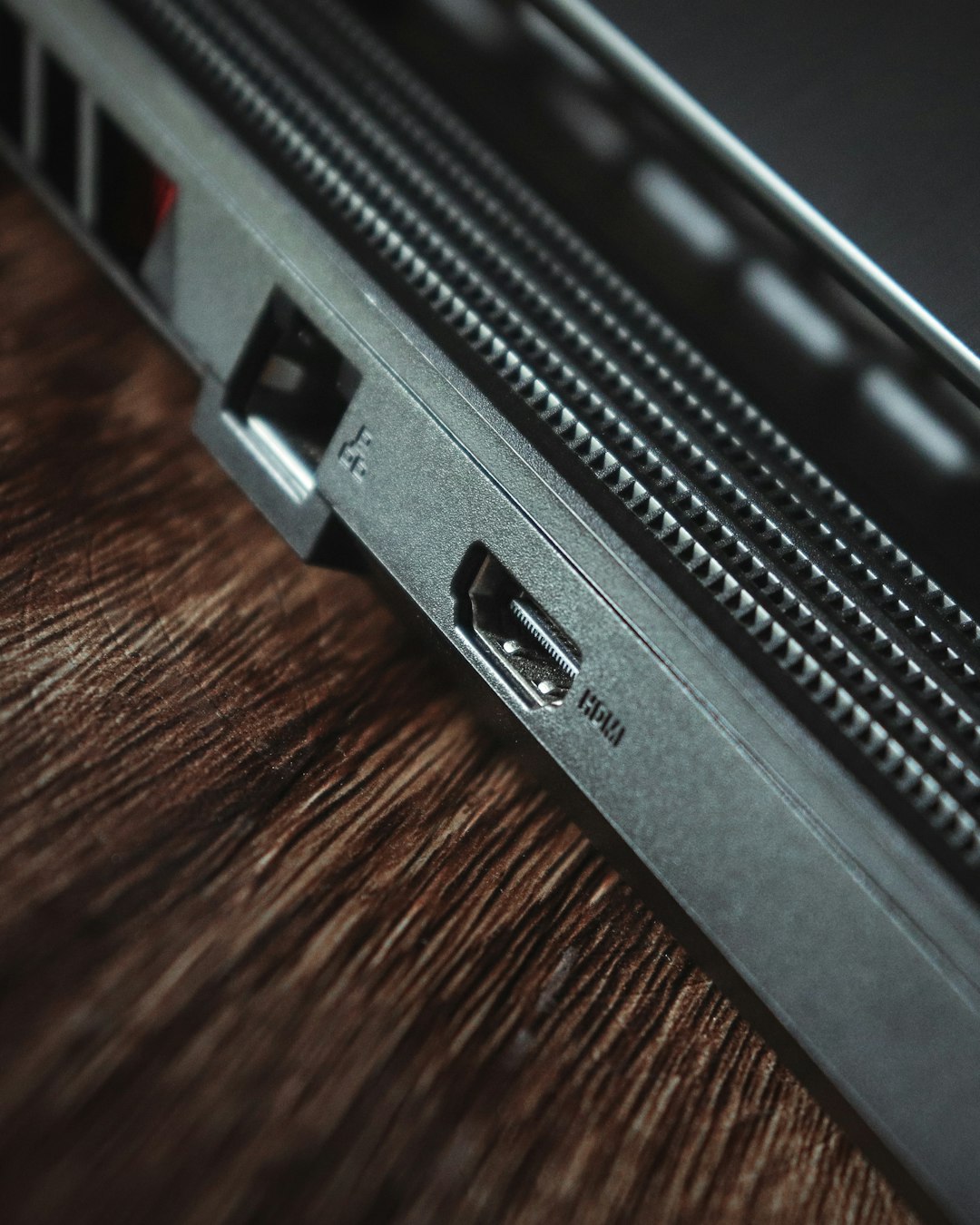
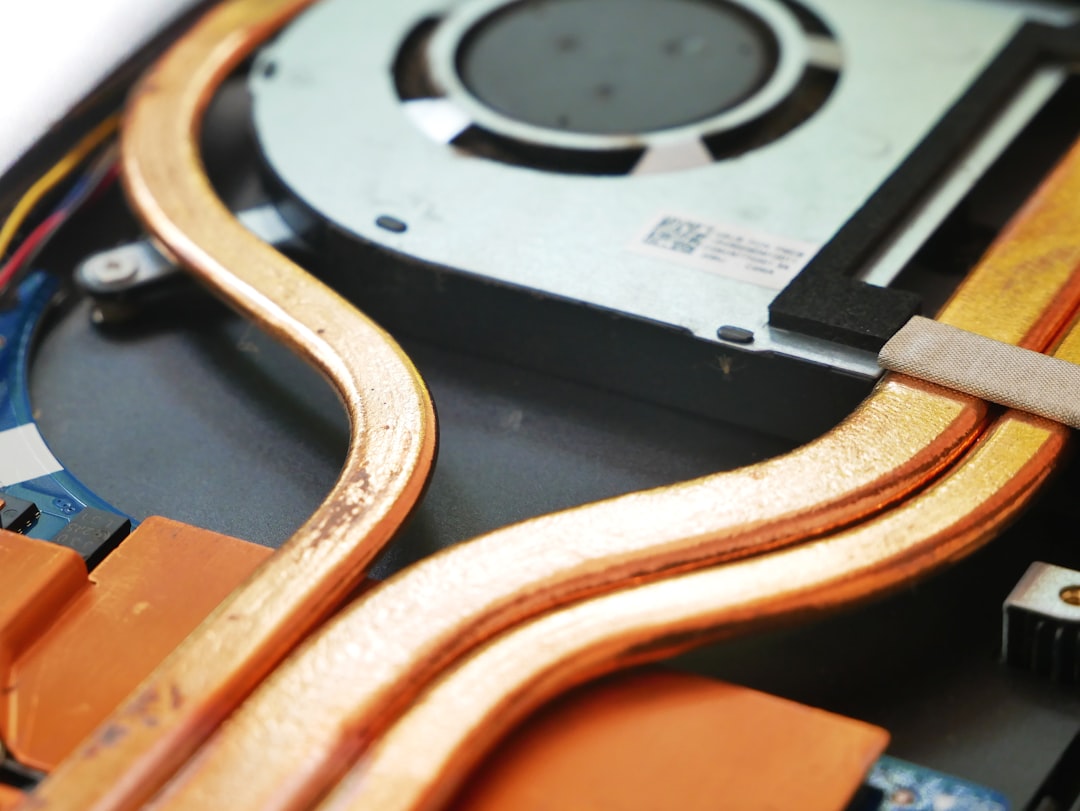
Step 5: Check for Overheating
Overheating can cause GPU instability.
What to do:
- Ensure vents are not blocked
- Clean dust from air openings
- Use a cooling pad if necessary
- Avoid using the laptop on soft surfaces
If the green screen appears only during gaming or heavy workloads, overheating is a strong possibility.
Step 6: Inspect the Display Cable (Advanced Users)
Only attempt this if you are comfortable opening your laptop.
- Power off the device completely
- Disconnect the battery
- Open the back panel carefully
- Check the video ribbon cable connection to the motherboard
If the cable appears loose, reseat it securely. If it shows visible wear or crimping, replacing it may restore full functionality.
Warning: Opening your laptop may void the warranty.
Step 7: Run Hardware Diagnostics
Many laptops include built-in diagnostic tools accessible during startup (often by pressing F2, F12, or ESC).
Run display and GPU tests to check for hardware faults. If diagnostics confirm GPU malfunction, professional repair is advised.
When to Seek Professional Repair
You should consult a technician if:
- The green screen persists after driver reinstallations
- External displays show the same issue
- You observe system crashes or graphical artifacts
- The screen is physically cracked or damaged
Possible repair solutions may include:
- Replacing the LCD panel
- Replacing the internal display cable
- Repairing or replacing the motherboard GPU
Cost considerations:
- Screen replacement: moderate expense
- Cable replacement: relatively affordable
- GPU or motherboard replacement: potentially costly
If your laptop is older, replacement may be more economical than repair.
Preventing Future Green Screen Problems
Prevention significantly reduces the risk of recurring display issues.
- Keep graphics drivers updated regularly
- Avoid excessive heat exposure
- Clean internal components annually
- Open and close the laptop lid gently
- Use surge protectors to prevent electrical damage
Routine maintenance is substantially cheaper than hardware replacement.
Final Thoughts
A laptop green screen problem, while unsettling, is rarely mysterious. In most cases, it stems from identifiable software conflicts, loose connections, or aging hardware components. By approaching the issue methodically—starting with basic troubleshooting and advancing to deeper diagnostics—you can often resolve it without major expense.
The key is isolation of the root cause. Determining whether the problem lies in the screen, cable, GPU, or software eliminates guesswork and prevents unnecessary part replacements. When addressed promptly and systematically, most green screen problems are manageable and repairable.
If uncertainty remains after completing the steps above, seeking professional evaluation is the safest course of action. Early intervention can prevent minor issues from escalating into permanent hardware failure.

Managed Security Service Provider: Arctic Wolf vs Sophos for Managed Cybersecurity
Pick Arctic Wolf if you want a full managed security team that works across many tools. Pick Sophos if you…