
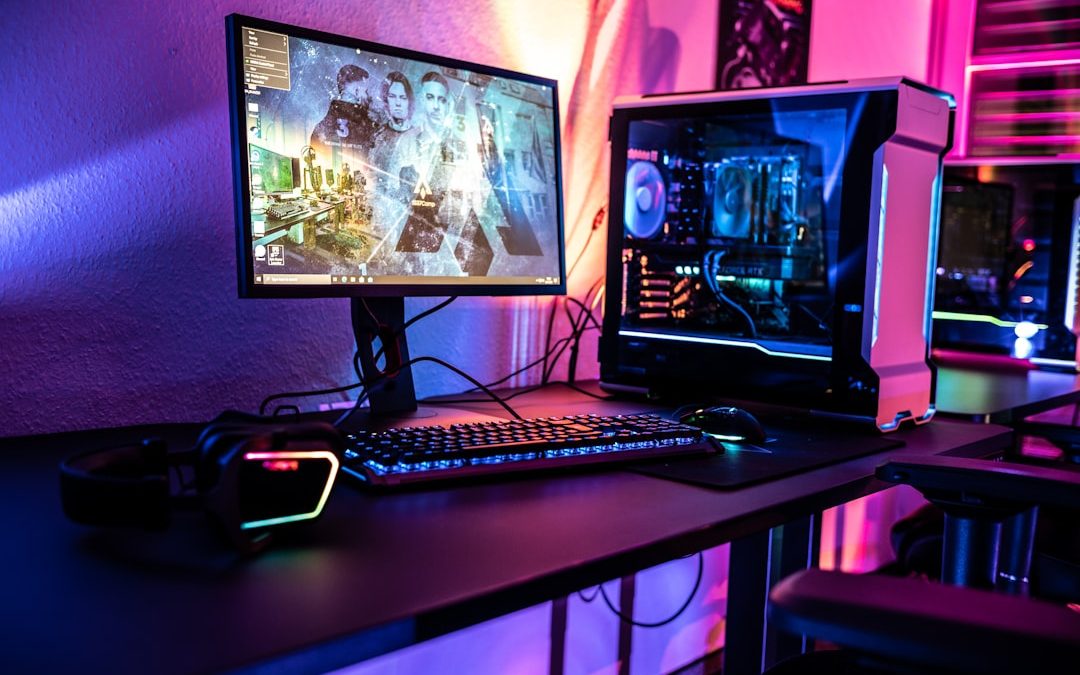

A monitor that randomly goes black during gaming is more than an annoyance. It can interrupt competitive matches, make single player games unplayable, and sometimes point to a deeper problem with the graphics card, cable, monitor, refresh rate configuration, or power delivery. The good news is that most black screen issues can be diagnosed methodically, without replacing expensive hardware immediately.
TLDR
If your monitor randomly goes black while gaming, start by checking the basics: update or clean reinstall your GPU drivers, test another DisplayPort or HDMI cable, and lower your refresh rate temporarily. Many black screen problems are caused by unstable graphics drivers, poor quality DisplayPort cables, VRR or HDR conflicts, or refresh rates that the cable or monitor cannot reliably handle. If the issue continues, check GPU temperatures, power cables, monitor firmware, and Windows display settings before assuming the graphics card is failing.
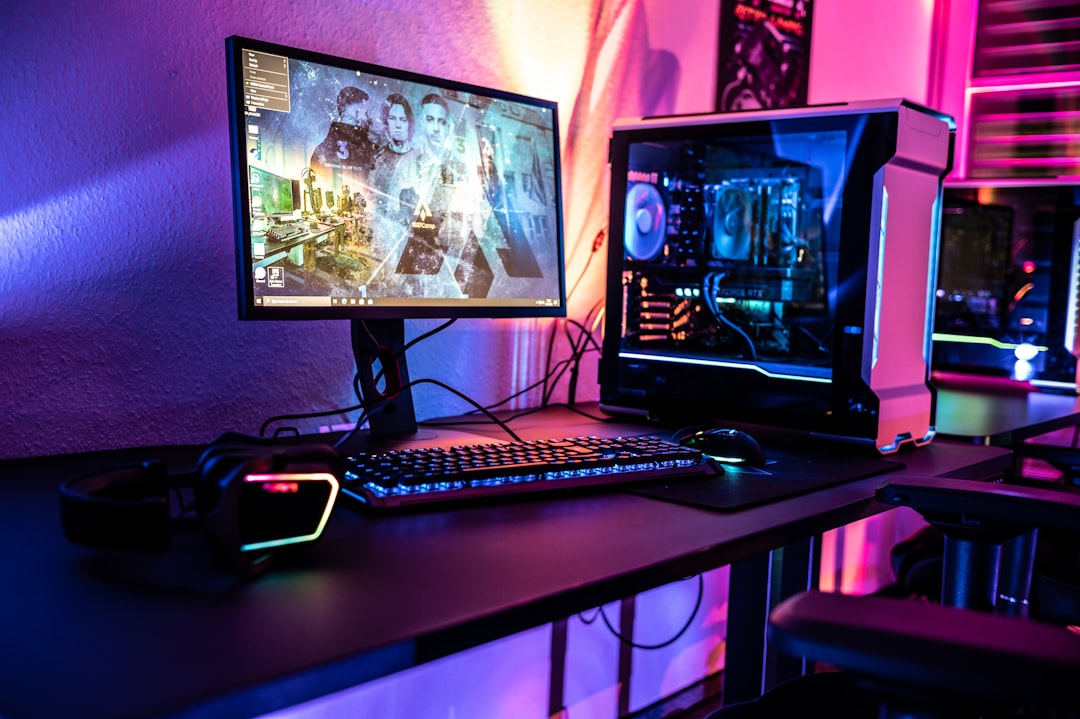
Why the Screen Goes Black During Games
Gaming stresses a PC differently than everyday use. A system may browse the web, stream video, and run office software perfectly, but fail when a game pushes the GPU to high power draw, high frame rates, variable refresh rate, HDR output, or high resolution. When the display signal becomes unstable, the monitor may briefly lose connection and go black, even though the computer itself continues running.
In many cases, you may still hear game audio, voice chat, or system sounds while the screen is black. That detail matters. If audio continues, the PC may not have crashed completely; instead, the issue may be related to the display path: GPU driver, cable, monitor input, refresh rate, or display handshake. If the whole system freezes or restarts, then power, overheating, RAM, or GPU hardware instability becomes more likely.
Start With a Careful Symptom Check
Before changing settings at random, write down exactly what happens. This helps separate a driver issue from a cable or hardware issue.
- Does the screen go black only in games? If yes, the issue may be GPU load, refresh rate, driver behavior, or game specific settings.
- Does audio continue? If yes, the PC may still be running while the monitor loses signal.
- Does the monitor show “No Signal”? That often points to a cable, GPU output, monitor input, or driver reset.
- Does the PC restart? That points more toward power supply, overheating, or system instability.
- Does it happen after a few minutes of gaming? Heat or power draw may be involved.
- Does it happen when alt tabbing, enabling HDR, or switching resolution? That suggests display mode negotiation problems.
This basic observation prevents unnecessary part replacements and helps you choose the right fix first.
Fix 1: Update or Clean Reinstall GPU Drivers
GPU drivers are one of the most common causes of random black screens while gaming. A driver can become corrupted, conflict with a recent Windows update, or introduce bugs in certain games. Simply installing the newest driver over the old one may work, but for persistent black screens, a clean driver installation is usually more reliable.
First, download the latest official driver from your GPU manufacturer, such as NVIDIA, AMD, or Intel. Avoid third party driver sites. During installation, choose the clean installation option if available. For deeper troubleshooting, many technicians use a display driver cleanup utility in Windows Safe Mode, then install a fresh driver afterward. This can remove old profiles, broken registry entries, and conflicting driver files.
If the problem began immediately after a driver update, do not assume the newest version is best for your system. Try rolling back to a previous stable driver. Some game ready drivers fix one title while causing problems in another. For professional or mixed use systems, a studio or recommended stable driver can sometimes be more reliable than the newest gaming driver.
After reinstalling the driver, reboot the PC and test the same game under the same conditions. Avoid changing five other settings at the same time, because you want to know whether the driver was the actual cause.
Fix 2: Check DisplayPort Cable Quality and Connection
DisplayPort is excellent for high resolution and high refresh rate gaming, but it can be sensitive to cable quality. A low quality, damaged, excessively long, or uncertified cable can cause black screens, flickering, signal loss, or intermittent “No Signal” messages. This is especially common at 144 Hz, 165 Hz, 240 Hz, ultrawide resolutions, or 4K gaming.
Unplug the DisplayPort cable from both the GPU and the monitor, then reconnect it firmly. Make sure it is not bent sharply or under tension. If your monitor has multiple DisplayPort inputs, try another input. If your graphics card has multiple DisplayPort outputs, try another output there as well.
The most important test is simple: replace the cable with a known good, certified cable rated for your resolution and refresh rate. If you are running 1440p at 165 Hz or 4K at 144 Hz, an older cable may not be reliable even if it appears to work on the desktop.
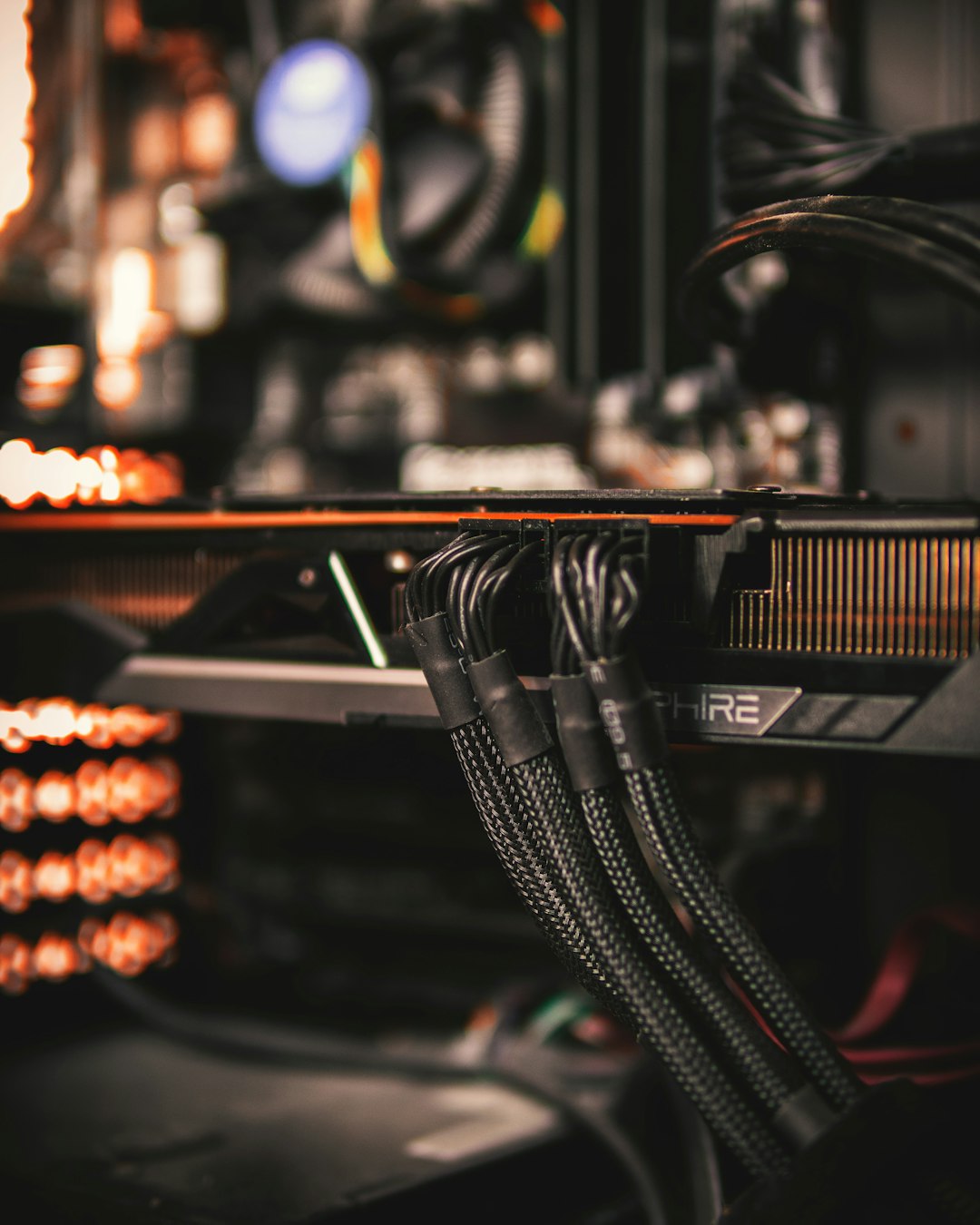
Also consider testing HDMI if your monitor and GPU support the required resolution and refresh rate. If HDMI works perfectly while DisplayPort fails, the problem may be the cable, DisplayPort port, monitor firmware, or DisplayPort link training rather than the GPU itself.
Fix 3: Lower the Refresh Rate Temporarily
A monitor may advertise a high refresh rate, but the complete chain must support it reliably: GPU, cable, monitor port, resolution, color depth, and display settings. If any part of that chain is marginal, the display can go black while gaming.
In Windows, open Settings > System > Display > Advanced display and reduce the refresh rate. For example, if you are using 165 Hz, test 144 Hz or 120 Hz. If you are using 240 Hz, test 144 Hz. Then launch the game and play long enough to see whether the black screen returns.
If lowering the refresh rate fixes the issue, the GPU is not necessarily defective. It may mean your cable cannot maintain signal integrity at the higher setting, the monitor overclock is unstable, or the selected color format uses too much bandwidth.
You should also check the monitor’s on screen display menu. Some monitors include an “overclock” mode to reach their maximum advertised refresh rate. If black screens occur only with that mode enabled, turn it off and use the highest native stable refresh rate instead.
Fix 4: Disable VRR, G Sync, FreeSync, and HDR for Testing
Variable refresh rate technologies such as G Sync Compatible and FreeSync can make games feel smoother, but they may also trigger black screens on certain monitor and GPU combinations. HDR can add another layer of complexity, especially when switching between desktop and fullscreen games.
For testing, temporarily disable:
- G Sync or G Sync Compatible in the NVIDIA Control Panel
- FreeSync or Adaptive Sync in AMD Software and the monitor menu
- HDR in Windows display settings
- In game fullscreen optimizations or exclusive fullscreen mode
If the black screen stops, re enable these features one at a time. This approach identifies the exact feature causing instability. In some cases, using borderless fullscreen instead of exclusive fullscreen can prevent black screens during alt tabbing or resolution changes.
Fix 5: Match Resolution, Color Depth, and Bandwidth
High refresh gaming can exceed what a cable or port can handle when combined with high resolution, HDR, and 10 bit color. For example, 4K at 144 Hz with HDR requires far more bandwidth than 1080p at 144 Hz. When the signal is near the limit, the screen may appear stable on the desktop but fail during gaming.
In your GPU control panel, check the output color settings. Try switching from 10 bit to 8 bit color, or from RGB to a limited format if necessary for testing. You can also disable HDR and test again. These changes are not always ideal for image quality, but they help confirm whether bandwidth is the cause.
If reducing bandwidth related settings stops the black screens, use a higher quality cable, a different port standard, or a slightly lower refresh rate. Stability should take priority over maximum specifications.
Fix 6: Monitor GPU Temperature and Power
A black screen during gaming can also happen when the GPU becomes unstable under load. Use reputable monitoring software to watch GPU temperature, hotspot temperature, clock speed, power draw, and fan speed while gaming. If temperatures are unusually high, the GPU may be throttling or crashing.
Check that GPU fans are spinning properly and that the case has enough airflow. Dust buildup can raise temperatures significantly. If the graphics card uses external PCIe power connectors, make sure they are fully seated. For higher end GPUs, avoid using a single daisy chained power cable if the card manufacturer recommends separate power cables from the power supply.
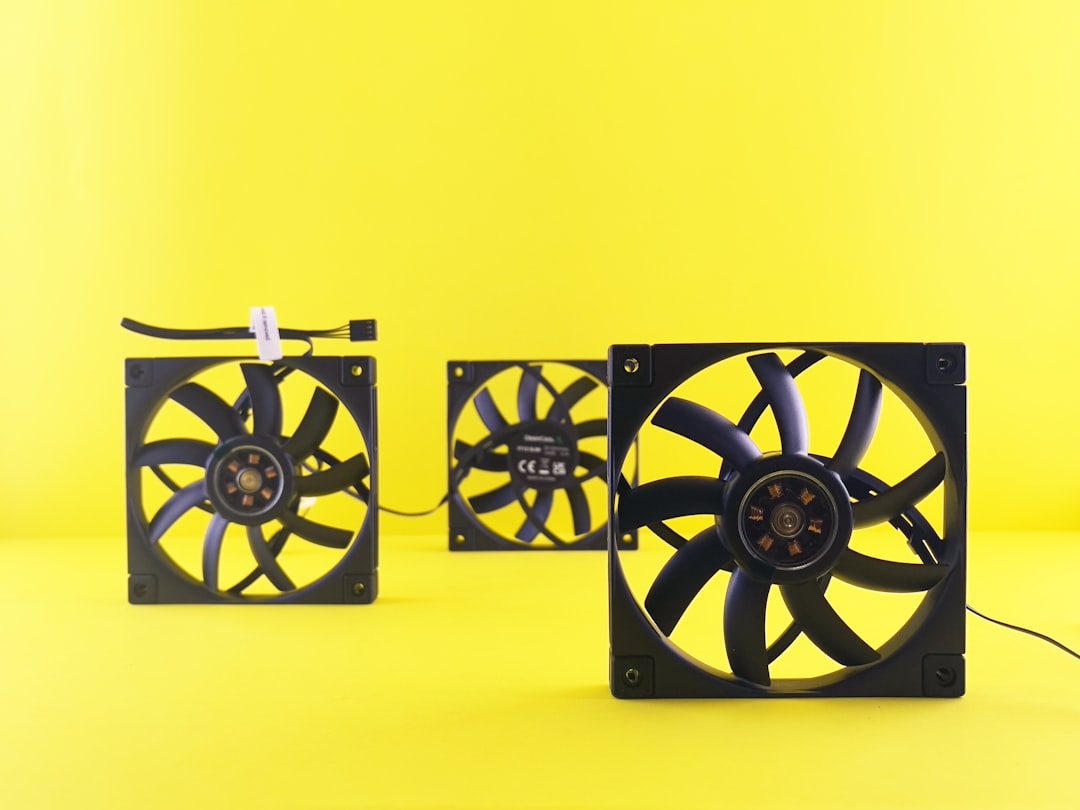
If the black screen happens only during demanding scenes, benchmark tests, or high frame rate gameplay, power delivery should be taken seriously. A weak or aging power supply can cause display loss or system restart when the GPU suddenly draws more power.
Fix 7: Check Windows and Game Specific Settings
Some black screen problems are tied to a particular game. Reset the game’s graphics settings, delete or rename its configuration file, and try launching it in windowed or borderless mode. Disable overlays such as game launchers, recording tools, performance monitors, Discord overlay, and GPU software overlays. Overlays can conflict with fullscreen rendering and driver features.
Also install important Windows updates, including optional display related updates when appropriate. However, if the issue began after a system update, check whether other users with the same GPU or monitor report similar behavior. A temporary rollback may be justified in rare cases.
Fix 8: Update Monitor Firmware and Reset the Monitor
Modern gaming monitors are not passive screens; they have firmware that controls DisplayPort behavior, HDR, VRR, overdrive, and input switching. Some manufacturers release firmware updates to fix black screens and signal loss. Check the monitor manufacturer’s support page for your exact model.
You should also reset the monitor through its on screen menu. This clears unusual settings that may have been changed accidentally. After the reset, configure only the essentials: correct input, native resolution, and a stable refresh rate. Then test gaming before enabling advanced features again.
When to Suspect Hardware Failure
If you have clean installed drivers, tested another certified cable, lowered the refresh rate, disabled VRR and HDR, checked temperatures, and tried another monitor input, yet the problem continues, hardware failure becomes more plausible. The failing part could be the GPU, monitor, power supply, or motherboard PCIe slot.
The most useful hardware test is substitution. Test the monitor with another PC or console. Test your PC with another monitor. If possible, test the GPU in another system or test another GPU in your system. This is the fastest way to avoid guessing.
Signs that deserve extra caution include burning smells, visible artifacts, repeated system restarts, crackling power cables, or the GPU disappearing from Device Manager. In those situations, shut the system down and inspect it carefully before continuing.
A Practical Troubleshooting Order
- Reconnect the monitor cable at both ends and try another GPU port.
- Lower the refresh rate to 120 Hz or 144 Hz for testing.
- Disable HDR, G Sync, FreeSync, and monitor overclocking.
- Clean reinstall the GPU driver or roll back to a known stable version.
- Replace the DisplayPort cable with a certified cable.
- Monitor GPU temperatures and power behavior under load.
- Reset the monitor and check for firmware updates.
- Test another monitor, cable, GPU, or power supply if available.
Final Thoughts
A monitor randomly going black while gaming is usually caused by an unstable display signal, not immediate GPU failure. The most common fixes are a clean GPU driver installation, a better DisplayPort cable, a lower refresh rate, and disabling problematic display features such as VRR or HDR during testing. Work through the problem in a controlled order, changing one variable at a time. That disciplined approach gives you the best chance of finding the real cause and restoring stable gaming without replacing parts unnecessarily.

Access Control Policy Example: Access Control Platforms vs IAM and Zero Trust Policy Alternatives
Pick IAM for identity basics, pick an access control platform for app level rules, and use Zero Trust when every…