

Rufus is best for one Windows ISO, while Ventoy is best when a user wants several ISOs on one USB drive. A blank USB drive of at least 8 GB is usually enough for Windows installation media, which matches Microsoft’s own USB recommendation [source: Microsoft].
TLDR: Rufus writes a Windows 10 or Windows 11 ISO directly to a USB drive and makes it bootable. Ventoy prepares the USB once, then the user simply copies ISO files onto it. For example, a repair technician setting up 3 laptops in one afternoon may prefer Ventoy because one 32 GB stick can hold both Windows 10 and Windows 11 ISOs. Rufus is cleaner when only one install is needed and the user wants fewer choices on the boot screen.
What Rufus and Ventoy Do
Rufus creates a bootable Windows USB by formatting the drive and writing the ISO to it. It is quick, direct, and good for single-use installs. The catch is that the USB must be remade each time the ISO changes.
Ventoy works differently. It installs its own boot system to the USB drive. After that, ISO files can be copied onto the drive like normal files. No repeated formatting. No waiting through the same setup steps again. Honestly, it feels like the way Windows USB tools should have worked years ago.
Before Starting
- A Windows 10 or Windows 11 ISO file from a trusted source.
- A USB drive with at least 8 GB capacity. A 16 GB or 32 GB drive is better.
- A backup of anything on the USB drive. Rufus and Ventoy setup can erase it.
- A PC that can boot from USB.
- Access to BIOS or UEFI settings, often opened with F2, F12, Del, or Esc during startup.
How to Use Rufus
- The user downloads and opens Rufus. It usually does not need a full installation.
- The USB drive is selected under Device.
- The user clicks Select and chooses the Windows ISO file.
- For most modern PCs, GPT should be selected as the partition scheme.
- The target system should show UEFI for newer computers.
- The user clicks Start.
- Rufus may ask about Windows setup options, such as removing online account requirements or hardware checks. The user should choose only what fits the machine and license terms.
- After writing finishes, the PC can be restarted and booted from the USB drive.
Rufus often finishes in several minutes, depending on the USB speed. A slow USB 2.0 stick can make the process feel painful. It drives people crazy when a cheap flash drive adds 10 or 15 minutes to a job that should feel simple.
How to Use Ventoy
- The user downloads and opens Ventoy.
- The USB drive is selected from the device list.
- The user clicks Install. This prepares the USB drive for Ventoy.
- Once done, the USB drive appears like a normal storage drive.
- The Windows 10 or Windows 11 ISO is copied to the USB drive.
- If more ISOs are needed, they can be copied to the same drive.
- The computer is restarted and booted from the USB drive.
- Ventoy shows a menu. The user picks the Windows ISO and starts setup.
Ventoy is great for people who install Windows often. It also suits repair kits. One USB drive can hold Windows 10, Windows 11, Linux rescue tools, and antivirus boot media. The user only needs enough storage space.
Installing Windows from the USB Drive
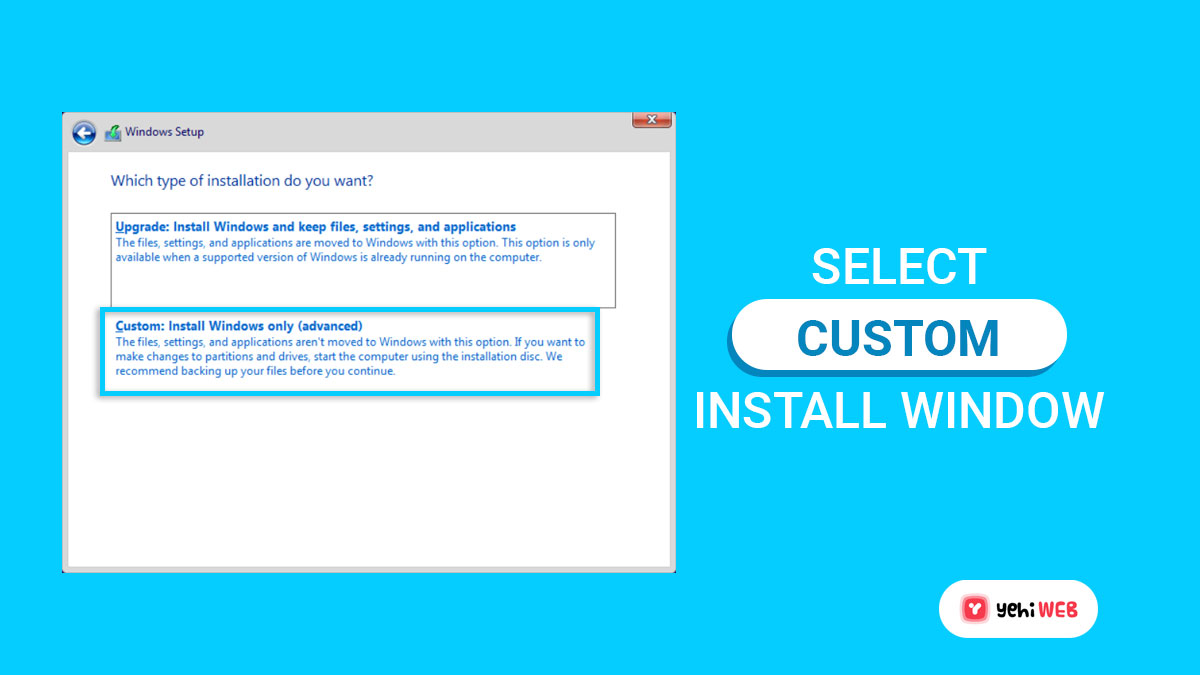
After booting from either Rufus or Ventoy, the Windows installer appears. The user selects language, keyboard layout, and edition. Then the installer asks where Windows should be installed.
For a clean install, the user can delete old Windows partitions on the target drive. This removes files, apps, and settings. If the computer has needed files, they should be backed up first. No tool can save someone from a deleted partition after a rushed click.
Windows 11 may also check for TPM, Secure Boot, supported CPU, and memory requirements. Newer PCs usually pass these checks. Older PCs may fail. Rufus offers options that can change some setup checks, but that does not mean every old PC will run well afterward.
Rufus vs Ventoy: Which Should Be Used?
- Use Rufus for a simple one-time Windows install.
- Use Rufus when the user wants a very standard Windows USB.
- Use Ventoy when several ISOs need to stay on one drive.
- Use Ventoy for technicians, hobbyists, and people who reinstall PCs often.
- Use a faster USB 3.0 drive whenever possible. It saves real time.
Common Mistakes to Avoid
- Picking the wrong USB drive: This can erase the wrong device.
- Using an old ISO: Older Windows images may need many updates after install.
- Forgetting boot order: The PC may skip the USB if the boot menu is not used.
- Mixing legacy and UEFI settings: New machines normally work best with UEFI and GPT.
- Using a damaged flash drive: Random install errors often come from bad USB media.
FAQ
- Can Rufus install both Windows 10 and Windows 11?
Yes. Rufus can create bootable USB drives for both Windows 10 and Windows 11 ISO files. - Can Ventoy hold more than one Windows ISO?
Yes. Ventoy can store multiple ISO files on one USB drive, as long as there is enough space. - Does the USB drive need to be empty?
For Rufus, yes, because it formats the drive. Ventoy also needs setup first, which can erase the drive during installation. - Which tool is easier for beginners?
Rufus is usually easier for one Windows install. Ventoy is easier over time if many ISOs are used. - Is a product key needed?
Often, Windows activates automatically if the PC already has a digital license. New installs may require a valid product key.
How to Use Rufus and Ventoy to Install Windows 10 or Windows 11 from an ISO File

How to Use Rufus and Ventoy to Install Windows 10 or Windows 11 from an ISO File
Rufus is best for one Windows ISO, while Ventoy is best when a user wants several ISOs on one USB…