

How to Find Your Network Security Key: Router Labels, Windows Settings, and Network Diagnostic Tools

The fastest way to find your network security key is to check the router label first, then use Windows saved Wi-Fi settings if the label is missing or outdated. A network security key is usually just your Wi-Fi password. Windows can show the saved Wi-Fi password through network adapter settings when you have access to the device and proper permissions [source: Microsoft].
TLDR: Start with the sticker on your router, because it often lists the default SSID and Wi-Fi key. If someone changed the password, check a Windows PC that already connects to the network. For example, in a small office with 15 laptops, finding the saved key on one approved Windows machine can save 30 to 45 minutes of resetting devices. Use diagnostic tools only after basic checks fail, since they can create extra noise and confusion.
What Is a Network Security Key?
A network security key is the password used to join a protected Wi-Fi network. You may also see it called:
- Wi-Fi password
- WPA key or WPA2 key
- Wireless key
- Passphrase
- Pre-shared key
Do not confuse it with the router admin password. The Wi-Fi key connects phones, laptops, printers, and smart TVs to the network. The router admin password opens the router’s settings page. Mixing them up wastes time. It drives me crazy that some router labels print both passwords in tiny text, then use almost the same wording for each.
Method 1: Check the Router Label
Look at the back, side, or bottom of the router. Many home routers and ISP gateways have a label with the default network name and password. Check for these exact terms:
- SSID: the Wi-Fi network name
- Wi-Fi Key: the network security key
- Wireless Password: another name for the same key
- WPA/WPA2 Key: the protected network password

This method works best if the password was never changed. If the router was installed by an internet provider, the sticker may still be correct. If a family member, technician, or office admin changed the Wi-Fi password later, the label will not help.
If you find the key, type it exactly as shown. Watch for uppercase letters, zeros, the letter O, and small printed characters. A single wrong character will block the connection.
Method 2: Find the Key in Windows Settings
If a Windows computer already connects to the Wi-Fi network, you can often reveal the saved password. Use only a computer you own or are allowed to manage.
On Windows 11:
- Click Start, then open Settings.
- Select Network & internet.
- Click Advanced network settings.
- Open More network adapter options.
- Right-click your Wi-Fi adapter and choose Status.
- Click Wireless Properties.
- Open the Security tab.
- Check Show characters.
The value shown in the Network security key box is the Wi-Fi password.
On Windows 10: the path is similar. Open Control Panel, go to Network and Sharing Center, click your Wi-Fi network name, then open Wireless Properties and the Security tab.
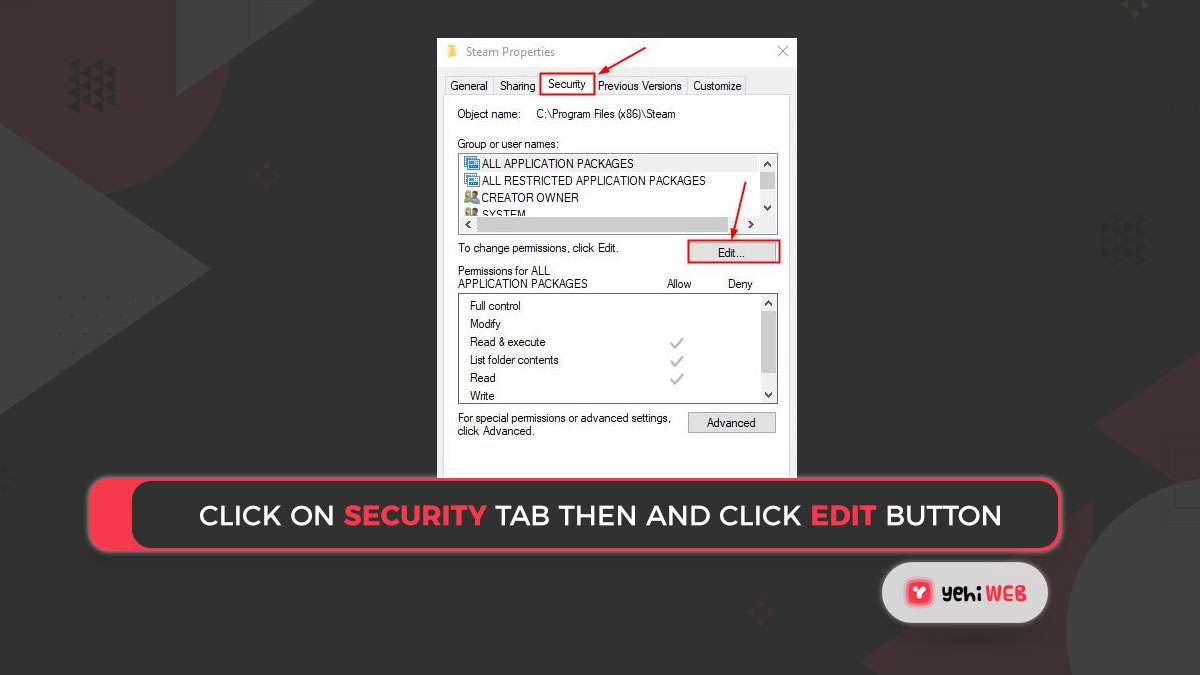
Honestly, this screen can feel buried. On some systems it takes seven or eight clicks to reach a password that is already saved on the machine. Still, it is safer than resetting the router without a plan.
Method 3: Use Command Prompt on Windows
Command Prompt can show saved Wi-Fi profiles. This is useful when the normal settings menus are slow or broken.
Open Command Prompt as administrator, then type:
netsh wlan show profilesThis lists saved Wi-Fi networks. Find the correct network name, then type:
netsh wlan show profile name="YourNetworkName" key=clearLook for Key Content. That line shows the saved network security key.
Keep this serious. Do not use this on someone else’s device. Do not collect keys from workplace systems unless you have written approval. Wi-Fi passwords are access credentials, not casual notes.
Method 4: Check Router Admin Settings
If you can sign in to the router admin page, you can view or change the Wi-Fi password there. Common router addresses include:
- 192.168.0.1
- 192.168.1.1
- 10.0.0.1
Enter the address in a browser while connected to the network. Sign in with the router admin account. Then look for Wireless, Wi-Fi, or Security settings.
If the admin password is also unknown, do not keep guessing. Too many failed attempts may lock the panel for a short time. If this is your router, you may need to reset it. Expect to waste time on this part, because a reset means reconnecting every device with the new key.
When to Use Network Diagnostic Tools
Network diagnostic tools help when devices cannot connect, the password seems correct, or the network name does not appear. They are not usually the first step for recovering a key.
Useful tools include:
- Windows Network Troubleshooter: checks adapter and connection problems.
- ipconfig: confirms gateway and IP details.
- netsh: shows saved Wi-Fi profiles and key details.
- Router logs: may show failed login attempts or rejected devices.
Use these tools to confirm the network is working, not to guess passwords. If several devices fail at once, the password may have changed. If only one device fails, the issue may be that device’s saved profile.
Security Tips After You Find the Key
- Store the key in a trusted password manager.
- Use WPA2 or WPA3 security if available.
- Change the default router admin password.
- Do not write the Wi-Fi key on a public office whiteboard.
- Create a guest network for visitors and smart devices.
If the key was shared too widely, change it. A strong Wi-Fi password should be long, unique, and hard to guess. Once updated, reconnect trusted devices and remove old saved profiles that no longer apply.
How to Find Your Network Security Key: Router Labels, Windows Settings, and Network Diagnostic Tools


How to Find Your Network Security Key: Router Labels, Windows Settings, and Network Diagnostic Tools
The fastest way to find your network security key is to check the router label first, then use Windows saved…