
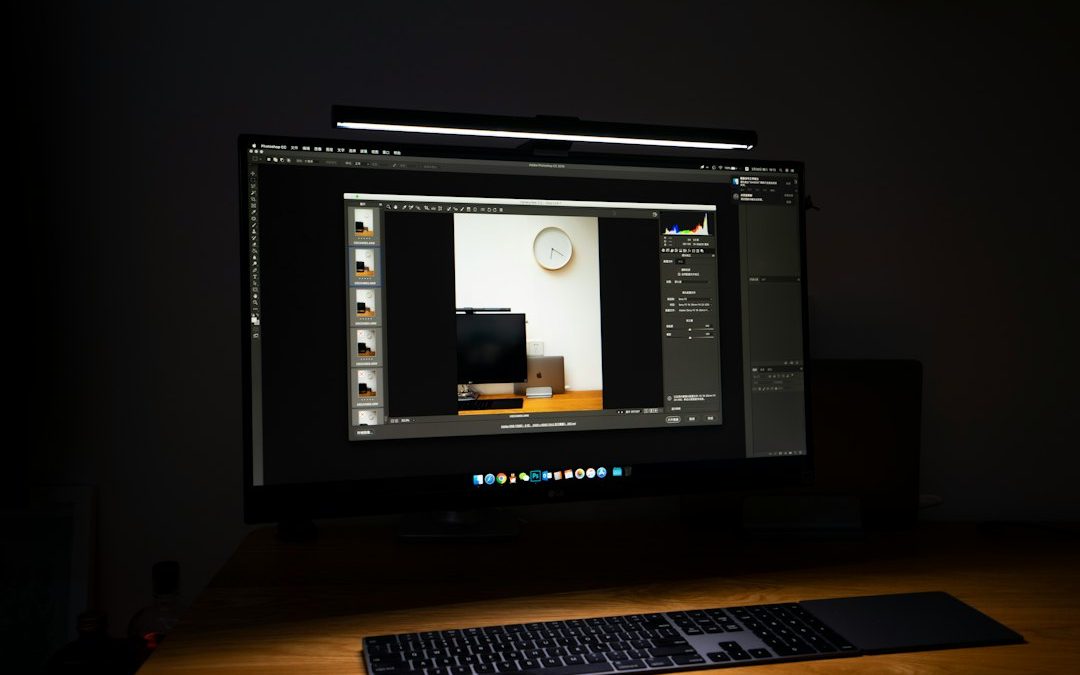
7 CleanShot X Alternatives for Mac Screen Recording, Screenshot Editing, and Sharing Visual Feedback

The best CleanShot X alternative depends on your main pain: fast screenshots, pretty edits, screen recording, or easy sharing. Mac users already get screenshots and screen recording through Apple’s built-in Screenshot app and QuickTime Player [source: Apple]. But if you send visual feedback all day, the free stuff starts to feel tiny and slow.
TLDR: If you want the closest CleanShot X feel, try Shottr or Snagit. If your team needs quick video feedback, use Loom or Zight. For example, a 5-person design team that replaces three 10-minute feedback calls each week saves about 150 minutes. That is enough time for coffee, fixes, and one dramatic sigh.
1. Shottr
Best for: fast screenshots and simple edits.
Shottr is tiny, quick, and very Mac-like. It opens fast. It lets you capture scrolling pages, blur private info, add arrows, and measure pixels. Designers love that last bit.
Why pick it? It feels light. No giant dashboard. No confusing menu maze. Just capture, mark up, send.
The catch is… it is not built mainly for video. If screen recording is your daily thing, Shottr may feel too narrow.
- Great: screenshots, blur, pixel ruler, scrolling capture
- Not great: full video feedback workflows
- Best user: designers, developers, QA testers
2. Snagit
Best for: power users who need screenshots and video.
Snagit is like a Swiss Army knife for screen capture. You can grab screenshots, record videos, add callouts, crop, trim, and make guides. It is not the cutest tool. But it gets work done.
It shines when you make instructions. Think onboarding guides, bug reports, SOPs, and client notes. You can turn a messy screen into a clear visual in minutes.
- Great: tutorials, annotations, video capture
- Not great: minimalist users
- Best user: support teams, trainers, product managers
3. Loom
Best for: quick screen videos with a share link.
Loom is built for “let me show you” moments. Hit record. Talk through the issue. Send a link. Done. It also supports comments, reactions, and viewer insights on some plans [source: Loom].
Honestly, it feels like Loom was made for people who hate writing long emails. A 90-second video can replace six back-and-forth messages. That is a small miracle.
- Great: async feedback, team videos, client updates
- Not great: detailed screenshot editing
- Best user: remote teams, sales teams, teachers

4. Screen Studio
Best for: polished Mac screen recordings.
Screen Studio makes recordings look fancy with very little work. It adds smooth zooms, cursor effects, nice framing, and clean exports. Your demo suddenly looks like it had a tiny film crew.
Use it for product demos, app walkthroughs, course clips, and launch videos. It is less about raw capture. It is more about making your recording feel ready to post.
- Great: beautiful videos, zoom effects, product demos
- Not great: quick screenshot markup
- Best user: founders, creators, marketers
5. Zight
Best for: screenshots, GIFs, videos, and share links.
Zight, once known as CloudApp, is made for quick visual messages. You can capture your screen, record a video, make a GIF, add notes, and share a link. It is handy when your team lives in Slack, Jira, Trello, or email.
It drives me crazy when a tool takes 20 extra seconds just to share a file. Zight avoids a lot of that. Capture it. Copy the link. Move on with your life.
- Great: cloud sharing, GIFs, team feedback
- Not great: users who want local-only files
- Best user: support, QA, product teams
6. Xnapper
Best for: pretty screenshots for social posts and docs.
Xnapper is for people who want screenshots to look good fast. It can add backgrounds, padding, rounded corners, and shadows. It can also hide sensitive data. Nice touch.
This is not the strongest pick for long recordings. But for clean visuals in blog posts, changelogs, launch tweets, and pitch decks, it is a joy.
- Great: beautiful screenshot styling
- Not great: advanced video recording
- Best user: marketers, makers, indie hackers
7. macOS Screenshot, QuickTime, and Preview
Best for: free basic capture.
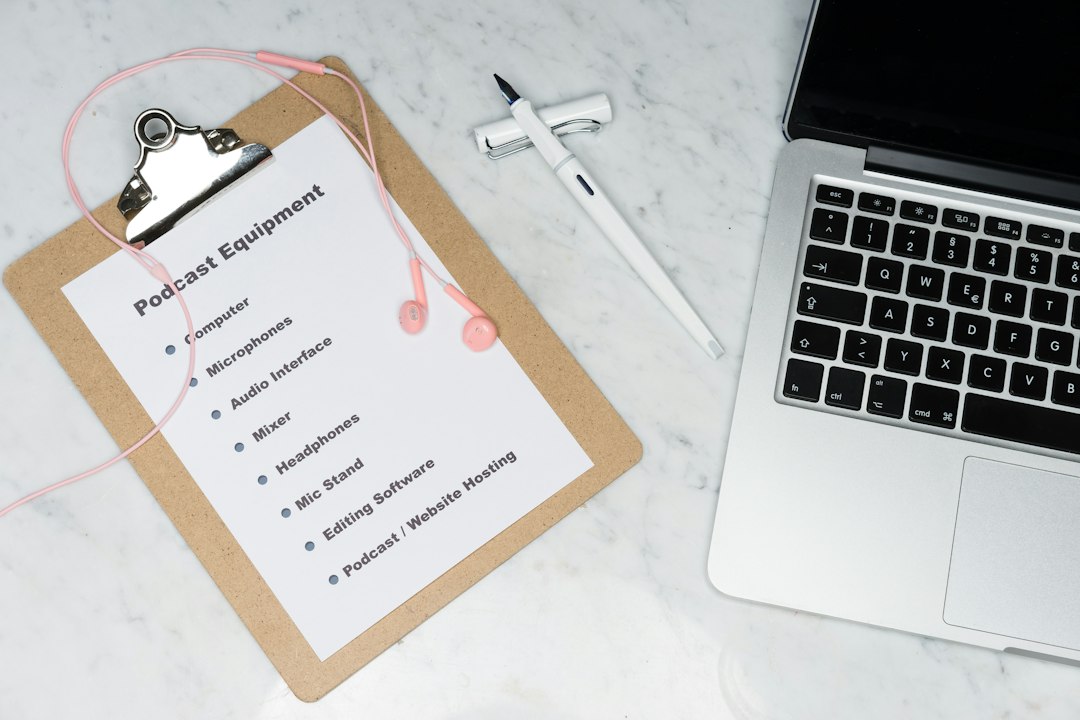
Your Mac already has useful tools. Press Command + Shift + 5 to open screen capture options. Use QuickTime for simple recording. Use Preview to crop, add shapes, and mark up images.
This setup costs nothing. That is the fun part. The annoying part is sharing. You still need to save files, name them, attach them, or drag them somewhere. Expect to waste time on tiny steps.
- Great: free screenshots and simple recording
- Not great: fast team sharing
- Best user: students, casual users, budget teams
Quick Picking Guide
- Want the closest CleanShot X style? Pick Shottr.
- Need a full work tool? Pick Snagit.
- Send lots of video feedback? Pick Loom.
- Make polished product videos? Pick Screen Studio.
- Need cloud links fast? Pick Zight.
- Want pretty screenshots? Pick Xnapper.
- Want free? Use macOS Screenshot plus QuickTime.
Final Take
CleanShot X is great. But it is not the only smart choice on Mac. If your day is full of bug reports, client notes, product demos, and “can you see this?” messages, the right tool can save real time.
Start with your main job. Screenshots? Try Shottr. Training docs? Try Snagit. Fast video feedback? Try Loom or Zight. Pretty launch visuals? Try Xnapper or Screen Studio. Simple is the win here.


How to Force SSL on a WordPress Dental Clinic Website After Adding an Online Patient Registration Form
Force SSL before you send a single patient to a new registration form. A dental clinic form may collect names,…