
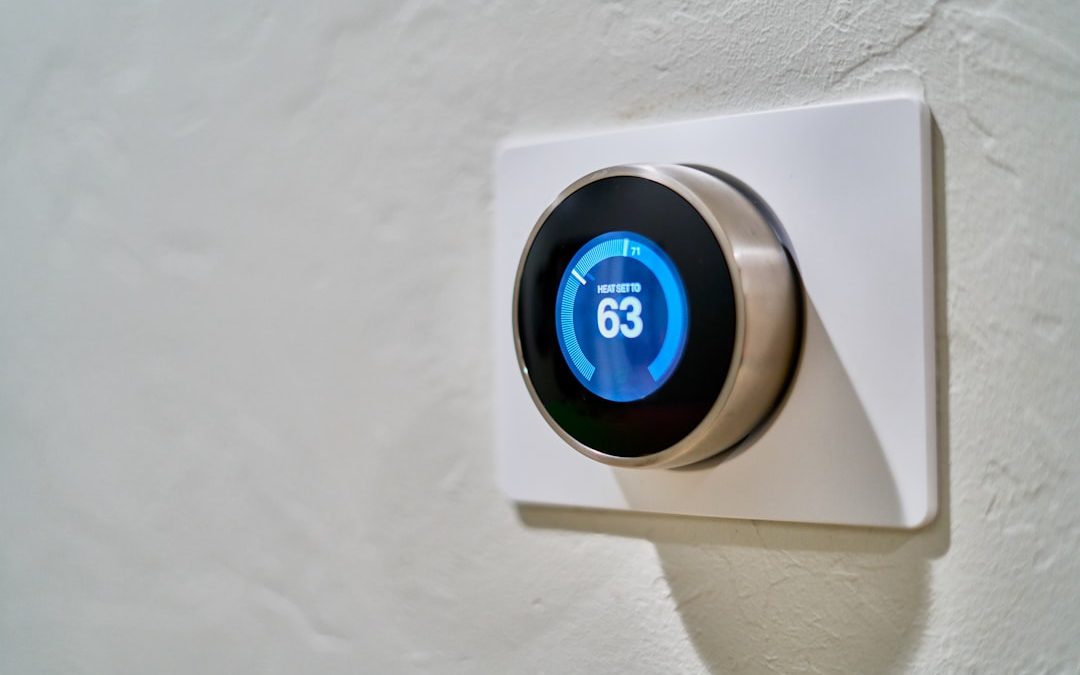

Your Nest Thermostat can feel like a tiny spaceship on the wall. It glows. It clicks. It learns. But the best part is simple. Once you know how to read the high and low temperature, you can stay comfy and save money.
TLDR: The low temperature is the point where Nest turns on heat. The high temperature is the point where Nest turns on cooling. You will see both when your thermostat is in Heat • Cool mode. Set a wider temperature range to save energy, and use schedules, Eco Temperatures, and Savings Finder to keep things easy.
What Do “High” and “Low” Mean on a Nest Thermostat?
Let’s keep this super simple.
On a Nest Thermostat, the low temperature is the lowest indoor temperature you allow before the heat turns on. The high temperature is the highest indoor temperature you allow before the air conditioner turns on.
This is most common in Heat • Cool mode. That mode is perfect for spring and fall. Or any day when the weather cannot make up its mind.
Example:
- Low: 68°F
- High: 76°F
This means Nest will heat your home if it drops below 68°F. It will cool your home if it rises above 76°F. Between those numbers, your HVAC system takes a nap. A very expensive nap, so let it rest.
Image not found in postmetaHow to Read the Temperatures on the Thermostat
Walk up to your Nest Thermostat. Wake it up by turning the ring or tapping the display, depending on your model.
You may see a big number in the center. That is usually the current room temperature. It tells you what the room feels like right now.
You may also see smaller numbers or a range. In Heat • Cool mode, you can see two set points:
- The lower number is your heat setting.
- The higher number is your cooling setting.
If the room temperature falls below the lower number, heat starts. If it rises above the higher number, cooling starts.
Some Nest models show different colors too. Orange often means heating. Blue often means cooling. Black or neutral means the system is not running.
Think of it like a comfort sandwich. The low number is one slice of bread. The high number is the other slice. Your comfy home lives in the middle.
How to Read It in the Nest App or Google Home App
You can also check everything from your phone. This is great if you are on the couch. Or in bed. Or hiding from chores.
Open the Nest app or the Google Home app, depending on your thermostat setup. Tap your thermostat. You should see the current room temperature and your target temperature settings.
If you are in Heat • Cool mode, look for two numbers. The lower number controls heat. The higher number controls cooling.
To change them, drag the temperature points or tap the controls. Nest will show the range you selected. Make sure there is enough space between the two numbers. Nest usually requires a minimum gap between heat and cool settings. This protects your system from switching back and forth like a confused squirrel.
Heat, Cool, and Heat • Cool Modes
Nest has several modes. Each one changes what temperature numbers you see.
- Heat: You set one temperature. Nest heats your home to that number.
- Cool: You set one temperature. Nest cools your home to that number.
- Heat • Cool: You set a low and high temperature. Nest heats or cools only when needed.
- Eco: Nest uses energy saving temperatures while you are away or saving power.
- Off: Heating and cooling are off, except safety features if enabled.
The high and low temperature range matters most in Heat • Cool mode. This mode gives Nest a comfort zone. It does not chase one exact number all day. That is good. Chasing is for dogs, not thermostats.
What Is a Good High and Low Setting?
There is no magic number for every home. People are different. Homes are different. Pets are very dramatic. Still, there are smart starting points.
Try these basic settings:
- When you are home: Low 68°F, high 76°F
- When you are sleeping: Low 64°F to 67°F, high 76°F to 78°F
- When you are away: Low 60°F to 62°F, high 82°F to 85°F
If that feels too warm or too cool, adjust by one degree at a time. Small changes are easier on your body. They are also easier on your HVAC system.
Here is the golden rule: The wider the range, the more energy you can save.
A range like 69°F to 72°F is very tight. Your system may run often. A range like 66°F to 78°F gives your system more breathing room.

How to Optimize Your HVAC Settings
Now let’s make Nest work smarter. Not harder.
1. Use a Schedule
A schedule tells Nest when you want comfort and when you want savings. Set warmer cooling temperatures when you are away. Set cooler heating temperatures when you sleep.
You do not need to babysit the thermostat. Let the schedule do the boring work.
2. Turn On Eco Temperatures
Eco Temperatures help save energy when nobody is home. Nest can switch to Eco when it senses you are away. It can also use your phone location if you allow it.
Eco mode is like telling your HVAC system, “Take a break, buddy.”
3. Avoid Tiny Temperature Changes All Day
Do not change the setting every ten minutes. Your HVAC system needs time. If you keep bumping numbers up and down, your system may run more than needed.
Pick a comfortable range. Then give it time to work.
4. Watch for the Nest Leaf
The Nest Leaf appears when you choose an energy saving temperature. It is a tiny green cheerleader. If you see it, you are probably saving energy.
Try adjusting your high or low temperature until the leaf appears. You may find a setting that feels fine and costs less.
5. Use Fans Wisely
Ceiling fans can make a room feel cooler. That lets you set the cooling temperature a little higher. In summer, set fans to spin counterclockwise. In winter, a low clockwise fan can help move warm air down.
Just remember: fans cool people, not rooms. Turn them off when you leave.
Do Not Forget Safety Temperatures
Nest also has Safety Temperatures. These are different from your normal high and low settings.
Safety Temperatures help protect your home if it gets too cold or too hot. For example, Nest can turn on heat to prevent freezing pipes. It can also turn on cooling to help prevent extreme indoor heat.
Check these in your thermostat settings. They are especially useful for vacation homes, basements, pets, and long trips.

Common Mistakes to Avoid
- Setting heat and cool too close together: This can waste energy.
- Using Heat • Cool all year: Use it when weather swings a lot. Otherwise, Heat or Cool mode may be better.
- Ignoring humidity: A humid home feels warmer. Use proper ventilation or a dehumidifier if needed.
- Blocking the thermostat: Keep lamps, sunbeams, and appliances away from it. They can trick the sensor.
- Forgetting filter changes: A dirty filter makes your HVAC system struggle.
A Simple Comfort Plan
If you want an easy plan, start here:
- Set Nest to Heat • Cool during mild seasons.
- Try a low of 68°F and a high of 76°F.
- Use Eco Temperatures when away.
- Set a sleep schedule with a cooler heating number.
- Adjust one degree at a time.
After a week, check how it feels. If everyone is comfy, keep it. If someone is wearing a blanket like a royal cape, raise the low temperature a bit. If someone is melting into the sofa, lower the high temperature a bit.
Final Thoughts
Reading the high and low temperature on a Nest Thermostat is easy once you know the secret. The low number controls heat. The high number controls cooling. The space between them is your comfort zone.
Use that range wisely. Give your HVAC system room to rest. Add schedules and Eco Temperatures. Watch for the Nest Leaf. Soon your thermostat will feel less like a spaceship and more like a helpful little wall robot.
And that wall robot may just save you money.


What Is Dolby Vision: A Complete Guide to Dolby Vision HDR, Dynamic Metadata, Supported Devices, and Video Quality
Dolby Vision is one of the most advanced HDR formats for home video because it can adjust brightness, contrast, and…