


Seeing “Indexed, though blocked by robots.txt” in Google Search Console can feel like finding a raccoon in your kitchen. It is not the end of the world. But it should not be ignored. This warning means Google knows a page exists, may show it in search results, but cannot crawl it because your robots.txt file says “no entry.”
TLDR: This warning means Google has indexed a URL, but your robots.txt file blocks Googlebot from crawling it. For example, a shop blocked /sale/ in robots.txt, but 43 sale pages still appeared in search with ugly snippets. The fix depends on your goal: unblock the page if you want it in Google, or use noindex if you want it removed. Do not rely on robots.txt to hide pages from search.
What Does This Warning Mean?
Let’s break it down.
Indexed means Google has added the page to its search index. It may show up in search results.
Blocked by robots.txt means your robots.txt file tells Google not to crawl that page.
So Google is in a weird spot. It knows the page exists. But it cannot visit the page to read it properly.
Imagine Google is outside a restaurant. It can see the sign. It knows the restaurant exists. But the door is locked. So it cannot read the menu, check the vibe, or see if the food is good.
That is what this warning is about.
Is This Bad?
Sometimes yes. Sometimes no.
If the blocked page is important, this is bad. Google may show a poor result for it. The title may be missing. The description may look strange. Rankings may suffer.
If the blocked page is not important, it may still be a problem. Why? Because robots.txt does not remove pages from Google. It only blocks crawling.
That part surprises many site owners.
Robots.txt is not a invisibility cloak. It is more like a polite sign that says, “Please do not enter.”
Google may still index the URL if it finds links to it from other pages. It may index the URL without knowing what is on the page.
Common Reasons This Happens
This warning usually appears for a few simple reasons.
- You blocked a folder that contains useful pages. Example: Disallow: /blog/.
- You blocked pages by mistake during a site launch. This is very common after staging sites go live.
- Internal links point to blocked pages. Google discovers them, but cannot crawl them.
- External sites link to blocked pages. Google follows the clue.
- Your sitemap includes blocked URLs. This sends mixed signals.
- You tried to hide private content with robots.txt. Bad idea. More on that soon.
First, Decide What You Want
Before you fix anything, ask one question:
Should this page appear in Google search?
If the answer is yes, you need to let Google crawl it.
If the answer is no, you need to remove it from the index the right way.
This is the whole game. Pick a team. Do not stand in the middle holding a sandwich.
Case 1: You Want the Page Indexed
If the page is useful, remove the robots.txt block.
Open your robots.txt file. It usually lives here:
yourwebsite.com/robots.txt
Look for rules like these:
User-agent: *
Disallow: /important-page/
Disallow: /products/
Disallow: /blog/
If your important URL is blocked by one of these rules, remove or change the rule.
For example, this blocks all product pages:
User-agent: *
Disallow: /products/
If you want product pages in Google, do not block that folder.
You might change it to:
User-agent: *
Disallow: /cart/
Disallow: /checkout/
That keeps private or low-value areas blocked, while allowing product pages to be crawled.
After saving the file, test it in Google Search Console. Use the URL Inspection tool. Enter the URL. Then click Test Live URL.
If Google can crawl it now, click Request Indexing.

Case 2: You Do Not Want the Page Indexed
This is where many people trip.
If you want a page removed from Google, do not just block it with robots.txt.
Why? Because Google cannot see a noindex tag on a page it is not allowed to crawl.
That is like putting a “Do not deliver pizza here” note inside a locked house. The delivery person cannot read it.
To remove the page from search, do this:
- Allow Google to crawl the page. Remove the robots.txt block for that URL.
- Add a noindex tag to the page.
- Wait for Google to crawl it again.
- After it drops from the index, you can block crawling again if needed.
The noindex tag looks like this:
<meta name="robots" content="noindex">Place it in the <head> section of the page.
You can also use an HTTP header:
X-Robots-Tag: noindexThis is useful for PDFs, files, and non-HTML content.
Case 3: The Page Should Not Exist
Sometimes the page is old junk. Maybe it was a test page. Maybe it was a deleted sale page. Maybe it was created by a plugin that had too much coffee.
If the page has no value, use the correct status code.
- Use 404 if the page is gone and there is no replacement.
- Use 410 if the page is gone forever. This is stronger than 404.
- Use 301 redirect if there is a new, relevant page.
Do not redirect everything to the homepage. Google is not fooled. Users are not happy. Nobody wins.
Check Your Sitemap
Your sitemap should only include pages you want indexed.
If a blocked URL appears in your sitemap, you are sending Google mixed messages.
Your sitemap says, “Please index this.”
Your robots.txt says, “Do not look at this.”
Google then sighs into its tiny robot hands.
Open your sitemap. It often lives at:
yourwebsite.com/sitemap.xml
Look for blocked URLs. Remove them if they should not be indexed. If they should be indexed, unblock them in robots.txt.
Check Internal Links
Google finds pages through links. So if your site links to blocked pages, Google may discover them.
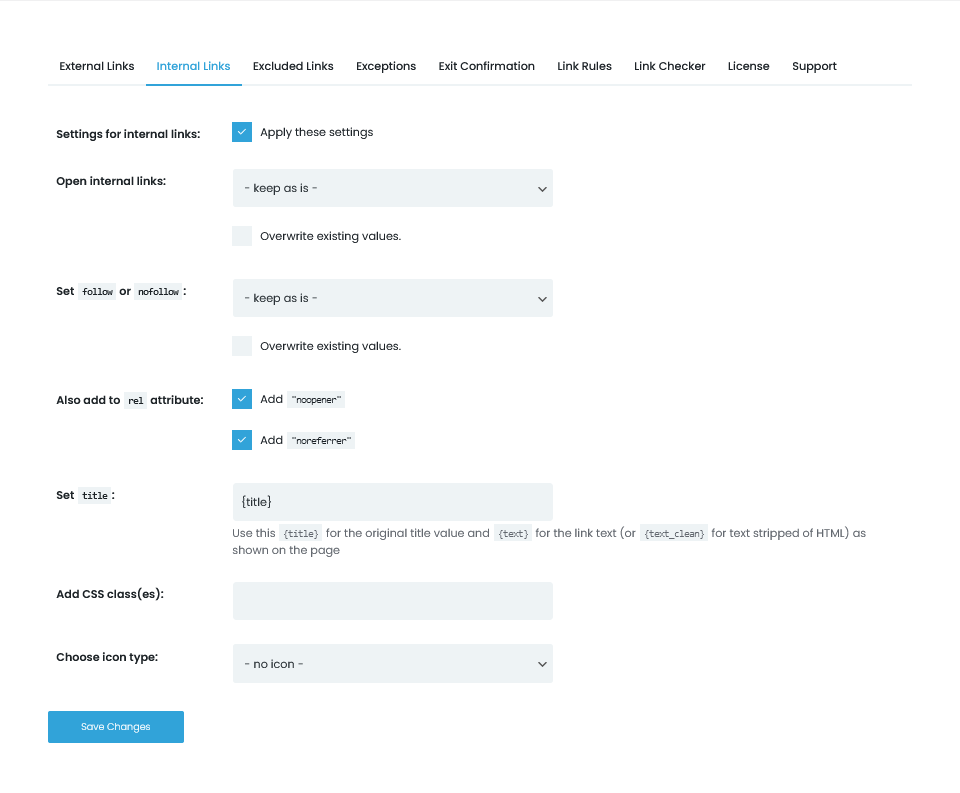
Use a crawler tool, SEO plugin, or website audit tool to find internal links pointing to blocked URLs.
Then decide what to do:
- Remove the link if the page should stay hidden.
- Update the link if there is a better page.
- Unblock the page if it should be crawled.
Simple. Tidy. Very satisfying.
Do Not Use Robots.txt for Private Data
This is important.
Robots.txt does not protect private information.
Anyone can visit your robots.txt file. It is public. If you list secret folders there, you may actually help curious people find them.
Do not use robots.txt to hide:
- Customer data
- Admin pages
- Private documents
- Invoice files
- Staging websites
Use passwords, server rules, proper authentication, or remove the files entirely.
Robots.txt is a traffic cone. It is not a bank vault.
How Long Does the Fix Take?
It depends.
For small sites, Google may update things in a few days. For larger sites, it may take weeks.
Here is a simple example. A local travel blog had 128 blocked destination pages. After removing the wrong robots.txt rule and cleaning the sitemap, 91 pages were crawled again within 10 days. Organic clicks rose by 18% over the next month.
That is not magic. That is just clearer instructions.
Quick Fix Checklist
Use this mini checklist when you see the warning:
- Inspect the URL in Google Search Console.
- Check robots.txt for blocking rules.
- Decide if the page should be indexed.
- If yes, unblock it and request indexing.
- If no, allow crawling first and add noindex.
- Remove blocked URLs from your sitemap.
- Fix internal links that point to blocked pages.
- Use 404, 410, or 301 for dead pages.
Final Thoughts
The “Indexed, though blocked by robots.txt” warning sounds scarier than it is. Most of the time, it means your site is giving Google mixed signals.
If you want the page in search, let Google crawl it. If you do not want it in search, use noindex, a proper status code, or a redirect. And remember: robots.txt controls crawling, not indexing.
Give Google clear directions. Make your sitemap clean. Fix messy links. Your site will be easier to understand, and Googlebot can stop rattling locked doors like a confused little robot detective.


WP Clone: Duplicator vs WPvivid for Cloning WordPress Websites
Pick Duplicator for a clean one-off move, and pick WPvivid if you want regular cloning, backups, and staging. That is…