

Use Screen Mirroring when you need your iPhone display copied exactly; use AirPlay when you want to send video, music, or photos to another screen or speaker while keeping your phone usable. They sound similar because Apple puts them close together, and technically they share the same wireless family. But the experience is different. Pick the wrong one and you may show private notifications, drain your battery, or wonder why your movie stopped when you locked the phone.
TLDR: Screen Mirroring shows everything on your iPhone, including apps, swipes, alerts, and mistakes. AirPlay sends selected media, such as a YouTube video or Apple Music track, to a TV, Mac, or speaker. For example, if a sales rep has a 12 minute pitch deck on an iPhone, Screen Mirroring works well; if they want to play a 90 minute training video, AirPlay is usually smoother and easier on battery. In a small meeting of 8 people, mirroring is great for live demos, but AirPlay is better for polished playback.
What “mirrored iPhone” really means
A mirrored iPhone means the receiving screen shows the same thing your iPhone shows. Open Messages, and it appears on the TV. Swipe between home screens, and everyone sees it. Type a passcode in the wrong place, and yes, that might appear too.
This is useful when you want to demonstrate an app, show a website, present a Keynote deck, or help someone troubleshoot settings. It is less ideal when you only want entertainment playback. Honestly, it feels like Apple could label this more clearly, because many users tap the first rectangle icon they see and hope for the best.
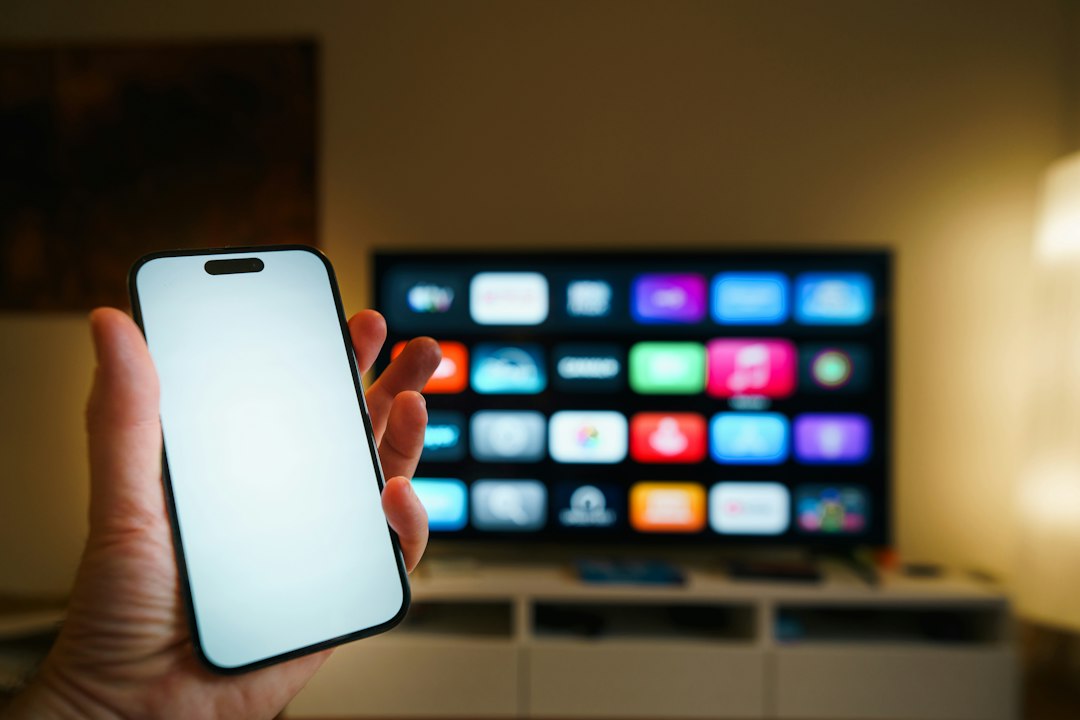
Screen Mirroring: best for showing actions
Screen Mirroring is the option you see in Control Center as two overlapping rectangles. When you tap it, your iPhone looks for nearby compatible devices, such as an Apple TV, AirPlay compatible smart TV, or Mac.
Once connected, your iPhone display appears on the larger screen. This includes:
- Apps such as Safari, Photos, Notes, Maps, and games.
- Gestures like scrolling, tapping, pinching, and swiping.
- System screens such as Settings and Control Center.
- Notifications, unless you silence or hide them first.
- Orientation changes when you rotate the phone.
The biggest benefit is clarity. People see exactly what you see. If you are training a coworker on how to use an app, mirroring beats screenshots. If you are showing grandparents how to change text size, it is perfect.
The downside is exposure. A banner from your bank app or a private message can pop up at the worst second. It drives me crazy that one forgotten notification setting can turn a neat demo into an awkward pause. Before mirroring, turn on Do Not Disturb or Focus.
AirPlay: best for sending media
AirPlay is Apple’s system for sending audio, video, and photos wirelessly from your iPhone to another device. Instead of copying the entire screen, it often sends the content itself. That means your TV plays the movie, while your iPhone acts more like a remote.
You will see the AirPlay icon inside apps such as Apple TV, Photos, YouTube, Spotify, Apple Music, and some fitness or education apps. It may look like a rectangle with a triangle, or audio circles with a triangle, depending on the app.
AirPlay is usually the better choice for:
- Streaming a film or show to a large TV.
- Playing music through HomePod, soundbars, or wireless speakers.
- Showing photos from a vacation album.
- Sending a workout video to a TV while keeping controls on the phone.
- Playing a presentation video without showing your whole phone.
With AirPlay, you can often lock your iPhone, answer a message, or check another app without interrupting playback. This depends on the app. Some apps are picky. Some block streaming due to rights rules. Expect to waste time on this now and then, especially with hotel TVs or older smart TVs.
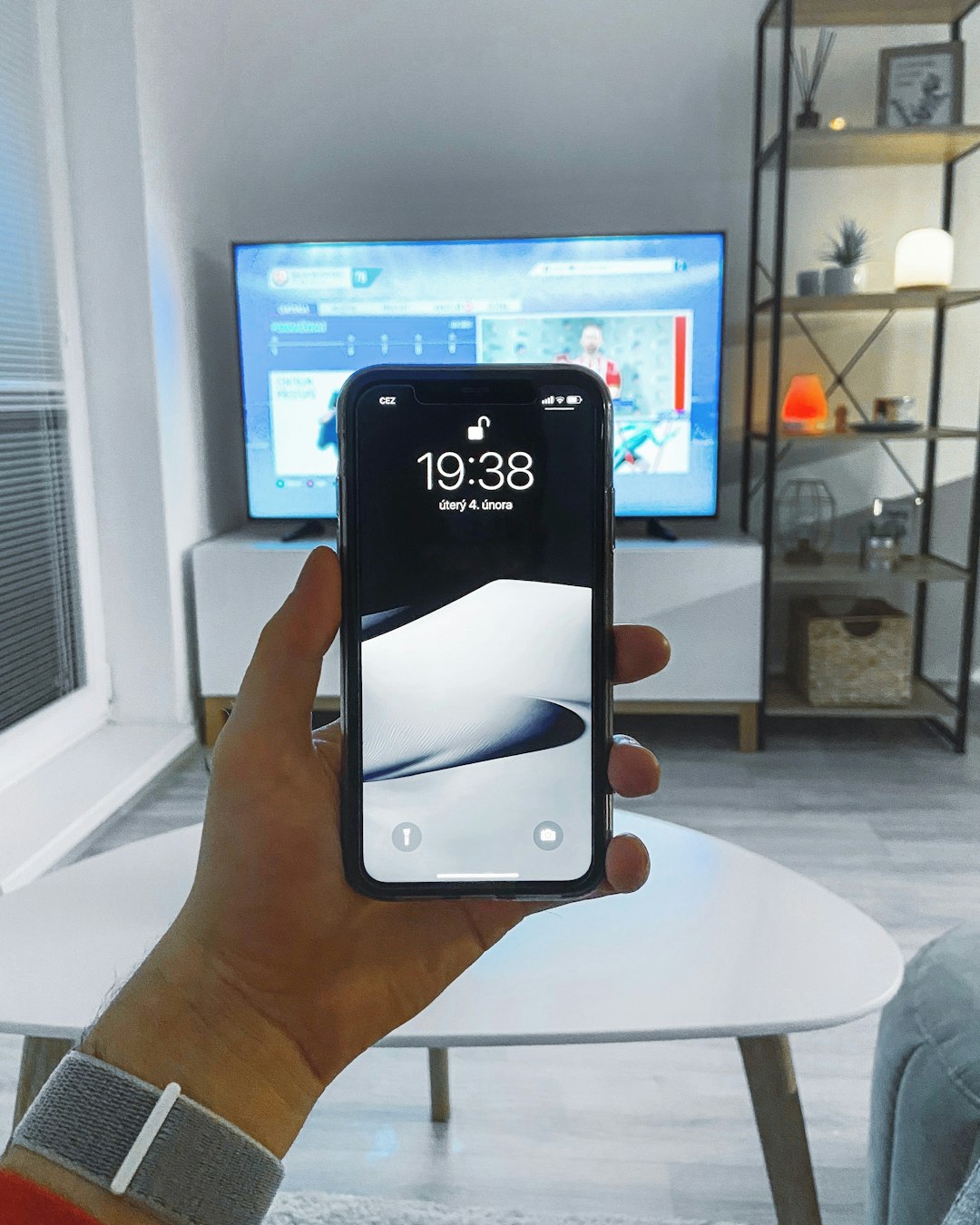
The key difference: copy the screen or send the content
The simplest way to separate the two is this:
- Screen Mirroring copies your iPhone screen.
- AirPlay sends selected content.
That difference affects privacy, quality, battery life, and control.
With Screen Mirroring, your iPhone is doing more work. It must keep the display active and transmit what is happening in real time. Battery drain is often noticeable. A 30 minute mirrored demo can take a visible chunk out of an older iPhone battery.
With AirPlay media playback, the receiving device may handle more of the stream. The phone can become a controller rather than the main display source. This can feel smoother, especially for long videos.
Quality and lag: where each one wins
For video, AirPlay usually wins. It is built for playback. Motion tends to look cleaner, audio sync is often better, and resolution can be higher depending on the app, network, and device.
For live app demos, Screen Mirroring wins. It shows taps and interface changes instantly enough for most rooms. There can still be lag. A half second delay is common on busy Wi Fi. Games can feel worse, especially fast ones. If timing matters, use a cable instead.
Photos are a toss up. If you want to casually swipe through your camera roll, mirroring feels natural. If you want crisp shots on a TV, AirPlay from the Photos app may look cleaner.
Privacy settings before you mirror
Before showing your iPhone on a shared screen, do a quick privacy check. It takes less than a minute and can save embarrassment.
- Turn on Focus or Do Not Disturb.
- Close private apps before connecting.
- Disable message previews in notifications if needed.
- Open the app you plan to show before the screen goes live.
- Check that no personal tabs are open in Safari.
Also remember that audio may transfer too. If your iPhone starts playing a voice message or an autoplay video, the room may hear it.
Device support and setup
Both features work best inside the Apple ecosystem. An Apple TV is the smoothest receiver. Many modern smart TVs also support AirPlay, including models from Samsung, LG, Sony, TCL, and Vizio. Macs can receive AirPlay too, depending on model and software version.
To start Screen Mirroring:
- Open Control Center.
- Tap Screen Mirroring.
- Choose your TV, Mac, or Apple TV.
- Enter the code shown on the screen, if asked.
To use AirPlay from an app:
- Open the video, song, or photo.
- Tap the AirPlay icon.
- Select the target device.
- Control playback from your iPhone.
Common problems and quick fixes
If your iPhone cannot find the TV, check that both devices are on the same Wi Fi network. Guest networks can block device discovery. Restarting Wi Fi on the iPhone can help. So can restarting the TV, annoying as that sounds.
If video stutters, move closer to the router or reduce other network traffic. Streaming 4K video while three laptops are on video calls can create trouble. If the sound is out of sync, stop AirPlay and reconnect. For stubborn apps, force close the app and try again.
If Screen Mirroring shows black video in a streaming app, that may be a content protection rule. Use the app’s built in AirPlay button instead. If that still fails, the provider may not allow wireless playback to that device.
Which one should you choose?
Choose Screen Mirroring when the process matters. App tutorials, live forms, settings, games, websites, and troubleshooting all fit well. You are showing the phone itself.
Choose AirPlay when the content matters. Movies, shows, songs, podcasts, albums, and polished videos are better through AirPlay. You are sending media, not your personal screen.
The rule is simple: if people need to see your taps, mirror; if they only need to watch or listen, AirPlay. That one choice makes the whole “mirrored iPhone” idea much less confusing.


Top 5 Navigation Apps Like Navionics for Boating and Marine Charts
The best Navionics alternative for most boaters is C-MAP, especially if you want polished marine charts, route planning, depth shading,…